

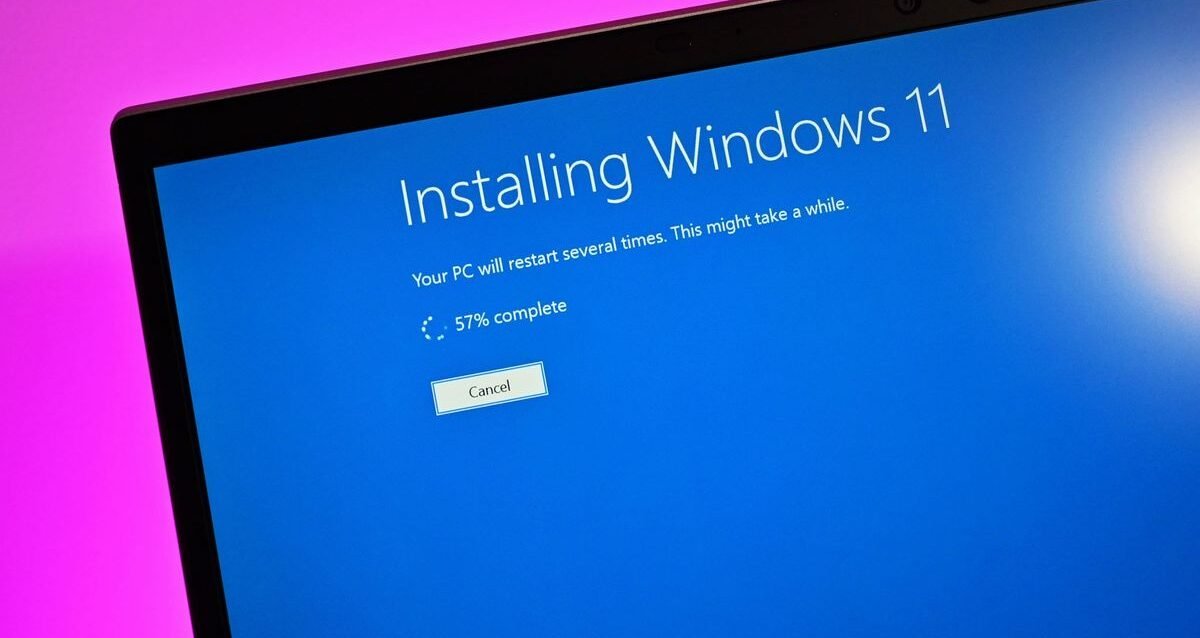
Windows Media Creation Tool
Microsoft’s Windows Media Creation Tool remains the most reliable method for creating installation media, upgrading your operating system, or performing clean installs in 2025. Whether you’re migrating to Windows 11, refreshing a Windows 10 installation, or building bootable USB drives for system recovery, understanding this official Microsoft utility can save hours of frustration and ensure successful Windows deployments.
Recent updates to the Media Creation Tool have resolved compatibility issues while adding support for the latest Windows 11 25H2 builds. With Windows 10 support ending October 14, 2025, millions of users are turning to this tool for seamless transitions to Windows 11 or fresh Windows 10 installations before the deadline.
What Is Windows Media Creation Tool?
The Windows Media Creation Tool is a user-friendly utility program designed for Microsoft Windows PCs that simplifies the process of updating your operating system, ensuring a seamless experience without interruptions or crashes. This official Microsoft application serves multiple critical functions for Windows users, IT professionals, and system administrators.
Primary Functions and Capabilities
The tool offers three main operational modes that address different user needs. First, it enables direct PC upgrades, allowing you to install the latest Windows version on your current machine without external media. Second, it creates bootable installation media using USB flash drives or DVDs, perfect for installing Windows on multiple computers or performing clean installations. Third, it downloads Windows ISO files for virtual machines, advanced installations, or archival purposes.
Unlike third-party solutions, the Media Creation Tool downloads directly from Microsoft’s official servers, guaranteeing authentic, unmodified Windows images. The Media Creation Tool downloads a clean baseline ISO from Microsoft’s servers, which can also patch corrupt or broken areas of Windows. This direct connection ensures you receive the most current security patches and feature updates integrated into the installation media.
Windows 10 vs Windows 11 Media Creation Tools
Microsoft maintains separate Media Creation Tools for Windows 10 and Windows 11, each optimized for their respective operating systems. The Windows 10 version supports both 32-bit and 64-bit architectures, offering flexibility for older hardware. In contrast, the Windows 11 tool exclusively creates 64-bit installation media, reflecting modern hardware requirements including TPM 2.0 and Secure Boot capabilities.
The tool now downloads Windows 11 25H2 Build 26200.6899, which is the October 2025 Update. This ensures users receive the most recent Windows version with fewer pending updates post-installation. The Windows 11 variant includes enhanced hardware compatibility checks, preventing installations on unsupported systems and reducing troubleshooting headaches.
Why Use Media Creation Tool Over Alternatives
Several compelling reasons make the Media Creation Tool superior to alternative installation methods. The tool’s integration with Windows Update infrastructure means it always retrieves the latest cumulative updates, reducing post-installation patch requirements. According to the Federal Trade Commission’s technology guidelines, using official manufacturer tools minimizes security risks associated with modified or compromised installation files.
The Media Creation Tool also provides flexibility unavailable through standard Windows Update channels. You can customize language, edition, and architecture selections, schedule installations on your timeline rather than Microsoft’s forced update schedule, and create portable installation media for offline deployments. This control proves invaluable for users with limited bandwidth, multiple computers requiring updates, or specific deployment scenarios.
System Requirements and Prerequisites
Before downloading and running the Media Creation Tool, ensuring your system meets minimum requirements prevents installation failures and compatibility issues.
Hardware Requirements for Windows 10 Media Creation
A USB flash drive with at least 8 GB of space is required, and it’s recommended to use a blank USB flash drive because any content on the drive is deleted. For systems creating Windows 10 media, you’ll need a processor running at 1GHz or faster, minimum 1GB RAM for 32-bit or 2GB for 64-bit systems, and 16GB available hard disk space for 32-bit or 20GB for 64-bit installations.
Display requirements include 800×600 minimum resolution, though 1024×768 or higher is recommended for optimal setup experience. Internet connectivity must support downloading 3 to 6GB of data, depending on the Windows edition selected. USB 3.0 flash drives significantly accelerate the media creation process compared to USB 2.0 alternatives.
Hardware Requirements for Windows 11 Media Creation
Windows 11 imposes stricter hardware requirements that users must verify before attempting installation. The processor must be 1GHz or faster with at least 2 cores on a compatible 64-bit processor or System on a Chip (SoC). RAM requirements increase to minimum 4GB, and storage needs 64GB or larger available space.
Critical security components include TPM version 2.0 (Trusted Platform Module) and UEFI firmware with Secure Boot capability. Graphics cards must support DirectX 12 or later with WDDM 2.0 driver, and displays require high definition (720p) resolution with 8-bit color per channel. These requirements, detailed on Microsoft’s official hardware specifications page, ensure optimal performance and security.
Software Prerequisites and Permissions
Administrative privileges on your Windows PC are mandatory for running the Media Creation Tool. The tool requires administrator access to modify system files, create bootable media, and download Windows installation files. If you’re operating under a standard user account, right-click the MediaCreationTool.exe file and select “Run as administrator.”
A stable internet connection throughout the download process prevents incomplete or corrupted installations. Microsoft recommends broadband connections for efficiency, though cellular tethering works if data caps accommodate multi-gigabyte downloads. Disable antivirus software temporarily if it interferes with Media Creation Tool operations, as security software sometimes flags legitimate system modifications as suspicious activity.
How to Download Windows 10 Media Creation Tool
Under Create Windows 10 Installation Media, select Download Now. The MediaCreationTool.exe tool is downloaded. Obtaining the official Windows 10 Media Creation Tool requires visiting Microsoft’s designated download page and following specific procedures.
Official Microsoft Download Process
Navigate to Microsoft’s Windows 10 download page by visiting https://www.microsoft.com/en-us/software-download/windows10 in your web browser. Scroll to the “Create Windows 10 installation media” section, clearly labeled with blue headers and descriptive text. Click the prominent “Download tool now” button to initiate the download.
Your browser will prompt you to save the MediaCreationTool.exe file, typically defaulting to your Downloads folder. The file size is approximately 19MB, requiring minimal time to download even on moderate internet connections. Save the file in an easily accessible location, as you’ll need to locate it shortly to begin the media creation process.
Verifying Download Authenticity
Security-conscious users should verify the downloaded file’s authenticity before execution. Right-click the MediaCreationTool.exe file, select Properties, and navigate to the Digital Signatures tab. Confirm Microsoft Corporation appears as the signer with a valid certificate. This verification, recommended by cybersecurity best practices from the Cybersecurity and Infrastructure Security Agency, ensures you’re running unmodified Microsoft software.
Check the file size against Microsoft’s published specifications. Significant deviations might indicate file corruption during download or potential security compromises. If verification fails, delete the file and re-download from Microsoft’s official website, avoiding third-party download mirrors that might distribute modified versions.
Windows 10 vs Windows 11 Download Differences
Windows 10 and Windows 11 Media Creation Tools are separate downloads hosted on different Microsoft pages. The Windows 10 tool remains available at the previously mentioned URL, while Windows 11 users must visit https://www.microsoft.com/en-us/software-download/windows11. Microsoft maintains these separate tools to address each operating system’s unique requirements and installation processes.
The download interface for Windows 11 includes additional hardware compatibility checking features not present in the Windows 10 variant. Windows 11’s tool proactively verifies TPM 2.0 and Secure Boot capabilities before proceeding, potentially saving users from downloading incompatible installation media.
Step-by-Step Guide: Using Windows Media Creation Tool
Run MediaCreationTool.exe. The media creation tool walks through creating installation media. Following the correct sequence ensures successful media creation and Windows installation.
Launching the Media Creation Tool
Locate the downloaded MediaCreationTool.exe file in your Downloads folder or wherever you saved it. Double-click the executable to launch the application. Windows User Account Control will prompt for administrative permission, displaying a dialog asking “Do you want to allow this app to make changes to your device?” Click “Yes” to proceed.
The tool initializes by connecting to Microsoft’s servers to retrieve the latest Windows version information. A splash screen displays the Microsoft logo while establishing this connection. If initialization fails, check your internet connection and firewall settings to ensure the application can communicate with Microsoft’s update servers.
Accepting License Terms
On this page, select Accept after reviewing Microsoft’s license terms. The first interactive screen presents Microsoft Software License Terms, detailing your rights and limitations when using Windows. While most users accept without reading, understanding these terms clarifies permitted uses, particularly for enterprise deployments.
The license agreement covers important topics including usage rights, scope of license, activation requirements, and data collection policies. Commercial users should pay special attention to licensing restrictions, as some editions prohibit specific business applications. Educational institutions must verify they’re downloading appropriate education editions if applicable.
Choosing Upgrade or Media Creation
The tool presents two primary options: “Upgrade this PC now” and “Create installation media (USB flash drive, DVD, or ISO file) for another PC.” Select the first option to directly upgrade your current computer to the latest Windows version, retaining existing files and programs. This in-place upgrade approach suits users wanting to update their current system without reinstalling applications.
Choose the second option to create portable installation media for different computers, clean installations on your current PC, or archival purposes. This flexibility allows preparing multiple USB drives for IT departments managing numerous computers, creating rescue media for system recovery, or building installation sources for offline environments.
Selecting Language, Edition, and Architecture
After choosing media creation, configure your Windows installation parameters. By default, the tool selects recommended options matching your current PC’s configuration. Choose whether you would like 32-bit or 64-bit operating systems, and the program lets you make manual selections or provides recommended options tailored to your PC.
Uncheck “Use the recommended options for this PC” to customize selections. The Language dropdown offers dozens of locales, ensuring proper keyboard layouts and interface translations. Edition selection varies based on your product key, with options including Home, Pro, Education, or multiple editions combined. Architecture choice determines whether you create 32-bit, 64-bit, or both architectures on the same media (Windows 10 only, as Windows 11 is exclusively 64-bit).
Choosing USB Flash Drive or ISO File
Choose which media to use, the USB flash drive or ISO file. The tool offers two media creation methods, each serving distinct purposes. Selecting “USB flash drive” creates a directly bootable USB stick, immediately ready for installation without additional steps. This approach suits most users seeking straightforward installation media.
The “ISO file” option downloads a disk image to your computer, providing greater flexibility. ISO files enable creating multiple USB drives using tools like Rufus or Ventoy, burning to DVD media using Windows Disc Image Burner, or mounting directly in virtual machine software like VMware or Hyper-V. IT professionals often prefer ISO files for centralized storage and repeated deployments.
Creating Bootable USB Drive
Insert a USB drive with at least 8GB of storage into your computer and select the USB flash drive option. After selecting USB flash drive, the tool scans connected removable media and displays available drives in a dropdown menu. Carefully verify you’re selecting the correct drive, as the Media Creation Tool will erase all existing data during formatting.
Click Next to begin the download and USB creation process. The tool downloads Windows installation files directly to your USB drive while simultaneously creating the bootable structure. Progress indicators show download percentage, estimated time remaining, and current operation. The Media Creation Tool will download Windows 11 onto the USB drive you’ve indicated and creates installation media, too.
Download duration varies based on internet speed, typically ranging from 30 minutes to several hours. USB 3.0 drives significantly outperform USB 2.0 during the writing phase. Once complete, the tool displays a “Your USB flash drive is ready” message, at which point you can safely remove the drive and use it for installations.
Downloading ISO Files
Selecting ISO file prompts you to choose a save location on your computer. Navigate to a folder with sufficient free space (minimum 5GB, though 10GB provides comfortable margin). Assign a descriptive filename including version information, such as “Windows11_25H2_x64.iso” for easy identification when managing multiple Windows versions.
The download proceeds similarly to USB creation, with the tool retrieving Windows installation files from Microsoft servers. When the file is fully downloaded, the program will ask you if you’d like to burn the ISO file to a DVD. You can immediately burn to DVD if you have blank media available, or defer this step to burn later using Windows built-in disc burning tools or third-party applications.
Installing Windows Using Media Creation Tool
After creating installation media, you can proceed with Windows installation on target computers. The process varies slightly depending on whether you’re performing an in-place upgrade or clean installation.
Upgrading Your Current PC
Open up the Media Creation Tool on your PC, select the option to ‘Upgrade this PC now’ and click ‘Next’. The Media Creation Tool will now begin downloading Windows 10 to your PC. In-place upgrades preserve your existing files, applications, and settings while updating the Windows version. This approach minimizes disruption and eliminates post-installation reconfiguration.
The upgrade process downloads Windows directly through the Media Creation Tool, bypassing Windows Update’s sometimes slower delivery mechanisms. During download, you can continue using your computer for basic tasks, though performance may degrade slightly. Once download completes, the tool performs compatibility checks, verifying your hardware meets Windows requirements and identifying potential driver conflicts.
Choosing What to Keep During Upgrade
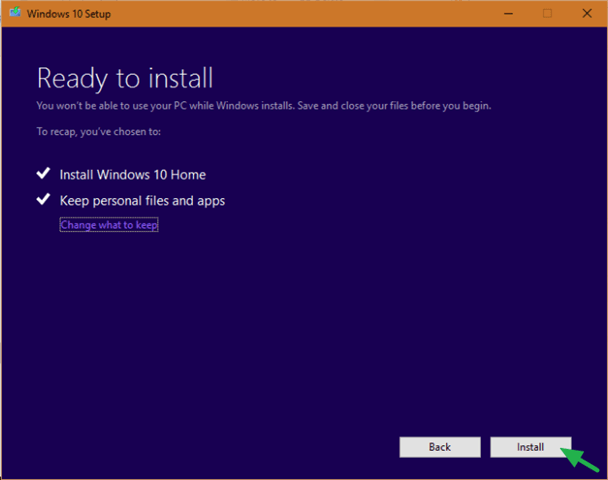
Choose whether you would like to Keep personal files and apps, Keep personal files only, or keep Nothing during the upgrade. The Media Creation Tool presents three preservation options before finalizing upgrades. “Keep personal files and apps” maintains your complete environment, ideal for straightforward version updates where application compatibility isn’t concerning.
“Keep personal files only” removes installed applications while preserving documents, photos, and user data. This option suits scenarios where you want a cleaner Windows installation while safeguarding important files. The Windows.old folder creation allows reverting if needed. “Keep nothing” performs a complete clean installation, erasing everything. Always back up critical data before selecting this option, despite the tool’s safety measures.
Booting from USB Installation Media
Insert the bootable USB drive into the computer where you want to install Windows, restart the computer and enter the BIOS or UEFI settings. For clean installations or installations on different computers, you’ll need to configure the target PC to boot from your USB drive. Insert the USB media before powering on or immediately upon restart.
Access BIOS/UEFI firmware settings by pressing designated keys during startup, typically F2, F10, F12, DEL, or ESC, depending on your computer’s manufacturer. Consult your motherboard or computer documentation for specific key combinations. Modern systems often display the appropriate key during initial boot screen.
Configuring BIOS Boot Order
Within BIOS/UEFI settings, navigate to the Boot section, variously labeled as “Boot Order,” “Boot Priority,” or “Startup Sequence.” Locate your USB drive in the available boot devices list, typically showing as “USB-HDD,” “Removable Devices,” or the drive’s specific model name like “SanDisk Cruzer.”
Use arrow keys or mouse to reorder boot devices, moving the USB drive to the top position. Some BIOS interfaces require pressing specific keys (usually +/- or F5/F6) to adjust order. Save changes and exit BIOS, typically by pressing F10 or selecting “Save Changes and Exit” option. The computer restarts and boots from the USB drive, loading Windows Setup.
Windows Setup Installation Process
When the Windows installation screen appears, select your language, time and currency format, and keyboard or input method. The Windows Setup screen displays Microsoft branding and prompts for regional preferences. Select appropriate options for your location, ensuring correct keyboard layout selection to avoid input problems during setup.
Click “Install now” to proceed to product key entry. If you have a Windows product key, enter it. If not, click “I don’t have a product key” to proceed. Windows allows installation without immediate activation, providing a grace period to locate your product key or purchase a license. Digital licenses linked to Microsoft accounts automatically activate upon internet connection.
Partition Selection and Disk Management
Choose installation type between “Upgrade” (maintaining existing files) and “Custom: Install Windows only (advanced)” for clean installations. Custom installations display your computer’s disk partitions, allowing selection of installation destination. For new hard drives or SSDs, click “New” to create partitions, accepting default sizes for typical single-OS installations.
Delete existing partitions if performing clean installations on drives with previous Windows installations. Be extremely careful with deletion, as this action is irreversible and destroys all data on selected partitions. After configuring partitions, select the desired installation location and click Next. Windows Setup copies files, installs features, and configures settings, restarting several times during the process.
Post-Installation Setup and Configuration
After the installation is complete, you will be prompted to set up your preferences and create a user account. The Out-of-Box Experience (OOBE) guides you through initial configuration including region selection, network connection, Microsoft account sign-in, and privacy settings. Windows 11’s OOBE requires internet connectivity for consumer editions, while Windows 10 offers more offline flexibility.
Configure privacy settings carefully, as defaults tend toward maximum data sharing. Review each privacy option, toggling off unnecessary diagnostics and personalized advertising if desired. Create a strong password and security questions for local accounts, or sign in with Microsoft account for cloud synchronization capabilities. Complete remaining setup steps including OneDrive configuration and PIN creation for convenient login.
Troubleshooting Common Media Creation Tool Issues
Affected users would see the media creation tool close unexpectedly, with no error message, while on Windows 11 25H2 devices, it would display the “We’re not sure what happened, but we’re unable to run this tool on your PC” error message. Various issues can interrupt Media Creation Tool operations, but most have straightforward solutions.
Media Creation Tool Won’t Run or Crashes
Microsoft accidentally broke the Media Creation Tool on Windows 10, which blocked the Windows 11 upgrade path. The issue was resolved in KB5067036, and the Windows 11 Media Creation Tool was updated on October 28, 2025. If the tool crashes immediately upon launch, first ensure you’re running the latest version by re-downloading from Microsoft’s official website.
Windows 10 users experiencing crashes with Windows 11 Media Creation Tool should verify they’ve installed recent Windows updates, particularly KB5067036 which resolved compatibility issues. Temporarily disable antivirus software, as overly aggressive security programs sometimes block legitimate Microsoft utilities. Run the tool as administrator by right-clicking the executable and selecting “Run as administrator.”
Download Stuck or Taking Too Long
Media Creation Tool downloads typically complete within 30 minutes to 2 hours depending on internet speeds. If downloads appear stuck at specific percentages for extended periods, check your internet connection stability. Bandwidth-intensive applications like streaming services or large downloads can slow Media Creation Tool operations significantly.
Close unnecessary programs consuming bandwidth, temporarily pause other downloads, and ensure no Windows Updates are downloading simultaneously. If download progress remains stalled after 30 minutes at the same percentage, cancel and restart the process. Microsoft’s servers occasionally experience high demand, particularly following major Windows updates. Trying during off-peak hours might improve download speeds.
USB Drive Not Recognized or Formatting Errors
The Media Creation Tool requires exclusive access to USB drives during creation. Close any programs accessing the USB drive, including file explorers displaying drive contents or security software scanning the drive. Safely eject and reinsert the USB drive, allowing Windows to properly recognize the device before restarting Media Creation Tool.
If the tool reports insufficient space despite using 8GB or larger drives, existing partitions might limit available space. Use Windows Disk Management (diskmgmt.msc) to delete all partitions on the USB drive, creating a single unallocated space. The Media Creation Tool will then properly recognize available capacity and proceed with creation.
Product Key Errors and Activation Issues
Product key rejection during installation typically stems from mismatched editions, previously used keys, or typos. Verify you’re installing the Windows edition matching your product key (Home, Pro, Education, etc.). Keys for Windows 10 Home won’t activate Windows 10 Pro installations, requiring edition alignment.
If you’re reinstalling Windows on a computer with digital license, skip product key entry during installation. Windows automatically activates upon internet connection by matching hardware signatures with Microsoft’s activation servers. For computers with license keys embedded in UEFI firmware (common in OEM systems), Windows retrieves keys automatically without manual entry.
Installation Fails with Error Codes
Windows installation failures generate specific error codes identifying problems. Error 0x80070002 suggests corrupted installation files, resolved by recreating installation media. Error 0xC1900101 indicates driver conflicts, requiring updating or temporarily removing problematic devices before installation.
Error 0x8007025D points to faulty installation media or hardware issues. Try different USB drives or test system RAM using Windows Memory Diagnostic tool. For persistent failures, consult Microsoft’s official Windows error code database for specific troubleshooting guidance tailored to encountered errors.
Advanced Media Creation Tool Techniques
Power users and IT professionals can leverage advanced Media Creation Tool capabilities for specialized scenarios and optimized workflows.
Creating Multi-Edition Installation Media
Windows 10 Media Creation Tool can create USB drives containing multiple editions (Home, Pro, Education) on single media. During architecture selection, choosing “Both” for 32-bit and 64-bit creates comprehensive installation media supporting various hardware configurations. This approach proves valuable for IT departments supporting diverse computer fleets.
The tool automatically includes edition selection during installation, allowing choice at setup time rather than creating separate media for each edition. This flexibility reduces storage requirements and simplifies media management when supporting multiple users or departments with different Windows edition needs.
Using ISO Files for Virtual Machines
ISO files created by Media Creation Tool work perfectly in virtualization platforms including VMware Workstation, VMware ESXi, Microsoft Hyper-V, Oracle VirtualBox, and KVM. Mount the ISO file directly in virtual machine CD/DVD settings, eliminating physical media requirements. This approach accelerates virtual machine deployment and simplifies testing scenarios.
Virtual machine installations from ISO files often complete faster than physical hardware installations due to reduced I/O overhead. However, ensure your virtual machine configuration meets Windows requirements, particularly TPM 2.0 emulation for Windows 11. Most modern hypervisors include virtual TPM functionality enabling Windows 11 deployment in virtual environments.
Creating Installation Media on Mac Computers
The tool isn’t compatible with macOS. You can download the ISO directly and use apps like Boot Camp or Terminal-based tools to create a bootable drive. Mac users cannot run Media Creation Tool natively but can download ISO files directly from Microsoft’s website and create bootable USB drives using alternative methods.
Download Windows ISO from Microsoft’s website using Safari or Chrome on macOS. Use Boot Camp Assistant (for Intel Macs) to create Windows installation media, or employ command-line tools like dd for creating bootable USB drives from ISO files. Third-party applications like Etcher or UNetbootin also facilitate bootable USB creation on macOS, though Boot Camp Assistant provides the most seamless integration.
Automating Media Creation with Scripts
Advanced users can automate Media Creation Tool operations using PowerShell scripts and command-line parameters. While Microsoft doesn’t officially document command-line switches, community research has identified parameters enabling unattended media creation. Create scripts accepting edition, language, and architecture parameters, automating bulk media creation for enterprise deployments.
Combine Media Creation Tool automation with deployment frameworks like Microsoft Deployment Toolkit (MDT) or System Center Configuration Manager (SCCM) for enterprise-scale Windows deployments. These integrations streamline creating reference images, updating deployment shares, and maintaining current Windows installation media across organizational infrastructure.
Windows 11 Specific Considerations
Windows 11 Media Creation Tool includes unique features and requirements differentiating it from the Windows 10 variant, reflecting Windows 11’s enhanced security and performance focus.
TPM 2.0 and Secure Boot Requirements
Windows 11 mandates Trusted Platform Module (TPM) version 2.0 for installation, enforcing hardware-based security features. The Media Creation Tool checks for TPM presence during upgrades, blocking installations on non-compliant systems. Verify TPM availability by running tpm.msc command in Windows Run dialog (Windows + R), confirming “Ready for use” status and version 2.0 or higher.
Secure Boot, another Windows 11 requirement, ensures only trusted operating system components load during startup. Access BIOS/UEFI settings to enable Secure Boot, typically found in Security or Boot sections. Some older motherboards lack Secure Boot support, preventing Windows 11 installation through standard methods. Microsoft provides unofficial workarounds, though these aren’t recommended for security-conscious users.
Bypassing Windows 11 Hardware Checks
While Microsoft strongly recommends meeting all Windows 11 requirements, users with slightly incompatible hardware can employ registry modifications bypassing certain checks. These workarounds circumvent TPM, Secure Boot, and CPU generation requirements, though Microsoft warns this may result in lack of updates or support in the future.
Create registry keys BypassTPMCheck, BypassSecureBootCheck, and BypassRAMCheck (all DWORD values set to 1) under HKEY_LOCAL_MACHINE\SYSTEM\Setup\MoSetup before running Windows 11 setup. This approach enables installations on older but still capable hardware. However, understand potential risks including lack of security updates and possible feature limitations.
Windows 11 25H2 Update Details
Media Creation Tool was updated to version 10.0.26100.7019, and it finally works on Windows 10. You can download it from Microsoft’s website. The Windows 11 2025 Update (version 25H2) represents the latest feature update, incorporating security improvements, performance optimizations, and new capabilities. Media Creation Tool automatically downloads this version, ensuring fresh installations receive current features.
Build 26200.6899 includes October 2025 cumulative updates, minimizing post-installation patching requirements. New features in 25H2 include enhanced AI capabilities, improved accessibility options, and Start menu refinements. Understanding version numbers helps verify you’re installing current Windows builds when troubleshooting or validating deployments.
How to Use Windows 11 Media Creation Tool
The Windows 11 Media Creation Tool operates similarly to its Windows 10 counterpart with minor interface differences and enhanced compatibility checking.
Downloading Windows 11 Media Creation Tool
Before using the Media Creation Tool, make sure your PC meets these 2025 system requirements: Processor: 1GHz or faster with 2+ cores on a compatible 64-bit CPU. Visit https://www.microsoft.com/en-us/software-download/windows11 to access the official Windows 11 download page. Scroll to “Create Windows 11 Installation Media” section and click “Download Now” button.
The Windows 11 tool is slightly larger than Windows 10’s version due to additional compatibility checking features. Save MediaCreationToolW11.exe to your Downloads folder or preferred location. Verify digital signature as previously described, confirming Microsoft Corporation as the publisher before executing.
Windows 11 Installation Media Creation Process
Launch the downloaded tool with administrator privileges, accepting license terms when prompted. The interface mirrors Windows 10’s Media Creation Tool with streamlined options reflecting Windows 11’s 64-bit-only nature. Select language and edition, noting Windows 11 eliminates 32-bit options entirely.
Choose between USB flash drive and ISO file creation based on your needs. USB creation proceeds identically to Windows 10, downloading and writing Windows 11 installation files to your selected drive. ISO file creation enables flexibility for virtual machines, multiple installations, or archival purposes.
Installing Windows 11 from Created Media
Boot from Windows 11 installation media following the same BIOS/UEFI configuration procedures described for Windows 10. Windows 11 Setup presents a refined interface with updated graphics and streamlined options. Proceed through language selection, product key entry, and edition selection as with Windows 10 installations.
Partition selection operates identically, though Windows 11 installation requires UEFI boot mode and GPT partitioning scheme. Legacy BIOS and MBR partition tables aren’t supported. If installing on older systems, convert MBR to GPT using Windows Disk Management or command-line tools before proceeding with installation.
Windows Media Creation Tool vs Alternative Methods
Understanding various Windows installation methods helps select optimal approaches for specific scenarios, balancing convenience, control, and efficiency.
Direct ISO Downloads from Microsoft
Microsoft offers direct ISO downloads from their Windows download pages, bypassing Media Creation Tool entirely. This method suits users comfortable with creating bootable media using third-party tools like Rufus, Ventoy, or Etcher. Direct ISOs provide identical files to Media Creation Tool creations but offer more flexibility in USB creation tools.
Advanced users prefer direct ISO downloads for greater control over bootable media creation parameters. Rufus, for example, offers options for GPT/MBR partition schemes, UEFI/BIOS boot compatibility, and cluster sizes optimizing specific use cases. However, Media Creation Tool’s simplicity makes it preferable for average users unfamiliar with bootable media intricacies.
Windows Update vs Media Creation Tool
Windows Update delivers operating system upgrades through automated downloads and installations, requiring minimal user intervention. This convenience comes at the cost of control, as Windows Update schedules installations according to Microsoft’s rollout strategy rather than user preferences. Some users experience delays receiving major updates through Windows Update.
Media Creation Tool provides immediate access to latest Windows versions without waiting for Windows Update rollout completion. Users upgrade on their schedule, create installation media for offline scenarios, or perform clean installations for optimal performance. For computers experiencing Windows Update issues, Media Creation Tool offers reliable alternative upgrade paths.
Rufus and Other Third-Party Tools
Rufus stands as the most popular third-party tool for creating Windows bootable USB drives, offering advanced features beyond Media Creation Tool’s capabilities. Rufus enables creating Windows To Go portable installations, customizing partition schemes for specific boot requirements, and implementing various USB creation optimizations.
However, Rufus requires separately downloading Windows ISO files, adding an extra step compared to Media Creation Tool’s integrated download and creation process. For users seeking simplicity and official Microsoft support, Media Creation Tool remains preferable despite Rufus’s advanced features.
Best Practices for Using Media Creation Tool
Implementing best practices ensures smooth Media Creation Tool operations and successful Windows installations while avoiding common pitfalls.
Choosing the Right USB Drive
Invest in quality USB flash drives from reputable manufacturers like SanDisk, Samsung, Kingston, or Corsair. Cheap drives often suffer reliability issues, failing during media creation or installation processes. A blank USB flash drive with at least 8 GB of space is required, it’s recommended to use a blank USB flash drive because any content on the drive is deleted.
USB 3.0 or newer drives significantly outperform USB 2.0 during both media creation and Windows installation. The faster read/write speeds reduce overall installation time from hours to minutes in some cases. While 8GB minimum suffices, 16GB or 32GB drives provide comfortable margins and enable storing additional drivers or utilities alongside Windows installation files.
Backing Up Data Before Clean Installations
Important: Back up your files before you install or reinstall Windows on your PC. Despite Media Creation Tool’s safety measures and upgrade options preserving data, unexpected issues can corrupt or erase information. Create comprehensive backups to external drives, network storage, or cloud services before proceeding with installations.
Back up not just documents and media, but also application settings, browser bookmarks, email archives, and license keys for software requiring reactivation. Windows includes built-in backup utilities, though third-party solutions like Macrium Reflect or Acronis True Image offer more comprehensive features for system image backups enabling complete restoration if installations fail catastrophically.
Keeping Installation Media Current
Windows receives monthly cumulative updates and semi-annual feature updates, gradually dating installation media. Recreate installation USB drives or download fresh ISOs every 3 to 6 months, ensuring media contains recent security patches and feature improvements. This practice minimizes post-installation update requirements and reduces exposure to known vulnerabilities.
Label physical USB drives with creation dates and Windows versions, preventing confusion when managing multiple installation media. Digital labeling through volume names (right-click drive in File Explorer, select “Rename”) helps identify media contents without needing to inspect files directly.
Verifying Successful Installation Media Creation
After Media Creation Tool completes, verify bootable media integrity before attempting installations. Connect the USB drive and explore contents in File Explorer, confirming presence of folders like “sources,” “boot,” and “efi” along with files like setup.exe and bootmgr. Missing these components indicates failed creation requiring repetition.
Test bootability by inserting the USB drive into a test computer or the target installation system, restarting and accessing boot menu (typically F12, F11, or ESC during startup). Successfully booting to Windows Setup screen confirms media viability. This verification step prevents wasted time discovering media problems during critical installations.
Frequently Asked Questions About Windows Media Creation Tool
Can I use the same Media Creation Tool for Windows 10 and Windows 11?
No, Microsoft maintains separate Media Creation Tools for Windows 10 and Windows 11. Each tool downloads its respective operating system version from Microsoft servers. Download the appropriate tool from Microsoft’s Windows 10 or Windows 11 download pages depending on your needs.
How long does it take to download Windows using Media Creation Tool?
Download duration varies based on internet connection speed and Microsoft server load. With broadband connections (25 Mbps or faster), expect 30 minutes to 1 hour. Slower connections may require 2 to 4 hours. The tool downloads 3 to 6GB depending on Windows edition and language selected.
Can I create Windows installation media on a Mac computer?
The Media Creation Tool executable (.exe) only runs on Windows systems. Mac users must download Windows ISO files directly from Microsoft’s website and use macOS tools like Boot Camp Assistant or third-party applications such as Etcher to create bootable USB drives from ISO files.
Will using Media Creation Tool erase my current files?
It depends on which option you choose. Selecting “Upgrade this PC now” preserves files, applications, and settings while updating Windows. Choosing “Create installation media” affects only the USB drive being used, erasing its contents. Clean installations performed later using created media will erase target computer data unless you select upgrade options during installation.
Do I need a product key to use the Media Creation Tool?
No product key is required to download Windows or create installation media. The Media Creation Tool freely downloads and creates bootable media. However, you’ll need a valid product key to activate Windows after installation. You can install Windows without a key and activate later, though some features remain limited until activation.
Can I use one USB drive for both Windows 10 and Windows 11?
No, standard USB creation methods using Media Creation Tool create single-version media. However, advanced users can manually create multi-boot USB drives using tools like Ventoy or YUMI (Your Universal Multiboot Installer), placing both Windows 10 and Windows 11 ISO files on the same drive and selecting which to boot at startup.
What happens if Media Creation Tool download is interrupted?
If downloads interrupt due to network issues or computer shutdowns, restart the Media Creation Tool and begin again. The tool doesn’t resume partial downloads, requiring complete restart from the beginning. Ensure stable internet connectivity and sufficient time before initiating downloads to avoid interruptions.
Can I create Windows installation media for different language versions?
Yes, the Media Creation Tool allows selecting any available language during setup. Choose your preferred language from the dropdown menu when configuring media creation options. This flexibility enables creating installation media for users in different regions or multinational organizations requiring multiple language deployments.
Conclusion: Mastering Windows Media Creation Tool
The Windows Media Creation Tool remains Microsoft’s premier solution for creating installation media, upgrading operating systems, and performing clean Windows installations in 2025. Its user-friendly interface, direct integration with Microsoft’s distribution servers, and flexibility accommodating various deployment scenarios make it indispensable for both home users and IT professionals.
Understanding proper download procedures, system requirements, step-by-step usage instructions, and troubleshooting techniques empowers you to confidently manage Windows installations. Whether you’re upgrading aging Windows 10 systems before support ends, deploying Windows 11 across organizational infrastructure, or simply performing routine system maintenance, mastery of Media Creation Tool operations ensures successful outcomes.
The recent resolution of Windows 10 compatibility issues and updates delivering Windows 11 25H2 builds demonstrate Microsoft’s continued commitment to maintaining and improving this essential utility. As Windows evolves and hardware requirements advance, the Media Creation Tool adapts, providing consistent and reliable installation media creation capabilities.
Remember to always download Media Creation Tool from official Microsoft sources, verify system compatibility before beginning installations, back up important data before clean installations, and keep installation media current by recreating periodically. These best practices, combined with knowledge gained from this comprehensive guide, position you for Windows installation success regardless of scenario complexity.