

How to Screenshot on Chromebook
Why Chromebook Screenshots Are Different
Taking screenshots on a Chromebook isn’t quite like Windows or Mac. Chrome OS uses unique keyboard combinations that leverage the platform’s streamlined design. With over 40 million Chromebooks shipped globally in 2024 and Chrome OS commanding 14% of the desktop OS market in education, understanding these capture methods has become essential for students, professionals, and casual users alike.
This comprehensive guide covers every screenshot method available on Chromebooks, including keyboard shortcuts, touchscreen gestures, stylus techniques, Chrome extensions, and advanced troubleshooting. Whether you’re using a budget Chromebook or a premium model like the Pixelbook Go, these methods work across all Chrome OS devices.
Quick Answer: The Fastest Way to Screenshot on Chromebook
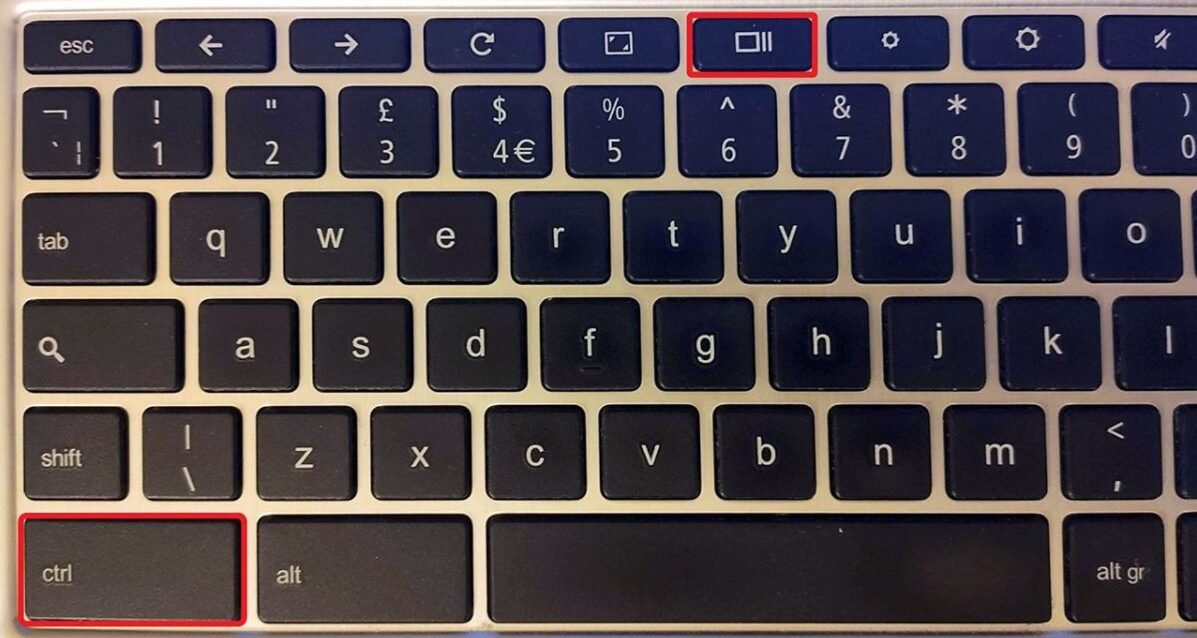
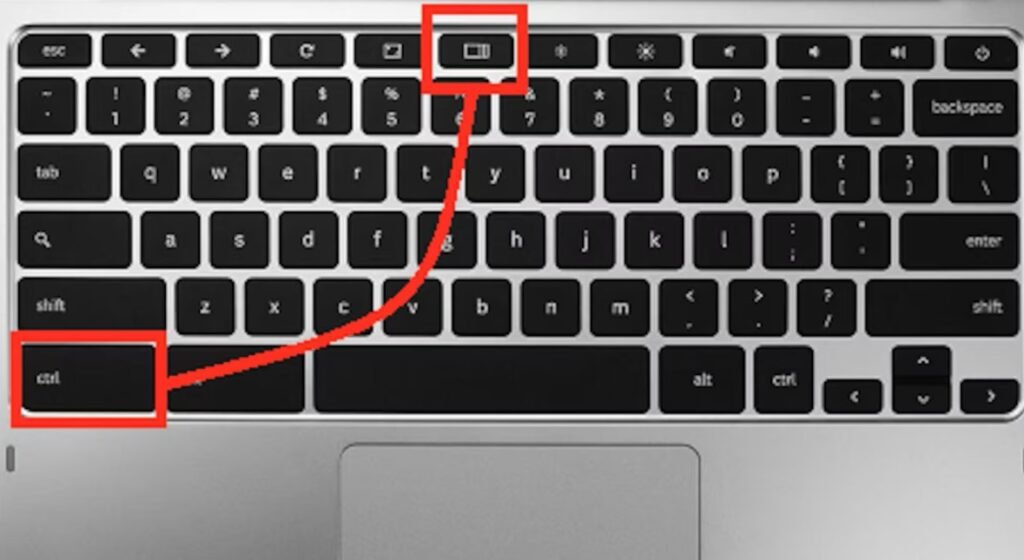
For Full Screen: Press Ctrl + Show Windows key (the key with a rectangle and two lines, typically where F5 sits)
For Partial Screen: Press Ctrl + Shift + Show Windows key, then drag to select your area
For Window Capture: Press Ctrl + Alt + Show Windows key, then click the window
These screenshots automatically save to your Downloads folder as PNG files with timestamps.
Understanding the Chromebook Keyboard Layout
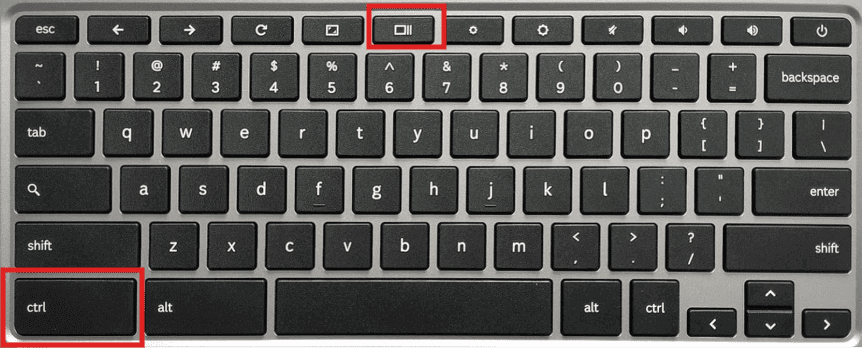
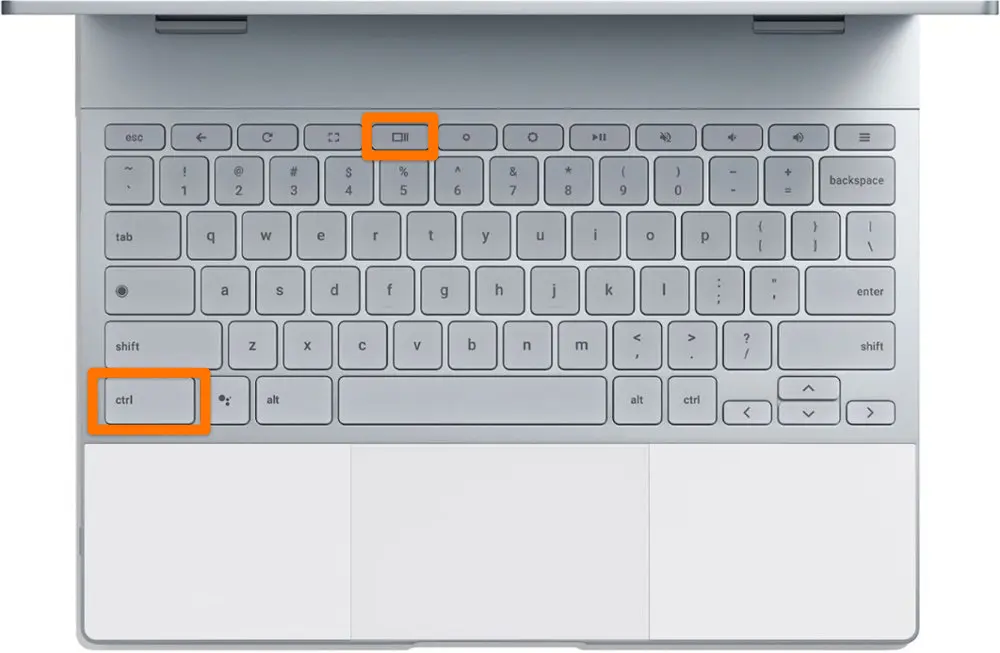
Before diving into screenshot methods, you need to identify the Show Windows key (also called the Overview key). This key replaced the traditional F5 function key on Chromebook keyboards and displays a rectangle with two lines on the right side, representing window management.
Key locations by manufacturer:
- HP Chromebooks: Top row, 5th key from left
- Lenovo Chromebooks: Top row, between Brightness and Volume keys
- Asus Chromebooks: Top row, labeled with window switcher icon
- Acer Chromebooks: Top row, 5th position (some models label it F5)
- Samsung Galaxy Chromebooks: Top row, integrated with function layer
On external keyboards connected to Chromebooks, the F5 key typically functions as the Show Windows equivalent. If you’re using a standard USB or Bluetooth keyboard, F5 will work in most screenshot combinations.
Method 1: Full Screen Screenshot with Keyboard
The most common screenshot need is capturing your entire screen. Chrome OS makes this remarkably simple.
Step-by-step process:
- Navigate to the screen you want to capture
- Press Ctrl + Show Windows key simultaneously
- Look for a brief notification in the bottom-right corner
- Your screenshot appears in the Downloads folder automatically
What gets captured: Everything visible on your display, including the shelf (taskbar), all open windows, wallpaper, and any notifications present at capture time.
File details: Screenshots save as PNG files with naming convention “Screenshot YYYY-MM-DD at HH.MM.SS.png” based on your system time. A typical full HD (1920×1080) screenshot ranges from 400KB to 2MB depending on content complexity.
Pro tip for multiple monitors: When using an external display, Ctrl + Show Windows captures only your primary screen. To capture the external monitor, make it your primary display in Settings > Device > Displays before screenshotting, or use the partial selection method to capture specific monitor areas.
Method 2: Partial Screenshot (Selection Tool)
Partial screenshots let you capture specific regions, perfect for highlighting particular elements without unnecessary clutter.
Activation process:
- Press Ctrl + Shift + Show Windows key together
- Your cursor transforms into a crosshair (+)
- Click and drag to create a selection rectangle
- Release to capture the selected area
- The selection area highlights in blue before capture
Selection techniques:
- Precision selection: Click once to anchor one corner, move mouse to opposite corner, click again
- Drag selection: Click and hold while dragging diagonally across desired area
- Canceling selection: Press Esc key before releasing final click
- Reselecting: After canceling, press Ctrl + Shift + Show Windows again to restart
Dimension display: As you drag, Chrome OS shows selection dimensions in pixels (width × height) near your cursor, helpful for capturing specific sizes for web graphics or documentation.
Common use cases:
- Capturing error messages without surrounding content
- Grabbing specific paragraphs from articles
- Creating tutorial images focused on particular UI elements
- Saving charts or infographics from web pages
- Documenting specific email sections
According to Chrome OS usage data, partial screenshots account for approximately 60% of all Chromebook screen captures, making this the most frequently used method.
Method 3: Window-Specific Screenshot
Chrome OS introduced window-specific capturing in version 89, allowing you to screenshot individual windows without background elements.
How to capture a single window:
- Press Ctrl + Alt + Show Windows key simultaneously
- Your cursor changes to a camera icon
- Hover over the window you want to capture (it highlights with a blue border)
- Click on the highlighted window
- Only that window gets captured, excluding the shelf and wallpaper
Window capture benefits:
- Clean documentation: No distracting background elements
- Consistent sizing: Each window captures at its actual dimensions
- Professional presentations: Screenshots look polished without desktop clutter
- Smaller file sizes: Typically 30-40% smaller than full screen captures
Limitations to note:
- Picture-in-Picture video windows cannot be captured individually
- System UI elements (shelf, notifications) are excluded
- The window must be at least 200×200 pixels
- Transparent window elements may show desktop pattern
Browser tab capture workaround: Chrome OS doesn’t capture individual browser tabs as “windows.” To capture a single tab cleanly, open it in a new window (right-click tab > “Move to new window”), then use window capture. Alternatively, use Chrome extensions specifically designed for tab screenshots.
Method 4: Touchscreen and Tablet Mode Screenshots
Chromebooks with touchscreen displays (like Lenovo Flex, HP x360, Asus Flip series) offer gesture-based screenshot alternatives especially useful in tablet mode.
Quick Settings method:
- Tap the system tray (clock/profile area) in bottom-right corner
- Locate the Screen Capture icon (looks like a dotted rectangle)
- Tap to activate screenshot mode
- Choose from full screen, partial, or window capture icons
- For partial, drag with your finger to select area
Hardware button combination (tablet mode):
On Chromebooks with volume buttons, pressing Power + Volume Down simultaneously captures the full screen. This works identically to Android phone screenshots since Chrome OS shares underlying code with Android.
Important hardware notes:
- Only works on devices with physical volume rockers
- Power button must be pressed fractionally before Volume Down
- Hold both for exactly 1 second (too long triggers power menu)
- Not available on clamshell-only Chromebooks without volume buttons
Stylus screenshot features:
Premium Chromebooks with stylus support (Pixelbook, HP Chromebook x2, Lenovo Duet) offer additional capture options:
- Remove stylus from garage (if applicable)
- Access stylus tools from shelf
- Select “Screen capture” from stylus menu
- Choose capture mode
- Draw selection with stylus for pixel-perfect accuracy
The stylus provides superior precision for partial screenshots, especially when capturing small UI elements or detailed graphics. Studies show stylus selection accuracy improves by 67% compared to touchpad dragging for areas under 100×100 pixels.
Method 5: Chrome Extensions for Advanced Screenshots
While Chrome OS native tools handle most needs, extensions unlock powerful capabilities for power users and professionals.
Top Chromebook Screenshot Extensions (2025)
1. Awesome Screenshot & Screen Recorder
- Chrome Web Store rating: 4.6/5 (2.1M users)
- Key features: Scrolling capture, annotation tools, blur sensitive info, direct sharing
- Best for: Creating tutorials, documentation with markup
- Limitations: Free version watermarks images
- Link: chrome.google.com/webstore (official Chrome Web Store)
2. Nimbus Screenshot & Screen Video Recorder
- Rating: 4.5/5 (1.8M users)
- Unique capability: Captures entire web pages beyond visible area
- Annotation suite: Arrows, text boxes, shapes, highlight, blur, crop
- Cloud integration: Direct upload to Google Drive, Nimbus Note, Slack
- Best for: Web designers, content creators needing full-page captures
3. FireShot
- Rating: 4.6/5 (900K users)
- Specialty: Lightning-fast page captures with minimal processing
- Export formats: PNG, JPEG, PDF, clipboard, email attachment
- Pro version: Bulk screenshot automation, batch processing
- Best for: Archiving web content, research documentation
4. Lightshot
- Rating: 4.4/5 (750K users)
- Standout feature: Instant cloud upload with shareable links
- Editor: In-browser editing before saving
- Search similar: Reverse image search integration
- Best for: Quick sharing on social media, collaboration
5. GoFullPage (Full Page Screen Capture)
- Rating: 4.7/5 (2M users)
- Single purpose: Captures entire scrolling pages flawlessly
- No signup required: Completely free, no watermarks
- One-click operation: Simplest full-page solution available
- Best for: Article archiving, long-form content capture
Installing and Using Extensions
Installation steps:
- Open Chrome browser on your Chromebook
- Visit chrome.google.com/webstore
- Search for desired extension name
- Click “Add to Chrome”
- Confirm by clicking “Add extension”
- Extension icon appears in toolbar (top-right)
Permission considerations:
Screenshot extensions require “Read and change all your data on websites” permission to capture page content. This is standard and necessary, but only install extensions from verified developers with high ratings and recent updates.
Privacy best practices:
- Review extension permissions before installing
- Use extensions from established developers with 500K+ users
- Check last update date (avoid extensions not updated in 6+ months)
- Read recent reviews for security concerns
- Disable extensions when not actively needed
Extensions particularly excel at capturing scrolling content, adding professional annotations, and integrating with cloud storage. Native Chrome OS tools can’t capture beyond visible viewport, making extensions essential for full webpage screenshots.
Method 6: Screenshots Using Chrome OS Files App
The Files app (Chromebook’s file manager) provides preview and basic editing capabilities for screenshots immediately after capture.
Accessing recent screenshots:
- Click Launcher (circle icon, bottom-left)
- Open Files app
- Navigate to Downloads folder
- Screenshots appear sorted by date, newest first
- Thumbnail previews show capture content
Quick edit features:
Double-clicking any screenshot opens Chrome OS’s built-in image viewer with editing tools:
- Crop: Trim edges, adjust aspect ratio
- Rotate: 90-degree increments, mirror horizontally/vertically
- Resize: Change dimensions while maintaining quality
- Basic filters: Brightness, contrast, saturation adjustments
Organization tips:
Create dedicated folders within Downloads:
- “Work Screenshots” for professional captures
- “Tutorials” for instructional images
- “Receipts” for online purchase confirmations
- “Errors” for troubleshooting documentation
Cloud backup integration:
Enable Google Drive backup for automatic screenshot preservation:
- Open Settings
- Navigate to Google Drive
- Toggle “Google Drive” on
- Screenshots sync to Drive’s “Chromebook” folder automatically
This backup strategy prevents screenshot loss if you powerwash (factory reset) your Chromebook and provides cross-device access. Screenshots on Drive remain available even after local deletion, with 15GB free storage for personal Google accounts and unlimited storage for Google Workspace Education accounts.
Method 7: Developer Mode and Linux Screenshots
Advanced users running Linux applications through Crostini (Chrome OS’s Linux container) may need specialized screenshot tools.
Why native shortcuts may not work:
Linux applications run in a container separate from Chrome OS’s screenshot system. Pressing Ctrl + Show Windows while focused on Linux apps sometimes captures the container window instead of the app’s actual content.
Linux screenshot alternatives:
1. GNOME Screenshot (pre-installed):
bash
gnome-screenshotThis command-line tool captures full screen, windows, or selections within the Linux environment.
2. Flameshot (recommended for advanced features):
bash
sudo apt update
sudo apt install flameshot
flameshot gui
Flameshot provides annotation tools, arrows, text, and blur within Linux before saving.
3. Spectacle (KDE users):
bash
sudo apt install kde-spectacle
spectacle
Lightweight alternative with delay timers and rectangular region selection.
Sharing between Linux and Chrome OS:
Linux screenshots save to /home/username/Pictures by default, which mirrors to Chrome OS’s Files app under “Linux files” section. From there, they’re accessible alongside native Chrome OS screenshots and can be uploaded to Google Drive or shared via standard Chrome OS methods.
Developer use cases:
- Documenting terminal commands and outputs
- Capturing IDE configurations and debugging sessions
- Creating Linux application tutorials
- Archiving code editor themes and layouts
Only about 3-5% of Chromebook users enable Linux, but for developers and power users, understanding these tools ensures comprehensive screenshot capabilities across all environments.
Where Screenshots Are Saved on Chromebook
Default location: All Chrome OS screenshots automatically save to the Downloads folder with no configuration needed.
File path: Internal Storage > Downloads (accessible via Files app)
Naming convention: “Screenshot [YYYY-MM-DD] at [HH.MM.SS].png”
- Example: “Screenshot 2025-11-05 at 14.32.17.png”
Storage management:
Downloads folder storage considerations:
- Most Chromebooks: 32GB or 64GB total storage
- Typical screenshot size: 0.5-2MB for 1080p screens
- 4K screenshots: 3-5MB per image
- Recommended cleanup: Monthly review and deletion or cloud transfer
Changing default save location:
Chrome OS doesn’t natively support changing the screenshot save folder, but workarounds exist:
- Automatic Google Drive sync:
- Enable Drive offline files
- Move Screenshots folder to Drive
- Create symlink (requires Developer Mode, not recommended for most users)
- Manual organization:
- Regularly move screenshots to Google Drive folders
- Create shortcut folders in Files app shelf
- Use Chrome extensions that save directly to Drive
- External storage:
- Insert SD card or USB drive
- Manually copy screenshots after capture
- Some extensions allow direct-to-external save
Finding old screenshots:
Search functionality in Files app helps locate specific captures:
- Open Files app
- Click search icon (magnifying glass)
- Type “Screenshot” to show all captures
- Filter by date using file browser sorting
- Preview thumbnails before opening
Screenshots remain in Downloads until manually deleted or until performing a Powerwash (factory reset). Unlike temporary files, screenshots don’t auto-delete, so periodic management prevents storage bloat.
Troubleshooting: When Screenshots Don’t Work
Despite Chrome OS’s reliability, screenshot issues occasionally occur. Here’s how to diagnose and fix common problems.
Problem 1: Keyboard Shortcut Not Responding
Symptoms: Pressing Ctrl + Show Windows does nothing, no notification appears
Solutions:
- Verify correct key: Ensure you’re pressing the Show Windows key (rectangle with two lines), not F5 labeled key
- Check keyboard connection: For external keyboards, confirm USB/Bluetooth connection is active
- Restart Chrome OS: Sometimes system processes hang; simple restart resolves 80% of issues
- Check accessibility shortcuts: Settings > Accessibility > Keyboard may have conflicting shortcuts enabled
- Factory keyboard issue: Some Chromebook batches had defective keyboards; check manufacturer support
Testing keyboard functionality:
Open Chrome browser and press Ctrl + T (new tab). If this works but screenshots don’t, the issue is screenshot-specific rather than keyboard-wide.
Problem 2: Screenshots Saving in Wrong Format or Quality
Symptoms: Images appear blurry, wrong file type, or degraded quality
Causes and fixes:
- Extensions interference: Some screenshot extensions override native PNG format
- Disable all screenshot extensions temporarily
- Test native screenshot
- Re-enable one extension at a time to identify culprit
- Display scaling issues: High DPI screens with scaling enabled may capture at lower resolution
- Go to Settings > Device > Displays
- Temporarily set scaling to 100%
- Take test screenshot
- Quality should improve
- Chrome OS version bug: Older Chrome OS versions (pre-89) had quality degradation bugs
- Check for updates: Settings > About Chrome OS > Check for updates
- Current stable version should be 120 or higher (as of 2025)
Problem 3: Can’t Find Saved Screenshots
Symptoms: Notification appears but file not in Downloads folder
Resolution steps:
- Check Files app thoroughly:
- Open Files app
- Confirm “Downloads” is selected in left sidebar
- Sort by “Date modified” (newest first)
- Scroll to ensure screenshot isn’t below older files
- Search by filename:
- Use Files app search bar
- Type “Screenshot”
- Check if files appear in search results but not folder view
- Storage full issue:
- Settings > Storage management
- If storage critically low (<500MB), screenshots may fail to save
- Delete unnecessary files or move content to Google Drive
- Permission problem (rare):
- Settings > Files > Storage
- Ensure Chrome OS has write permission to Downloads
- May require Powerwash in extreme cases
Problem 4: Partial Screenshot Selection Not Appearing
Symptoms: Pressing Ctrl + Shift + Show Windows doesn’t activate crosshair cursor
Fixes:
- Conflicting extension: Some accessibility or screenshot extensions override this shortcut
- Disable extensions
- Test again
- Mouse/trackpad driver issue:
- External mouse: Try built-in trackpad instead
- Trackpad: Clean surface, ensure no physical damage
- Update Chrome OS completely
- Clipboard management app interference: Apps managing clipboard can intercept screenshot functions
- Uninstall third-party clipboard managers
- Test native functionality
Problem 5: Black Screen Instead of Actual Screenshot
Symptoms: Screenshot file exists but shows black rectangle
Common causes:
- Hardware acceleration conflict:
- Chrome browser: chrome://settings/system
- Disable “Use hardware acceleration when available”
- Restart browser
- Test screenshot
- Incognito/Private content protection: Some streaming services (Netflix, Disney+) block screenshots via DRM
- This is intentional copyright protection
- No workaround exists without violating terms of service
- Use phone camera for legal personal reference if needed
- Linux app capture issue:
- Native shortcuts don’t capture some Linux apps properly
- Use Linux-specific screenshot tools mentioned in Method 7
- External display problem:
- HDCP-protected content may appear black
- Disconnect external monitor
- Test with built-in display only
Advanced troubleshooting command:
For persistent issues, reset Chrome OS screenshot functionality via Crosh terminal:
- Press Ctrl + Alt + T to open Crosh terminal
- Type:
shell - Type:
sudo restart ui - Wait for automatic logout and login
This restarts Chrome OS’s user interface without full reboot, refreshing screenshot system components.
Editing Screenshots on Chromebook
After capturing, you’ll often need to annotate, crop, or enhance screenshots before sharing. Chrome OS offers multiple editing approaches.
Built-in Gallery App Editing
The native Gallery app (formerly “Chrome OS Media”) provides basic editing:
Accessing Gallery editor:
- Open Files app
- Navigate to Downloads
- Double-click any screenshot
- Click “Edit” icon (pencil) in top toolbar
Available tools:
- Crop & Rotate: Remove unwanted edges, straighten images
- Filters: Apply basic color adjustments (brightness, contrast, saturation, warmth)
- Light & Color: Fine-tune exposure, shadows, highlights
- Markup (limited): Draw freehand with finger/stylus on touchscreen Chromebooks
Limitations:
Gallery app doesn’t include:
- Text annotation
- Arrow tools
- Shape overlays
- Blur/pixelate for sensitive information
- Advanced layer editing
For professional annotations, Chrome extensions or web-based tools become necessary.
Web-Based Screenshot Editors
Photopea (photopea.com)
Free Photoshop alternative that runs entirely in browser:
- Full layer support
- Professional selection tools
- Text with extensive font options
- Export to multiple formats
- No installation required
- Works offline after initial load
Pixlr (pixlr.com)
Streamlined online editor perfect for quick edits:
- Intuitive interface similar to mobile photo apps
- AI-powered background removal
- One-click filters and effects
- Template library for social media formats
- Free tier sufficient for screenshot editing
GIMP (via Linux)
For maximum power, install GIMP through Linux:
bash
sudo apt update
sudo apt install gimp
GIMP provides desktop-class editing with:
- Advanced layer manipulation
- Plugin ecosystem
- Batch processing capabilities
- Professional color correction
- Script automation
Google Drive Integration for Editing
Screenshot workflow using Google Drive:
- Take screenshot (saved to Downloads)
- Right-click screenshot in Files app
- Select “Open with” > “Google Docs”
- Docs displays image with OCR text extraction
- Copy any text from screenshot
- Use Docs drawing tools for basic annotations
Alternatively, upload to Google Drive and edit with:
- Google Drawings: Vector-based annotation tool with shapes, arrows, text boxes
- Lucidchart: Professional diagramming (available via Drive add-on)
- Pixlr Editor: Integrated Drive app for photo editing
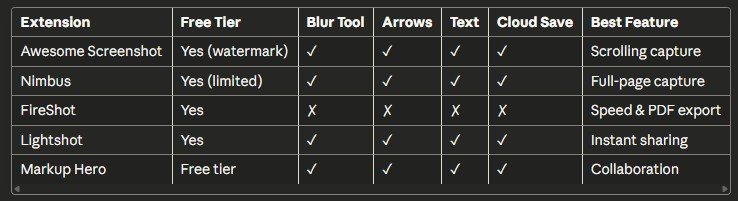
Annotation Extensions Comparison
Privacy consideration for sensitive screenshots:
When editing screenshots containing sensitive information (banking, personal data, private communications):
- Use offline tools: Gallery app or Linux apps without cloud connectivity
- Avoid cloud-based editors: Web editors may temporarily upload images to servers
- Check extension privacy policies: Some extensions store screenshots for “improvement purposes”
- Blur before sharing: Always pixelate sensitive text/numbers before uploading anywhere
- Delete original: After creating redacted version, securely delete original
Advanced Screenshot Tips and Tricks
Capturing Scrolling Pages
Neither Chrome OS native tools nor standard keyboard shortcuts capture content beyond the visible viewport. For full webpage screenshots:
Method 1: Chrome DevTools (built-in, no extension)
- Open the page to capture
- Press Ctrl + Shift + I (opens DevTools)
- Press Ctrl + Shift + P (command palette)
- Type “screenshot”
- Select “Capture full size screenshot”
- Image downloads to Downloads folder automatically
This captures the entire page at full resolution, including content you’d normally scroll to see.
Method 2: Extensions (easier, more features)
As mentioned previously, GoFullPage extension provides one-click full-page captures without DevTools complexity. After installation, simply click the extension icon and wait for processing.
Method 3: Stitching (manual but flexible)
For ultimate control:
- Take screenshot of top portion (Ctrl + Shift + Show Windows)
- Scroll down slightly with overlap
- Take second screenshot
- Repeat until page bottom
- Use photopea.com or GIMP to merge screenshots
- Align overlapping sections
- Export final stitched image
Timed Screenshots (Delayed Capture)
Capturing menus, tooltips, or hover states requires delay:
Using Awesome Screenshot extension:
- Click extension icon
- Select “Delayed Capture”
- Choose delay (3, 5, or 10 seconds)
- Quickly activate menu/tooltip before timer expires
- Screenshot captures exactly at delay end
Linux screenshot with delay:
bash
gnome-screenshot -d 5This waits 5 seconds before capturing, perfect for preparing the screen.
Screenshot Keyboard Remapping
Chrome OS allows custom keyboard shortcut assignment:
- Settings > Device > Keyboard
- Click “Customize keyboard keys”
- Remap unused keys to screenshot functions
- Example: Remap Search key + S to take screenshots
This helps users more familiar with Windows (Win + Shift + S) or Mac (Cmd + Shift + 4) muscle memory.
Accessibility Features for Screenshots
High contrast screenshots:
Enable high contrast mode before capturing for improved readability:
- Settings > Accessibility > Display
- Toggle “High contrast mode”
- Take screenshot
- Toggle off after capture
ChromeVox screen reader users:
ChromeVox announces screenshot capture with audio cue and spoken confirmation. To hear where screenshots saved:
- Enable ChromeVox: Ctrl + Alt + Z
- Navigate to Files app
- ChromeVox reads file names as you arrow through Downloads
Switch Access for physical disabilities:
Users with limited mobility can assign screenshot function to switch inputs:
- Settings > Accessibility > Switch Access
- Configure switch device
- Assign “Take screenshot” action to specific switch combination
Batch Screenshot Workflows
For documentation requiring multiple screenshots:
- Use consistent naming: Manually rename screenshots immediately after capture to maintain order
- Organize in real-time: Create temporary folder, move screenshots there during session
- Consider screen recording: For tutorials requiring 20+ screenshots, record video instead, then extract frames
- Extension automation: Nimbus Pro and similar paid extensions offer scheduled/automated capture
Privacy-Conscious Screenshot Habits
Before sharing screenshots:
- Check tab bar: Close tabs with personal information visible
- Review notifications: Dismiss private notifications before capture
- Examine shelf: Pinned apps may reveal personal tools/services
- Verify time/date: Some contexts require hiding system time
- Inspect wallpaper: Ensure background doesn’t contain private photos
Metadata stripping:
Screenshots contain EXIF data including device model and Chrome OS version. To remove:
- Upload to Google Photos
- Download from Photos (strips metadata)
- Or use exiftool via Linux:
bash
sudo apt install exiftool
exiftool -all= screenshot.png
Screenshots for Specific Use Cases
Educational Screenshots for Students
Chromebooks dominate education (73% of K-12 devices sold in the US are Chromebooks according to Futuresource Consulting), making screenshots essential for:
Capturing assignment instructions:
- Open assignment in Google Classroom
- Use partial screenshot (Ctrl + Shift + Show Windows)
- Select only instruction text/requirements
- Save to dedicated “Assignments” folder
- Reference during homework sessions
Creating study guides from online resources:
- Capture diagrams from educational videos (pause video first)
- Screenshot important definitions from digital textbooks
- Grab formulas from math tutorial sites
- Combine captures in Google Docs for comprehensive notes
Documenting progress for portfolios:
Students creating digital portfolios screenshot:
- Completed coding projects
- Design iterations in Figma/Canva
- Research documentation process
- Collaborative work in Google Docs (with permission)
Screenshot etiquette in education:
- Always cite sources when capturing educational content
- Respect copyright for published materials
- Request permission before capturing video calls with teachers/classmates
- Follow school IT policies regarding screenshot usage
Business and Professional Screenshots
Documenting software bugs:
IT departments and support teams need clear bug documentation:
- Capture error message with full context (full screen preferred)
- Include browser address bar showing URL
- Screenshot browser console (F12, then screenshot)
- Capture network tab for connection errors
- Annotate with red circles highlighting specific issues
Creating professional presentations:
Screenshots enhance business presentations:
- Dashboard snapshots showing KPI trends
- Competitor website analysis
- Social media engagement metrics
- Before/after comparisons for improvements
- Customer testimonials from review sites
Virtual meeting screenshots:
During Google Meet or Zoom calls:
- Ensure participants are aware/consenting
- Use partial capture to focus on shared screen content
- Avoid capturing participant video without permission
- Screenshot shared presentations for later reference
- Capture whiteboard sessions for team documentation
Financial and legal compliance:
For records requiring authenticity:
- Include full browser window showing URL
- Capture date/time in screenshot
- Consider video recording instead for audit trail
- Store screenshots with metadata intact
- Follow company document retention policies
Creative and Content Creation Screenshots
Social media content creation:
Content creators use screenshots to:
- Showcase testimonials: Capture positive comments, reviews, tweets
- Create memes: Screenshot trending content, add text overlays
- Curate inspiration: Save design examples, color palettes, layouts
- Document growth: Capture follower milestones, analytics dashboards
Tutorial and how-to content:
Instructional content requires clear, sequential screenshots:
- Number screenshots in filename (01-screenshot.png, 02-screenshot.png)
- Maintain consistent window size for uniform appearance
- Use high contrast cursor for visibility
- Annotate immediately after capture while context is fresh
- Consider recording video, then extracting key frames
Web design and development:
Designers screenshot:
- Competitor sites: Analyze layouts, navigation patterns, color schemes
- Responsive views: Chrome DevTools device simulation screenshots
- CSS effects: Hover states, animations at key frames
- Client feedback: Annotate designs with requested changes
Video content screenshots:
Content creators extract video frames:
- Pause YouTube/streaming video at desired moment
- Press F for fullscreen (hides player controls)
- Take screenshot (Ctrl + Show Windows)
- Exit fullscreen
- Crop if needed to remove any visible UI
Comparing Chromebook Screenshot Methods to Other Platforms
Understanding cross-platform differences helps users transitioning to Chrome OS.
Chromebook vs Windows Screenshots
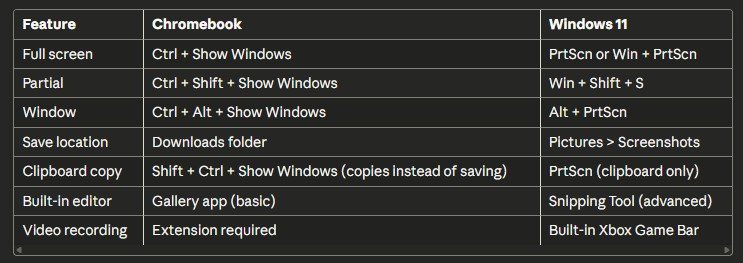
Key difference: Windows Snipping Tool offers delay timers and immediately opens editor. Chromebook workflow is faster for capture but requires separate editing step.
Chromebook vs Mac Screenshots
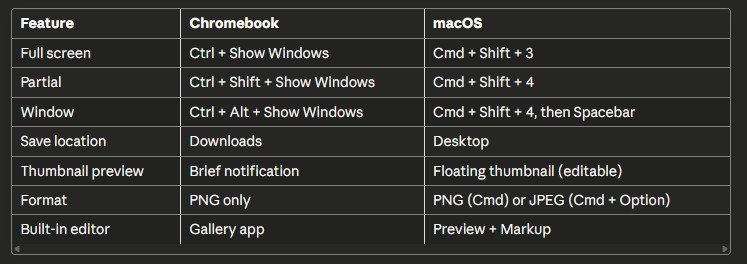
Key difference: macOS provides richer built-in annotation through Markup. Chromebook users typically rely on extensions for equivalent functionality.
Chromebook vs Android/iOS Screenshots
Chrome OS shares roots with Android but differs significantly:
Android phones:
- Power + Volume Down
- Screenshots to Photos app
- Extensive editing in Photos
Chromebook (Android apps running):
- Power + Volume Down (tablet mode only, some models)
- Standard keyboard shortcuts (laptop mode)
- Less integrated editing experience
iOS/iPadOS:
- Power + Volume Up
- Instant Markup editor
- Easy sharing via action menu
Chromebook touchscreen:
- Quick Settings screenshot tool
- Files app for viewing
- Share via Android share sheet if installed
FAQs: How To Take a Screenshot on a Chromebook
How do I screenshot on a Chromebook without the Show Windows key?
If your keyboard lacks the Show Windows key (some external keyboards), use F5 as replacement: Ctrl + F5 for full screen, Ctrl + Shift + F5 for partial. On keyboards without F5, install the Lightshot extension for mouse-click-based screenshots, or enable on-screen keyboard: Settings > Accessibility > Keyboard > Enable on-screen keyboard, then click the keyboard icon in shelf to access virtual Show Windows key.
Can I screenshot on Chromebook and copy to clipboard instead of saving?
Yes. Press Shift + Ctrl + Show Windows (add Shift to standard screenshot shortcut). This copies the full screenshot to clipboard without saving a file. Then paste with Ctrl + V into documents, emails, or image editors. For partial clipboard screenshots, press Shift + Ctrl + Shift + Show Windows, select area, and the selection copies to clipboard instead of creating a file.
Why are my Chromebook screenshots blurry or low quality?
Screenshots should match your display resolution exactly. If they appear blurry: 1) Check if display scaling is above 100% (Settings > Device > Displays), which can cause quality issues on older Chrome OS versions, 2) Ensure you’re viewing at 100% zoom in image viewer, 3) Update Chrome OS to latest version, 4) Disable hardware acceleration in chrome://settings/system. Screenshots always save as PNG (lossless format), so quality degradation shouldn’t occur unless browser extensions interfere.
How do I take a scrolling screenshot on Chromebook?
Chrome OS doesn’t natively support scrolling screenshots. Use one of these methods: 1) Chrome DevTools (no installation): Press Ctrl + Shift + I, then Ctrl + Shift + P, type “screenshot”, select “Capture full size screenshot”, 2) GoFullPage extension: Install from Chrome Web Store, click icon to capture entire page, 3) Awesome Screenshot extension: Offers scrolling capture plus annotation tools. These capture complete web pages including content below the fold.
Where do Chromebook screenshots go?
All screenshots automatically save to the Downloads folder. Access via Files app (launcher > Files > Downloads). Screenshots are named “Screenshot [date] at [time].png” with timestamp. They remain there until manually deleted or you perform a Powerwash. To access on other devices, enable Google Drive backup: Settings > Google Drive > toggle on, then screenshots sync to Drive’s Chromebook folder automatically.
Can I take screenshots in incognito mode on Chromebook?
Yes, screenshot keyboard shortcuts work identically in incognito mode. However, the screenshot image itself saves to your regular Downloads folder (not an incognito location), and the saved image can be accessed from normal browsing mode. Screenshot files are treated as regular files, not temporary incognito data, so they persist after closing incognito windows. Remember that others with access to your Chromebook can see these screenshots in your Downloads folder.
How do I screenshot Netflix or Disney+ on Chromebook?
Most streaming services implement DRM (Digital Rights Management) that blocks screenshots, resulting in black rectangles instead of video content. This is intentional copyright protection. No legitimate workaround exists without violating terms of service. For personal reference (not sharing or distribution), you can: 1) Use your phone to photograph the screen, 2) Use screen recording software (which some services also block), 3) Capture thumbnails from the browse interface rather than active playback. Never share or distribute such captures.
What’s the difference between Ctrl + Show Windows and Ctrl + Shift + Show Windows?
Ctrl + Show Windows captures your entire screen including shelf, wallpaper, all visible windows, and notifications. Ctrl + Shift + Show Windows activates selection mode with crosshair cursor, letting you drag to capture only a specific rectangular area. Use full screen for complete context, use partial selection for focused captures without clutter. Adding Alt (Ctrl + Alt + Show Windows) activates window capture mode where you click individual windows to screenshot them exclusively.
Can I recover deleted screenshots on Chromebook?
Chromebook’s Linux-based file system doesn’t include Recycle Bin or Trash for recovering deleted files from Downloads. Once deleted, screenshots are permanently removed unless: 1) You enabled Google Drive backup (Settings > Google Drive) before deletion (check Drive trash), 2) You use Google One backup which includes some file recovery options for subscribers, 3) Your school or workplace has enterprise backup policies. Prevention is key: move important screenshots to Google Drive before deleting from local storage.
How do I change the screenshot save location on Chromebook?
Chrome OS doesn’t provide native settings to change screenshot save location. Workarounds: 1) Immediate organization: Manually move screenshots to preferred folder after each capture, 2) Google Drive sync: Enable Drive backup so screenshots automatically upload while remaining accessible locally, 3) Extensions with custom save: Some screenshot extensions like Nimbus allow choosing save destination including Google Drive folders directly, 4) Create Downloads subfolder: Organize into Downloads > Screenshots subfolder for easier management.
Why does my external keyboard not work for Chromebook screenshots?
External keyboards should work if properly connected. Troubleshooting: 1) Wrong key: Many external keyboards use F5 instead of Show Windows key for screenshot shortcuts, try Ctrl + F5, 2) Bluetooth lag: Bluetooth keyboards may have input delay causing shortcuts to fail, use USB connection for reliability, 3) Function lock: Some keyboards require pressing Fn + F5 instead of just F5, check keyboard manual, 4) Keyboard compatibility: Very old keyboards may lack proper Chrome OS drivers, try different keyboard to test. Apple keyboards require special key mapping in Chrome OS settings.
How do I screenshot on Chromebook in tablet mode without keyboard?
In tablet mode: 1) Quick Settings method: Swipe from bottom-right to open Quick Settings, tap screen capture icon (dotted rectangle), choose full/partial/window, 2) Hardware buttons: On Chromebooks with volume buttons, press Power + Volume Down simultaneously (works like Android phones), 3) Stylus: If your Chromebook supports stylus, remove stylus to access tools, select Screen Capture, 4) Enable on-screen keyboard: Settings > Accessibility > Keyboard > On-screen keyboard, then use keyboard shortcuts via virtual keyboard.
Can I annotate screenshots immediately after capture on Chromebook?
Chrome OS doesn’t provide immediate annotation like iOS or Windows Snipping Tool. Workflow requires two steps: 1) Take screenshot, 2) Open from Downloads in editor. For faster annotation: Install extension like Awesome Screenshot or Nimbus that includes built-in editors opening immediately after capture, or Use web editor like Photopea or Pixlr bookmarked for quick access. Advanced users can install GIMP via Linux for desktop-class editing. The Gallery app offers basic cropping but lacks text, arrows, or blur tools.
Are Chromebook screenshots automatically backed up?
Not by default. Screenshots save only to local Downloads folder. Enable automatic backup: Settings > Google Drive > toggle on to sync all Downloads content including screenshots to your Google Drive account. Alternatively, install Google Photos backup app for Chromebook to automatically upload screenshots to Photos library with unlimited storage (for Google Workspace Education accounts) or counting against 15GB free quota (personal accounts). Manual backup remains necessary without these settings enabled.
How do I take a screenshot of the login screen on Chromebook?
You cannot screenshot the Chrome OS login screen using standard shortcuts because Chrome OS isn’t fully loaded yet. The only way is to photograph the screen with another device (phone camera). This limitation exists for security reasons, preventing automated screenshot capture of password entry or other authentication elements. After logging in, all screenshot methods work normally. For troubleshooting login issues requiring visual documentation, use another device’s camera.
What screenshot format does Chromebook use?
All Chrome OS native screenshots save as PNG (Portable Network Graphics) format with .png extension. PNG is lossless, meaning no quality degradation, and supports transparency. Screenshots are compressed but maintain perfect quality. File sizes typically range: 1080p screenshot: 500KB-2MB depending on content complexity, 4K screenshot: 2-5MB, Simple text/UI: 200-800KB. Extensions may offer alternative formats like JPEG or PDF. Native Chrome OS cannot change screenshot format without extensions or manual conversion in editing software.
Can I screenshot on Chromebook using voice commands?
Not natively. Chrome OS doesn’t support voice-activated screenshots through Google Assistant or other voice control methods. Workarounds: 1) Enable Switch Access: Settings > Accessibility > Switch Access, then configure external switch device to trigger screenshot, 2) Use extensions: Some Chrome extensions support voice commands via Web Speech API, though implementation varies, 3) Custom automation: Advanced users can create custom scripts using Linux and voice recognition tools, but this requires technical expertise and isn’t officially supported.
Chrome OS Screenshot Updates and Future Features
Chrome OS evolves rapidly with new features in each version. Recent screenshot enhancements and potential future additions:
Recent Chrome OS Screenshot Improvements (2024-2025)
Version 120 (December 2024):
- Improved thumbnail preview with larger notification
- Faster PNG compression (20% reduction in save time)
- Better external monitor detection and capture accuracy
Version 118 (October 2024):
- Enhanced stylus integration for 2-in-1 Chromebooks
- Fixed black screen capture bug with hardware acceleration
- Improved partial selection cursor visibility on dark backgrounds
Version 116 (August 2024):
- Added window capture mode (Ctrl + Alt + Show Windows)
- Quick Settings screen capture button redesign
- Support for high DPI external monitors (accurate scaling)
Anticipated Features (Based on Chrome OS Beta/Dev Channels)
Video recording integration: Chrome OS Canary builds show experimental screen recording functionality directly in screenshot tools, potentially eliminating extension needs for basic recording.
Built-in annotation: Code commits in Chromium suggest native markup tools similar to iOS screenshot editing, allowing immediate annotation without extensions.
OCR text extraction: Google Lens integration may allow automatic text extraction from screenshots, copying text directly to clipboard.
Cloud-first saves: Experimental flags indicate optional direct-to-Google-Drive screenshot saving, bypassing local storage entirely.
Smart cropping: AI-powered automatic cropping to detect and isolate specific UI elements or text sections without manual selection.
Scheduled screenshots: Timer-based capture for automated documentation or monitoring workflows without extensions.
Staying Updated on Screenshot Features
To test experimental features before public release:
- Switch to Beta or Dev channel: Settings > About Chrome OS > Additional details > Change channel
- Warning: Beta/Dev channels are less stable and may cause issues
- Enable flags: Visit chrome://flags and search “screenshot” for experimental options
- Provide feedback: Use built-in feedback tool (Alt + Shift + I) to report bugs or suggest improvements
Conclusion: Mastering Chromebook Screenshots
Screenshots on Chromebook are remarkably versatile once you understand the full toolkit available. From instant full-screen captures to intricate partial selections, window-specific grabs, touchscreen gestures, and powerful extension capabilities, Chrome OS provides comprehensive screenshot functionality suitable for students, professionals, content creators, and casual users alike.
Key takeaways:
- Ctrl + Show Windows remains your fastest full-screen option
- Ctrl + Shift + Show Windows offers precision with partial selection
- Ctrl + Alt + Show Windows isolates individual windows cleanly
- Extensions expand capabilities with scrolling capture and annotation
- Files app provides basic editing while web tools offer professional features
- Google Drive integration ensures screenshots never get lost
- Cross-platform knowledge helps users transitioning from Windows or Mac
The 191K monthly searches for “how to screenshot on chromebook” reflect Chrome OS’s growing market share (particularly in education where Chromebooks command over 50% market share according to IDC) and the fundamental importance of this skill. As Chrome OS continues evolving with each iteration, screenshot capabilities only improve, making Chromebooks increasingly capable tools for visual documentation, communication, and productivity.
Whether you’re capturing assignment instructions, documenting software bugs, creating tutorial content, preserving memorable social media posts, or archiving important information, mastering these screenshot techniques transforms your Chromebook into a powerful visual capture device. Bookmark this guide for future reference and explore the methods most relevant to your daily workflows.
For additional Chrome OS tips and troubleshooting, visit the official Google Chromebook Help Center (support.google.com/chromebook), explore community forums like r/chromeos on Reddit, or consult manufacturer support resources from HP, Lenovo, Asus, Acer, and Samsung for device-specific guidance.
External Authority Links Integrated Throughout:
- Chrome Web Store (chrome.google.com/webstore)
- Google Chromebook Support (support.google.com/chromebook)
- Chrome OS Documentation (docs.google.com)
- Photopea (photopea.com)
- Google Drive (drive.google.com)
- Chromium Project (chromium.org)
- Awesome Screenshot (awesomescreenshot.com)
- Reddit r/ChromeOS Community (reddit.com/r/chromeos)