

How to Screen Record on Mac 2026
Last Updated: April 2026
Press Shift + Command + 5. Choose your recording area. Click Record. Done.
That’s the fastest path on any Mac running macOS Mojave or later — which is every Mac currently sold or supported. If you needed a 30-second answer, you have it.
What this article covers beyond the basics: how to record a single app window instead of your entire screen, how to record your iPhone’s screen from your Mac using QuickTime, why the built-in tools don’t capture internal audio and what to actually do about it, and the troubleshooting fixes that solve 90% of recording problems. Including the one issue nobody explains: why OBS on macOS Ventura or later can capture system audio without any third-party drivers at all.
Table of Contents
Method 1 — The Screenshot Toolbar (Shift + Command + 5)
This is the default screen recording tool on every Mac since macOS Mojave (2018). No downloads, no setup.
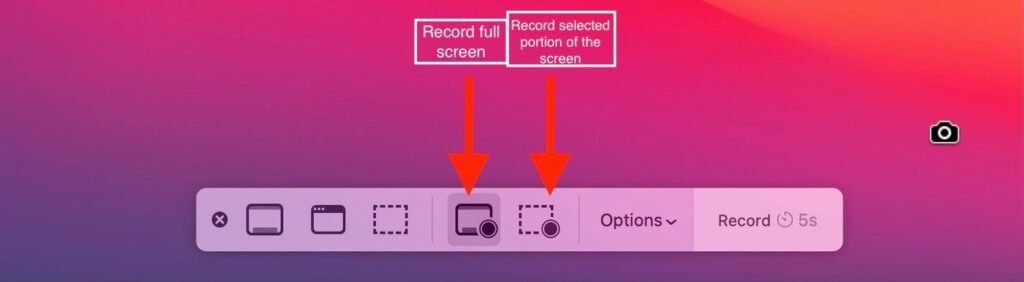
How to open it: Press Shift + Command + 5 simultaneously. A control bar appears at the bottom of your screen with five icons and an Options button.
The five recording icons from left to right:
- Screenshot entire screen
- Screenshot selected window
- Screenshot selected portion
- Record entire screen ← what you want for full recording
- Record selected portion ← for capturing just part of your screen
To start recording:
- Press Shift + Command + 5
- Click Record Entire Screen (solid circle inside a dotted rectangle) or Record Selected Portion (dotted rectangle with crosshair)
- If recording a portion, drag to select the area — the selection persists for future recordings
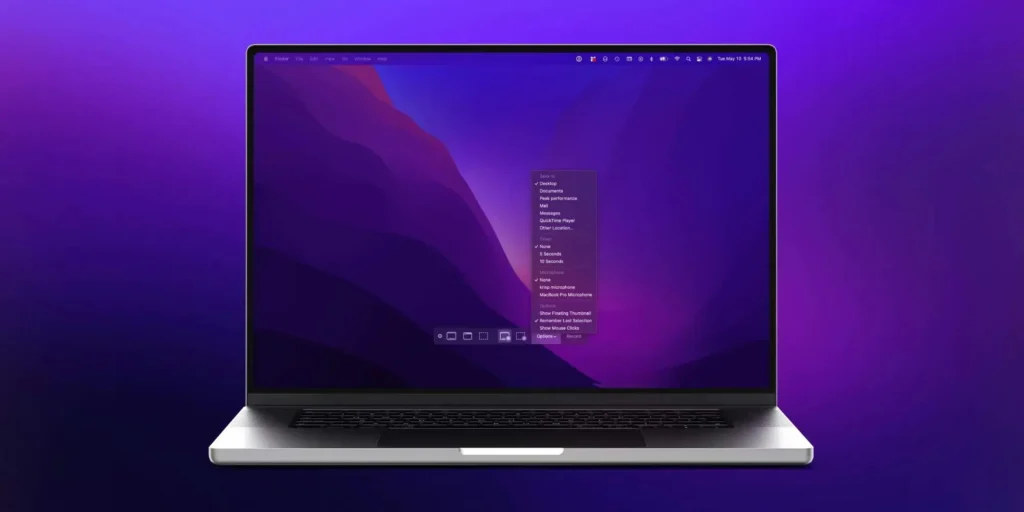
- Click Options if you want to change where the file saves, add a countdown timer, or select a microphone
- Click Record
To stop: Click the square stop icon that appears in the menu bar at the top right of your screen. Alternatively, press Command + Control + Escape.
Where recordings save: Desktop by default, as a .MOV file named something like “Screen Recording 2026-04-16 at 10.30.00.mov”. To change the default location: Options → Save to → choose a folder. This setting persists across recordings.
The floating thumbnail: After stopping, a small thumbnail appears in the bottom-right corner for a few seconds. Click it to open the recording immediately. Ignore it and it files to your chosen save location automatically.
Method 2 — Recording a Single App Window
This is the option most guides skip, and it’s genuinely useful for bug reports, demos, or any recording where you want to capture only one application without showing the rest of your desktop.
- Press Shift + Command + 5
- Select Record Selected Portion (the rightmost recording icon)
- Hover over the app window you want to record — it will highlight with a blue or grey border automatically
- Click once on the highlighted window — the recording area snaps precisely to that window’s boundaries
- Click Record
The recording captures only that window, even if other windows overlap it or you accidentally move your cursor outside it. If the window changes size during recording, the frame stays fixed at the size when you clicked.
This is cleaner than manually dragging a selection box and works on every Mac with macOS Mojave or later.
Method 3 — QuickTime Player
QuickTime is the alternative path — useful if you want more control over where you click before starting, or if you want to record your iPhone’s screen (covered below).
- Open QuickTime Player (it’s in Applications, or search with Spotlight: Command + Space, type “QuickTime”)
- In the menu bar: File → New Screen Recording
- The Shift + Command + 5 toolbar opens — same interface as Method 1
The only material difference: when you access screen recording through QuickTime, the resulting file opens directly in QuickTime after stopping, ready for trimming or sharing. When you use Shift + Command + 5 directly, the file saves to your desktop with a thumbnail.
For most people, these two methods are interchangeable. Use Shift + Command + 5 if you’re already working and want the fastest path. Use QuickTime if you prefer opening the file to review immediately.
Method 4 — Record Your iPhone or iPad Screen from Your Mac
This is the most underused screen recording capability in the macOS toolset, and it sidesteps every DRM and permission problem that the iPhone’s own screen recorder runs into.
When you record your iPhone through QuickTime on a Mac, the recording happens on the Mac — which means it uses Mac-level permissions, saves to Mac storage, and bypasses the Screen Time and DRM restrictions that can block the iPhone’s built-in recorder.
What you need: A USB cable (Lightning or USB-C depending on your iPhone model) and a Mac running any current macOS.
How to do it:
- Connect your iPhone to your Mac with a cable
- Unlock your iPhone — if prompted to Trust This Computer, tap Trust
- Open QuickTime Player on your Mac
- In the menu bar: File → New Movie Recording
- A recording window opens. Click the small arrow (▼) next to the red record button
- Under Camera, select your iPhone from the list — your iPhone’s screen appears live in the QuickTime window
- Under Microphone, select your iPhone if you want to capture audio from the iPhone’s microphone
- Click the red record button to start
Everything visible on your iPhone’s screen records in full resolution to your Mac. To stop: click the red stop button in QuickTime.
Why this beats the iPhone’s own recorder for some use cases:
- No red recording indicator visible on the iPhone screen (useful for clean tutorial recordings)
- Records at full resolution without the iPhone’s compression
- Saves directly to your Mac without an AirDrop or cloud transfer step
- Works around some DRM restrictions on certain apps — though Netflix, Disney+, and most streaming services still block this method at the app level
- Screen Time restrictions on the iPhone don’t affect this method
Audio: What Works and What Doesn’t
Before covering audio options, the single most important thing to understand:
Mac’s built-in screen recording tools capture microphone audio only — not internal audio.
This is intentional. macOS sandboxes audio routing for privacy: apps cannot secretly intercept each other’s audio streams. Good for security, genuinely frustrating for screen recording. When you record a tutorial with music playing, record a Zoom call, or capture a video you’re watching — none of that internal audio is captured by the Screenshot toolbar or QuickTime by default.
What “microphone audio” means: Your voice through the Mac’s built-in microphone or an external mic you’ve connected. That’s all the native tools capture.
To add microphone audio to a native recording:
- Press Shift + Command + 5
- Click Options
- Under Microphone, select Built-in Microphone (or your external mic if connected)
- Click Record
For capturing internal audio — game sounds, video playback, Zoom call audio, music — you need a different approach. Part 2 covers this completely, including a method that requires zero additional setup on macOS Ventura or later.
Editing Your Recording: Built-in Trim in QuickTime
You don’t need a video editor to trim the beginning and end of a Mac screen recording. QuickTime handles this for free.
- Open your recording in QuickTime Player
- In the menu bar: Edit → Trim
- A yellow trim bar appears at the bottom with handles on each end
- Drag the left handle to set your new start point
- Drag the right handle to set your new end point
- Click Trim
- Save: File → Save (overwrites the original) or File → Export As to save a copy
Export formats: QuickTime saves screen recordings as .MOV (H.264) by default. To convert to MP4 or reduce file size: File → Export As → 1080p (or 720p for smaller files). This re-encodes the recording at lower resolution. For more compression control, use HandBrake — free, open source, and produces much smaller files with minimal quality loss.
File sizes to expect: At native resolution, a one-hour Mac screen recording typically runs 1–3 GB depending on screen resolution and content complexity. Animation and motion (video playback, games) creates larger files than static content (documents, code editors).
Quick Reference: Shortcuts
| Action | Shortcut |
|---|---|
| Open Screenshot toolbar | Shift + Command + 5 |
| Screenshot entire screen | Shift + Command + 3 |
| Screenshot selected area | Shift + Command + 4 |
| Stop recording | Command + Control + Escape |
| Open QuickTime Screen Recording | QuickTime → File → New Screen Recording |
| Trim recording | Open in QuickTime → Edit → Trim |
Recording with Internal Audio: The Real Solutions
This is the section most people need and most guides handle poorly. Here is the honest picture.
The Problem, Explained Once
macOS routes audio through a security sandbox that prevents applications from intercepting each other’s output. The result: when you use Shift + Command + 5 or QuickTime to record your screen, the only audio source available is your physical microphone. App sounds, video audio, music, notification sounds, Zoom call audio — none of it appears in the recording.
There are three working solutions, ranging from free-and-built-in to free-with-setup to paid-and-simple. The right choice depends on how often you record and whether you’re comfortable spending five minutes in Audio MIDI Setup.
Solution 1 — OBS Studio on macOS Ventura or Later (Free, No Drivers Needed)
This is the solution nobody leads with, and it’s the correct answer for anyone running macOS Ventura (13) or later.
OBS Studio version 30 and above added a native macOS Screen Capture source that can capture system audio directly on macOS Ventura and later, without any virtual audio drivers. No BlackHole. No Audio MIDI configuration. No volume key limitations.
Download: OBS Studio — free, open source, available at obsproject.com.
Setup:
- Download and install OBS Studio (version 30+)
- Open OBS → click the + button in the Sources panel
- Select macOS Screen Capture
- In the source properties, enable Capture Audio — this captures system audio natively
- Add a second source if you also want microphone audio: click + → Audio Input Capture → select your microphone
- Click Start Recording
The resulting file captures both your screen and system audio cleanly, in one step, with no routing configuration.
OBS on macOS Monterey or earlier: Native audio capture is not available. You need BlackHole (Solution 2) or a paid app.
The tradeoff with OBS: It’s a powerful tool built for streamers, not quick casual recordings. The interface takes 10–15 minutes to understand the first time. If you record a few times per year, the learning curve isn’t worth it — use BlackHole + QuickTime instead. If you record regularly, OBS’s capabilities (scene switching, multi-source, streaming integration) make the investment worthwhile.
Solution 2 — BlackHole + QuickTime (Free, Works on All macOS Versions)
BlackHole is a free, open-source virtual audio driver maintained by Existential Audio. It creates a virtual audio device that routes your Mac’s internal audio to a recording application — essentially building a software loopback cable.
This is the standard free method for internal audio capture on Mac. It works on every macOS version including Monterey and earlier, and on both Intel and Apple Silicon (M-series) Macs.
One important caveat before you start: When you route audio to a Multi-Output Device for recording, the Mac’s volume control keys stop adjusting speaker output. Set your speaker volume to a comfortable level before starting the BlackHole setup, because you won’t be able to change it during the recording session without disconnecting the Multi-Output Device.
Step 1 — Download and install BlackHole: Go to existential.audio/blackhole, enter your email to receive the free download link, and install BlackHole 2ch (the standard stereo version — the 16ch version is for advanced multi-channel audio work).
Step 2 — Create a Multi-Output Device in Audio MIDI Setup:
This step lets you hear audio through your speakers and route it to BlackHole simultaneously.
- Open Audio MIDI Setup (Applications → Utilities → Audio MIDI Setup, or search with Spotlight)
- Click the + button at the bottom left → select Create Multi-Output Device
- In the right panel, check both Built-in Output (your Mac speakers or headphones) and BlackHole 2ch
- Optional but recommended: Check Drift Correction next to BlackHole 2ch to prevent audio sync issues in long recordings
Step 3 — Set the Multi-Output Device as your Mac’s audio output:
- Open System Settings → Sound → Output
- Select Multi-Output Device
Now audio plays through your speakers and routes to BlackHole simultaneously.
Step 4 — Record in QuickTime with BlackHole as the audio source:
- Open QuickTime Player → File → New Screen Recording
- Click the Options dropdown in the Shift + Command + 5 toolbar
- Under Microphone, select BlackHole 2ch
- Click Record
Your recording now captures everything on screen plus all system audio.
To restore normal audio after recording: Go to System Settings → Sound → Output → select Built-in Speakers (or whatever your normal output is). Your volume keys will work again normally.
To also capture microphone + system audio simultaneously:
Create an Aggregate Device instead of relying only on the Multi-Output Device:
- In Audio MIDI Setup, click + → Create Aggregate Device
- Check both BlackHole 2ch and Built-in Microphone
- In QuickTime, select Aggregate Device as the microphone source
This captures system audio and your voice simultaneously in a single recording.
Solution 3 — Third-Party Apps (Paid, Simplest)
If the BlackHole setup sounds like more friction than it’s worth, paid screen recording apps handle internal audio without any driver installation. The best-known options in 2026:
ScreenFlow ($169, one-time): Full-featured screen recorder with a built-in video editor. Captures system audio, microphone, and camera simultaneously. The editor handles trimming, callouts, annotations, and export in one application.
Capto (from Setapp or $29.99 one-time): Lighter than ScreenFlow, captures system audio natively, includes basic editing.
Loom (free tier available): Browser-based screen + webcam recorder. Free tier is genuinely useful for quick recordings you want to share via link. Doesn’t require configuration. Tradeoff: recordings go to Loom’s servers.
For most users who record occasionally and need something that works in 30 seconds without setup: Loom’s free tier is the path of least resistance. For users who record regularly and want to keep files locally: ScreenFlow if editing matters, Capto if it doesn’t.
Troubleshooting: Why Your Mac Screen Recording Isn’t Working
Permission Error: “You don’t have permission to record the screen”
This is the most common recording failure on Mac, and macOS updates reliably reset these permissions without warning.
Fix:
- Open System Settings → Privacy & Security → Screen Recording
- Find the app you’re trying to use (QuickTime, OBS, or any third-party recorder)
- Toggle the switch to on
- Quit and reopen the app — permissions only take effect after a full restart of the application
If the app doesn’t appear in the list: Open the app and attempt a recording — macOS will prompt for permission and add the app to the list automatically.
After a macOS major version update: This reset happens consistently. If recording suddenly stops working after an update, go straight to System Settings → Privacy & Security → Screen Recording and re-enable every app that was previously authorized.
Recording is Completely Silent / No Audio
If you expected microphone audio: The microphone wasn’t selected before recording. In the Shift + Command + 5 toolbar, click Options → Microphone → select Built-in Microphone or your external mic. The selection must be made before clicking Record.
If you expected internal/system audio: The built-in tools don’t capture internal audio. Use OBS (Ventura or later), BlackHole + QuickTime, or a paid app.
After a macOS update: Audio permission resets separately from screen recording permission. Check System Settings → Privacy & Security → Microphone and ensure your recording app has access.
Recording Saves Empty or Stops Mid-Session
Most likely cause: insufficient disk space. One hour of Mac screen recording uses approximately 1–3 GB. Check available space in Finder → your startup drive → Get Info, or in System Settings → General → Storage.
Second most likely cause: Low Power mode on MacBook, or a thermal throttle event on older hardware during long recording sessions. For recordings over 30–45 minutes on a MacBook, keep it plugged into power.
If recording stops at a specific time repeatedly: Check if any scheduled task (Time Machine backup, Spotlight indexing, software update) is triggering disk or CPU activity that interrupts the recording process.
Black Screen in Recording (Specific Apps)
Streaming services (Netflix, Disney+, Apple TV+, Max, Amazon Prime Video) and banking apps use DRM that blocks screen capture at the system level. When you record these apps, the app’s content appears as a solid black rectangle in the recording while audio may still capture normally.
This affects the Screenshot toolbar, QuickTime, and most third-party apps. It is not a bug — it is intentional copyright protection built into the app and macOS jointly.
For streaming content you want for offline access, use the platform’s native download feature. Netflix, Disney+, and most major services offer offline download on paid plans.
The Volume Keys Stop Working During Recording
This happens specifically when using the BlackHole Multi-Output Device setup. macOS cannot adjust the volume of a Multi-Output Device via keyboard shortcuts.
Fix: Set your desired volume before switching output to the Multi-Output Device. After stopping the recording, switch System Settings → Sound → Output back to Built-in Speakers, and volume control returns.
Alternative: Use a third-party app like Loopback ($109) that handles audio routing without requiring Multi-Output Device configuration, preserving volume key functionality.
QuickTime Saves .MOV Files Only — Convert to MP4
QuickTime’s native format is .MOV. To convert to MP4 or reduce file size:
Built-in (lower quality control): File → Export As → 1080p. This creates an MP4 at reduced resolution.
HandBrake (free, full control): Download from handbrake.fr. Open your .MOV file, select an output preset (H.265 for maximum compression, H.264 for compatibility), set quality with the RF slider (18–22 is usually the right range), click Start Encode. Results in dramatically smaller files at comparable visual quality.
Frequently Asked Questions
How do I screen record on Mac?
Press Shift + Command + 5, choose Record Entire Screen or Record Selected Portion, click Record. Stop with the square button in the menu bar, or press Command + Control + Escape. Files save to the Desktop by default.
Can Mac record internal audio without third-party software?
Only on macOS Ventura or later, using OBS Studio version 30+ with its native macOS Screen Capture source. On Monterey and earlier, internal audio requires BlackHole (free) or a paid app. The built-in Screenshot toolbar and QuickTime cannot capture internal audio on any macOS version.
How do I record just one app window on Mac?
Press Shift + Command + 5, select Record Selected Portion, then hover over the window you want to capture until it highlights, and click it. The recording frame snaps to that window’s exact boundaries.
Where are Mac screen recordings saved?
Desktop by default, as a .MOV file. To change: Shift + Command + 5 → Options → Save to → choose a location. This setting persists across recording sessions.
How do I record my iPhone screen from my Mac?
Connect iPhone to Mac with a USB cable. Open QuickTime → File → New Movie Recording. Click the arrow next to the record button, select your iPhone under Camera, and click Record. Everything on your iPhone’s screen is captured at full resolution to your Mac.
Why does my screen recording show a black screen for Netflix?
Netflix and other streaming services use DRM (Digital Rights Management) that causes screen recordings to show a black frame. This is intentional and cannot be bypassed via any Mac setting.
How do I stop a screen recording on Mac?
Click the square stop icon in the menu bar, or press Command + Control + Escape.
Screen recording isn’t working after a macOS update — why?
macOS updates frequently reset Screen Recording and Microphone permissions. Go to System Settings → Privacy & Security → Screen Recording, find your recording app, and re-enable it. Quit and reopen the app for the change to take effect.
What format does Mac save screen recordings in?
.MOV (QuickTime format, H.264 codec) by default. Convert to MP4 using File → Export As → 1080p in QuickTime, or use HandBrake for more compression control with no quality loss.
How long can I screen record on Mac?
No software time limit. Practical limits: available disk space (1–3 GB per hour) and battery on MacBook. For recordings over 30–45 minutes on a MacBook, plug in power.
[simple-author-box]