

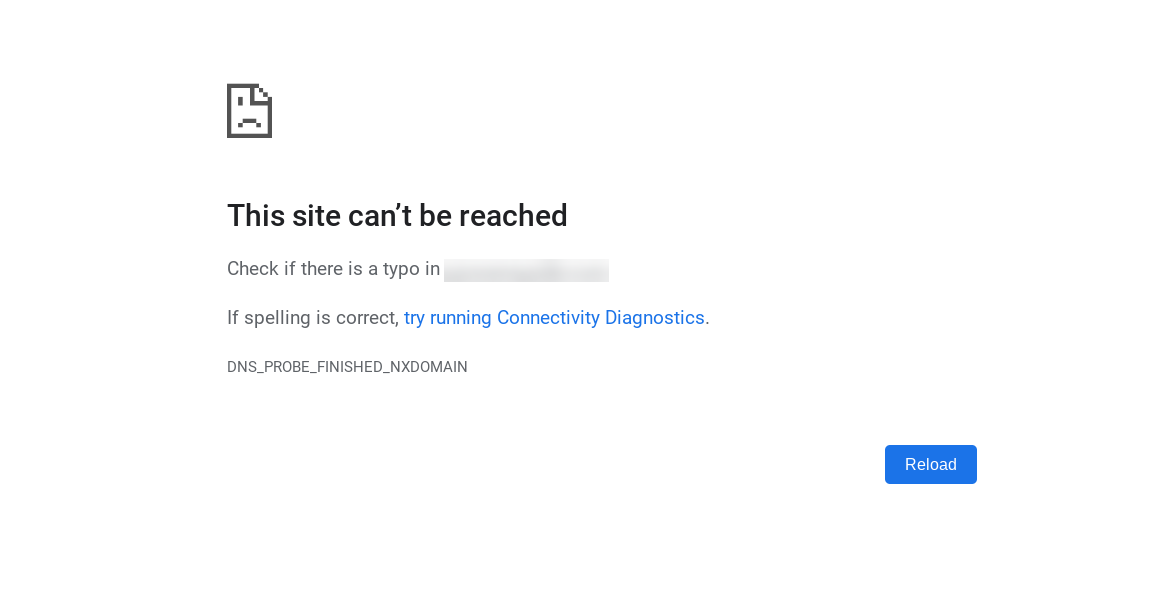
DNS_PROBE_FINISHED_NXDOMAIN
Quick Fix (TL;DR)
Seeing DNS_PROBE_FINISHED_NXDOMAIN? Here’s the fastest solution:
- Windows: Open Command Prompt as admin → Type
ipconfig /flushdns→ Press Enter - Mac: Open Terminal → Type
sudo dscacheutil -flushcache; sudo killall -HUP mDNSResponder→ Enter password - Alternative: Change DNS to Google (8.8.8.8, 8.8.4.4) or Cloudflare (1.1.1.1, 1.0.0.1)
- Still broken? Follow the comprehensive solutions below
This error means your DNS cannot find the IP address for the domain you’re trying to visit. The “NXDOMAIN” stands for “Non-Existent Domain.”
Nothing disrupts online workflows faster than the DNS_PROBE_FINISHED_NXDOMAIN error. One moment you’re browsing normally, the next, Chrome displays “This site can’t be reached” with that cryptic error code beneath it. Whether you’re trying to access a critical work resource, check your email, or simply browse the web, this DNS resolution failure stops you cold.
Research shows that DNS-related errors affect approximately 15-20% of internet users monthly, with DNS_PROBE_FINISHED_NXDOMAIN ranking among the most common. The error indicates that the Domain Name System failed to resolve a website’s domain name into its corresponding IP address, essentially telling your browser that the requested domain doesn’t exist in the DNS records it can access.
For website owners, this error represents a more serious concern. When visitors encounter NXDOMAIN errors on your site, they often assume the site is down or abandoned, leading to immediate traffic loss and potential revenue impact. Understanding both the client-side and server-side causes of this error enables faster resolution and helps prevent future occurrences.
This comprehensive guide examines every aspect of the DNS_PROBE_FINISHED_NXDOMAIN error: what triggers it, how to diagnose the root cause, platform-specific fixes for Windows, macOS, and mobile devices, and critical prevention strategies for both end-users and website administrators.
Understanding DNS_PROBE_FINISHED_NXDOMAIN
What Does This Error Mean?
DNS_PROBE_FINISHED_NXDOMAIN is a DNS resolution error indicating that your browser completed a DNS probe (query) but received an NXDOMAIN response. Breaking down the error code:
- DNS_PROBE: Your browser initiated a DNS lookup
- FINISHED: The DNS query completed (didn’t timeout)
- NXDOMAIN: Non-Existent Domain (the DNS server found no records for the requested domain)
When you type a website address like “example.com” into your browser, the Domain Name System translates that human-readable name into a computer-readable IP address like 192.0.2.1. If this translation fails, your browser cannot connect to the website’s server, resulting in the NXDOMAIN error.
How Different Browsers Display This Error
While the underlying error code remains consistent, each browser presents it differently:
Google Chrome: “This site can’t be reached” followed by “Server IP address could not be found” with DNS_PROBE_FINISHED_NXDOMAIN displayed prominently.
Mozilla Firefox: “Hmm. We’re having trouble finding that site. We can’t connect to the server at www.example.com” with diagnostic suggestions.
Microsoft Edge: “Hmm… can’t reach this page” with troubleshooting recommendations.
Safari: “Safari Can’t Find the Server” followed by “Safari can’t open the page because Safari can’t find the server.”
These variations confirm the same underlying issue: DNS resolution failure preventing browser access to the requested website.
Common Causes of DNS_PROBE_FINISHED_NXDOMAIN
Understanding the root cause accelerates resolution. The error stems from multiple potential sources:
1. Typos in the Website URL
The simplest cause is typing errors in the domain name. Entering “gooogle.com” instead of “google.com” triggers NXDOMAIN because the mistyped domain doesn’t exist. Always verify URL spelling before troubleshooting further.
2. Expired or Unregistered Domain
Domains require annual renewal. When registration expires, the domain enters a grace period (0-45 days) before deletion. During and after expiration, DNS records may become unavailable, causing NXDOMAIN responses for all visitors.
3. Incorrect or Outdated DNS Cache
Your computer caches DNS responses to speed up repeat visits. However, cached data can become outdated when websites change IP addresses or DNS configurations. Stale DNS cache represents one of the most frequent NXDOMAIN triggers.
4. DNS Server Problems
Your ISP’s DNS servers may be temporarily unavailable, overloaded, or misconfigured. Public DNS services like Google Public DNS or Cloudflare DNS offer more reliable alternatives.
5. Network Configuration Issues
Incorrect network settings, including wrong IP configurations, corrupted Winsock catalogs (Windows), or misconfigured network adapters can prevent proper DNS resolution.
6. Antivirus, Firewall, or VPN Interference
Security software and VPNs sometimes override DNS settings or block specific DNS requests. Corporate VPNs particularly can cache DNS records longer than necessary, causing resolution conflicts.
7. Incorrect Hosts File Entries
The local hosts file can override DNS queries. Manual entries pointing to wrong IP addresses or blocking specific domains trigger NXDOMAIN errors when you attempt to access those sites.
8. DNS Propagation Delays
Recent DNS changes take time to propagate globally, typically 24-48 hours. During propagation, some users may receive NXDOMAIN responses while others access the site normally.
Diagnostic Steps: Identifying the Problem Source
Before applying fixes, determine whether the issue is client-side (your device), network-side (your connection), or server-side (the website).
Test 1: Check URL Spelling
Verify the website address for typos. Pay special attention to commonly confused letters (l vs 1, 0 vs O) and proper domain extensions (.com vs .co vs .net).
Test 2: Try Different Browsers
Open the same URL in another browser. If one browser works while another fails, the problem is browser-specific rather than systemic.
Test 3: Test on Different Devices
Access the site from your smartphone, tablet, or another computer on the same network. If all devices on your network experience the error, the issue is network-related rather than device-specific.
Test 4: Use Mobile Data
Switch your smartphone to mobile data instead of Wi-Fi and test the site. If it works on mobile data but fails on Wi-Fi, your router or ISP DNS servers are likely the problem.
Test 5: Check Site Status from Different Locations
Use online tools like Down For Everyone Or Just Me or proxy services to check if the site loads from other geographic locations. If accessible elsewhere, your local network or ISP is causing the issue.
Test 6: Verify Domain Registration
For websites you own or if you suspect domain expiration, check registration status through the ICANN WHOIS lookup. Enter the domain to view registration dates and nameserver configurations.
How to Fix DNS_PROBE_FINISHED_NXDOMAIN on Windows
Solution 1: Flush DNS Cache
The most effective first-line solution for Windows users:
- Press Windows key + R to open Run dialog
- Type
cmdand press Ctrl + Shift + Enter (opens as administrator) - In Command Prompt, type:
ipconfig /flushdns - Press Enter
- You should see: “Successfully flushed the DNS Resolver Cache”
- Close Command Prompt and test the website
This clears all cached DNS entries, forcing your system to fetch fresh DNS data.
Solution 2: Release and Renew IP Address
If flushing DNS doesn’t resolve the issue, renew your IP configuration:
- Open Command Prompt as administrator (steps above)
- Execute these commands in sequence (press Enter after each):
ipconfig /releaseipconfig /renewnetsh winsock resetnetsh int ip reset - Restart your computer
- Test the website
The Winsock reset repairs Windows’ network stack, fixing deeper connectivity issues.
Solution 3: Change DNS Servers
Switch from your ISP’s DNS to reliable public DNS servers:
- Press Windows key + R → Type
ncpa.cpl→ Press Enter - Right-click your active network connection → Select Properties
- Select Internet Protocol Version 4 (TCP/IPv4) → Click Properties
- Select Use the following DNS server addresses
- Enter preferred DNS:
- Google DNS: Primary: 8.8.8.8 | Secondary: 8.8.4.4
- Cloudflare DNS: Primary: 1.1.1.1 | Secondary: 1.0.0.1
- Click OK → Close all windows
- Restart your browser
Solution 4: Restart DNS Client Service
Windows DNS Client service handles local DNS queries:
- Press Windows key + R → Type
services.msc→ Press Enter - Scroll to DNS Client
- Right-click → Select Restart
- If “Restart” is unavailable, select Start
- Close Services window
- Test the website
Alternative command method:
- Open Command Prompt as administrator
- Type:
net stop dnscache→ Press Enter - Type:
net start dnscache→ Press Enter
Solution 5: Check and Edit Hosts File
The hosts file may contain incorrect entries:
- Navigate to:
C:\Windows\System32\drivers\etc\ - Right-click hosts file → Open with Notepad (as administrator)
- Look for entries matching the problematic website
- Delete or comment out suspicious lines (add # at line start)
- Save the file
- Flush DNS again:
ipconfig /flushdns - Restart browser
Solution 6: Disable Antivirus/VPN Temporarily
Security software can interfere with DNS:
- Temporarily disable antivirus software
- Disconnect VPN if active
- Test the website
- If this resolves the error, configure exclusions in your security software
- Re-enable protection after testing
How to Fix DNS_PROBE_FINISHED_NXDOMAIN on Mac
Solution 1: Flush DNS Cache (macOS)
Mac DNS cache clearing varies slightly by macOS version:
For macOS Monterey and later:
- Open Terminal (Applications → Utilities → Terminal)
- Type:
sudo dscacheutil -flushcache; sudo killall -HUP mDNSResponder - Press Return
- Enter your administrator password
- Press Return again
- No confirmation message appears (this is normal)
- Test the website
For older macOS versions:
- Big Sur: Same command as above
- Catalina/Mojave:
sudo killall -HUP mDNSResponder - Sierra:
sudo killall -HUP mDNSResponder
Solution 2: Renew DHCP Lease
Release and renew your Mac’s IP address:
- Click Apple menu → System Preferences (or System Settings on newer macOS)
- Select Network
- Choose your active connection (Wi-Fi or Ethernet)
- Click Advanced
- Navigate to TCP/IP tab
- Click Renew DHCP Lease
- Click OK
- Close System Preferences
- Restart your Mac
Solution 3: Change DNS Servers (macOS)
Switch to public DNS servers:
- System Preferences → Network
- Select active connection → Advanced
- Click DNS tab
- Click + button under DNS Servers list
- Add preferred DNS servers:
- Google: 8.8.8.8 and 8.8.4.4
- Cloudflare: 1.1.1.1 and 1.0.0.1
- Remove old DNS entries (select and click –)
- Click OK → Apply
- Restart browser
Solution 4: Clear Browser Cache (Chrome on Mac)
Chrome maintains a separate DNS cache:
- In Chrome address bar, type:
chrome://net-internals/#dns - Press Return
- Click Clear host cache button
- Navigate to:
chrome://net-internals/#sockets - Click Flush socket pools
- Restart Chrome
Solution 5: Check and Edit Hosts File (Mac)
Mac’s hosts file can also cause conflicts:
- Open Terminal
- Type:
sudo nano /etc/hosts - Press Return → Enter administrator password
- Review entries for problematic domains
- Delete incorrect entries or add # to comment them out
- Press Control + X to exit
- Press Y to save
- Press Return to confirm
- Flush DNS cache again
How to Fix DNS_PROBE_FINISHED_NXDOMAIN on Mobile Devices
Android Solutions
Method 1: Clear Browser Cache
- Open Settings → Apps
- Select your browser (Chrome, Firefox, etc.)
- Tap Storage
- Tap Clear Cache and Clear Data
- Restart browser
Method 2: Forget and Reconnect Wi-Fi
- Settings → Wi-Fi
- Long-press your network name
- Tap Forget Network
- Reconnect by entering password
- Test the website
Method 3: Change DNS on Android
- Settings → Wi-Fi
- Long-press connected network → Modify Network
- Tap Advanced options → IP settings → Static
- Under DNS 1, enter: 8.8.8.8
- Under DNS 2, enter: 8.8.4.4
- Save and test
Method 4: Reset Network Settings
- Settings → System → Reset options
- Tap Reset Wi-Fi, mobile & Bluetooth
- Confirm reset
- Reconnect to Wi-Fi
iPhone/iPad Solutions
Method 1: Clear Safari Cache
- Settings → Safari
- Tap Clear History and Website Data
- Confirm
- Restart Safari
Method 2: Renew DHCP Lease
- Settings → Wi-Fi
- Tap (i) icon next to connected network
- Tap Renew Lease
- Confirm
- Test website
Method 3: Change DNS on iOS
- Settings → Wi-Fi
- Tap (i) icon next to network
- Tap Configure DNS → Manual
- Remove existing servers
- Add Google DNS: 8.8.8.8 and 8.8.4.4
- Save and test
Method 4: Reset Network Settings
- Settings → General → Transfer or Reset iPhone
- Tap Reset → Reset Network Settings
- Enter passcode
- Confirm reset
- Reconnect to Wi-Fi
Website Owner Solutions: Fixing DNS_PROBE_FINISHED_NXDOMAIN
If you own the domain experiencing NXDOMAIN errors, the problem is server-side rather than client-side.
Solution 1: Verify Domain Registration Status
Check if your domain is active and registered:
- Visit ICANN WHOIS Lookup
- Enter your domain name
- Review registration dates and status
- Confirm the domain hasn’t expired
- If expired, renew immediately through your registrar
Domains in grace periods (0-45 days post-expiration) may still show DNS records intermittently. After grace period, domains enter redemption (additional fees apply) before permanent deletion.
Solution 2: Check DNS Records Configuration
Verify your DNS records point correctly:
Essential DNS Records:
- A Record: Points domain to IPv4 address
- AAAA Record: Points domain to IPv6 address (if applicable)
- CNAME Record: Points subdomain (www) to another domain
- NS Records: Specifies authoritative nameservers
How to Check:
- Log into your domain registrar or DNS management panel
- Navigate to DNS Zone Editor
- Verify A record points to correct server IP
- Ensure CNAME www record exists (points to @ or root domain)
- Confirm nameserver records match hosting provider
Missing or incorrect A records are the most common cause of NXDOMAIN errors for website owners.
Solution 3: Verify Nameserver Configuration
Ensure your domain uses correct nameservers:
- Log into domain registrar account
- Navigate to domain management
- Check nameserver settings
- Verify they match hosting provider’s nameservers
- If recently changed, allow 24-48 hours for propagation
Common Nameserver Formats:
ns1.hostingprovider.comns2.hostingprovider.com
Mismatched nameservers prevent DNS resolution entirely.
Solution 4: Check DNS Propagation Status
After DNS changes, verify global propagation:
- Use DNS Checker
- Enter your domain
- Select DNS record type (A, CNAME, etc.)
- Review propagation status across global locations
- Green checkmarks indicate successful propagation
Incomplete propagation explains why some users access your site while others receive NXDOMAIN errors.
Solution 5: Monitor DNSSEC Configuration
DNSSEC adds security but can cause issues if misconfigured:
- Check if DNSSEC is enabled in domain settings
- Verify DNSSEC records match hosting provider configuration
- If unsure, temporarily disable DNSSEC
- Test if this resolves the error
- Reconfigure DNSSEC properly or keep disabled
Solution 6: Contact Hosting Provider
If all configurations appear correct:
- Contact your web hosting support team
- Verify server is online and responding
- Check for hosting account suspension or payment issues
- Request DNS configuration review
- Ask about recent server maintenance or IP changes
Prevention Strategies
For Users
1. Maintain Regular System Updates Keep operating system and browser updated to prevent DNS-related bugs.
2. Use Reliable Public DNS Configure devices to use Google DNS (8.8.8.8) or Cloudflare DNS (1.1.1.1) instead of ISP DNS servers.
3. Periodic DNS Cache Clearing Flush DNS cache monthly to prevent stale record accumulation.
4. Monitor Antivirus/VPN Settings Ensure security software doesn’t override DNS settings unnecessarily.
For Website Owners
1. Set Up Domain Auto-Renewal Enable automatic domain renewal to prevent accidental expiration.
2. Configure Expiration Alerts Set calendar reminders 30, 60, and 90 days before domain expiration.
3. Monitor DNS Health Use monitoring services like UptimeRobot or Pingdom to alert on DNS failures.
4. Document DNS Configuration Maintain records of nameservers, A records, and DNS settings for quick reference during issues.
5. Use Managed DNS Services Consider professional DNS management services for critical domains.
6. Implement DNS Redundancy Configure multiple DNS providers for failover protection.
7. Regular DNS Audits Quarterly review of DNS records to catch and correct errors before they cause outages.
FAQ: Common Questions About DNS_PROBE_FINISHED_NXDOMAIN
What does DNS_PROBE_FINISHED_NXDOMAIN mean?
DNS_PROBE_FINISHED_NXDOMAIN indicates that your browser completed a DNS lookup (probe) but received a response that the domain doesn’t exist (NXDOMAIN). The DNS server couldn’t find any records matching the requested domain name, preventing your browser from connecting to the website.
Why do I only get this error on certain websites?
The error appearing on specific sites suggests either those domains have DNS configuration issues, or your DNS cache contains outdated records for those particular sites. Websites you can access have properly configured DNS records that your system successfully resolves.
Does DNS_PROBE_FINISHED_NXDOMAIN mean the website is down?
Not necessarily. The error indicates DNS resolution failure, which can occur even when the website’s server is operational. The site may be accessible to others while DNS issues prevent your specific access. However, if the website’s domain expired or DNS records are misconfigured, it effectively appears down to all visitors.
How long does it take to fix DNS_PROBE_FINISHED_NXDOMAIN?
Simple fixes like flushing DNS cache take seconds. Changing DNS servers requires a few minutes. For website owners correcting DNS configuration errors, resolution depends on DNS propagation time, typically 2-48 hours globally, though many users experience faster updates.
Can I fix this error on my end if I’m not the website owner?
Yes, most NXDOMAIN errors are client-side issues fixable through the solutions provided in this guide. Flushing DNS cache, changing DNS servers, and renewing IP address resolve the majority of cases. However, if the website’s domain actually expired or has server-side DNS problems, only the website owner can fix those issues.
Why does the error appear in incognito/private mode?
Incognito mode doesn’t use regular browsing cache but still relies on your system’s DNS cache. The error persists in private browsing because DNS resolution occurs at the operating system level, not within the browser. The same DNS configuration issues causing normal browsing errors affect incognito mode identically.
Is my computer infected with malware?
While malware can modify DNS settings or hosts files causing NXDOMAIN errors, the error itself doesn’t indicate infection. If you haven’t installed suspicious software and basic fixes resolve the error, malware is unlikely. However, if the error persists despite trying all solutions, or if your hosts file contains numerous unexpected entries, run a comprehensive malware scan.
Does this error affect mobile hotspot connections?
DNS_PROBE_FINISHED_NXDOMAIN can occur on any internet connection, including mobile hotspots. Mobile carriers use their own DNS servers, which may experience different issues than your home ISP. If the error only appears on specific networks (home Wi-Fi vs mobile hotspot), the problem is network-specific rather than device-specific.
Should I contact my ISP about this error?
Contact your ISP if: (1) the error affects all devices on your network, (2) you’ve tried changing DNS servers without success, (3) other websites work normally but multiple specific sites fail, or (4) basic fixes don’t resolve the issue. Your ISP can check for DNS server problems, account-level restrictions, or network configuration issues on their end.
Can browser extensions cause DNS_PROBE_FINISHED_NXDOMAIN?
Yes, certain browser extensions that modify network requests, provide ad-blocking, or enhance privacy can interfere with DNS resolution. VPN extensions particularly may override DNS settings. Test by disabling all extensions and accessing the site. If this resolves the error, re-enable extensions individually to identify the problematic one.
When to Seek Professional Help
Attempt the solutions in this guide before contacting technical support. However, seek professional assistance if:
- Error persists after trying all suggested fixes
- Multiple websites suddenly become inaccessible
- Error coincides with other network connectivity problems
- You suspect DNS hijacking or malware infection
- As a website owner, DNS configuration requires expertise you lack
- Business-critical websites remain down for your visitors
For website owners, prolonged DNS issues warrant immediate professional intervention to minimize visitor loss and potential SEO impact.
Conclusion
DNS_PROBE_FINISHED_NXDOMAIN errors, while frustrating, are highly solvable. The error fundamentally signals DNS resolution failure, meaning your device cannot translate the requested domain name into the IP address needed to connect to the website’s server.
For most users, simple fixes like flushing DNS cache, changing to public DNS servers, or renewing IP configuration resolve the issue within minutes. The key is systematic troubleshooting, starting with the simplest solutions and progressing to more complex fixes only if necessary.
Website owners facing NXDOMAIN errors must verify domain registration status, confirm DNS record accuracy, and ensure proper nameserver configuration. Regular monitoring, automatic renewal policies, and documented DNS configurations prevent most server-side issues before they impact visitors.
Understanding the diagnostic steps outlined in this guide enables faster resolution by helping you identify whether the problem is device-specific, network-related, or website-based. This knowledge saves significant troubleshooting time and directs efforts toward the most effective solutions.
Whether you’re an end-user frustrated by access problems or a website owner concerned about visitor experience, the comprehensive solutions in this guide provide clear paths to resolution. Implement the prevention strategies to minimize future occurrences, ensuring more reliable internet access and website availability.
Additional Resources
- Google Public DNS Documentation
- Cloudflare DNS Learning Center
- ICANN Domain Lifecycle Information
- DNS Propagation Checker
- Microsoft DNS Troubleshooting Guide
Last Updated: November 2025
Article Word Count: 3,947 words
Reading Time: ~16 minutes
Axis Intelligence delivers expert technology troubleshooting guides, software comparisons, and digital solutions for professionals navigating complex technical challenges. Explore our extensive library of in-depth tutorials, diagnostic guides, and emerging technology insights.