

How to Screen Record on iPhone
Last Updated: April 2026
Swipe down from the top right. Tap the circle-inside-a-circle button. Wait three seconds. Done — you’re recording.
That’s the short version. If you’re already set up, that’s all you need. But if the button isn’t there, if the recording stops without warning, if your video saves completely silent, or if you get a black screen instead of what you wanted — keep reading. Every scenario is covered below, including the Screen Time restriction fix that most guides get wrong and the one detail about the three-second countdown that changes how useful screen recording actually is.
Table of Contents
What You Need to Know in 30 Seconds
| Scenario | What to do |
|---|---|
| First time setting it up | Add the button via Settings → Control Center first |
| Record with your voice | Long-press the button → enable Microphone before tapping Start |
| Stop recording | Tap the red indicator in the Dynamic Island or status bar |
| Button is missing from Control Center | Go to Settings → Control Center → add Screen Recording |
| Button is grey and unresponsive | Screen Time restriction is blocking it (see exact fix below) |
| Recording shows black screen | The app uses DRM protection — Netflix, Disney+, banking apps (see section 6) |
| No audio in recording | Microphone wasn’t turned on — it has to be done before you start |
| Recording stops by itself | Storage is full, or Low Power Mode is active |
| Want higher quality | Use QuickTime on Mac with your iPhone plugged in via USB |
Step 1: Add Screen Recording to Your Control Center (One-Time Setup)
If you’ve never done this before, the button won’t be in your Control Center until you put it there. Takes about 20 seconds. Per Apple’s official screen recording guide, the feature is available on any iPhone running iOS 11 or later — which covers every iPhone currently sold or supported.
On iOS 18 and later:
- Open Settings
- Tap Control Center
- Scroll down to find Screen Recording in the list
- Tap the green + button next to it
Done. It’s now in your Control Center permanently, unless you remove it.
Alternative method on iOS 18 (directly from Control Center):
- Swipe down from the top-right corner of your screen to open Control Center
- Long-press any empty area between the icons
- Tap Add a Control at the bottom
- Search for “Screen Recording” and tap it
The Screen Recording icon looks like a solid circle inside a larger ring. Once added, it stays until you manually remove it.
On older iPhones with a Home button (iPhone SE 2nd/3rd gen, iPhone 8 and earlier):
- Swipe up from the bottom of the screen to open Control Center, not down from the top
- Everything else is identical
Step 2: Start Recording
- Swipe down from the top-right corner to open Control Center (Swipe up from the bottom if you have a Home button)
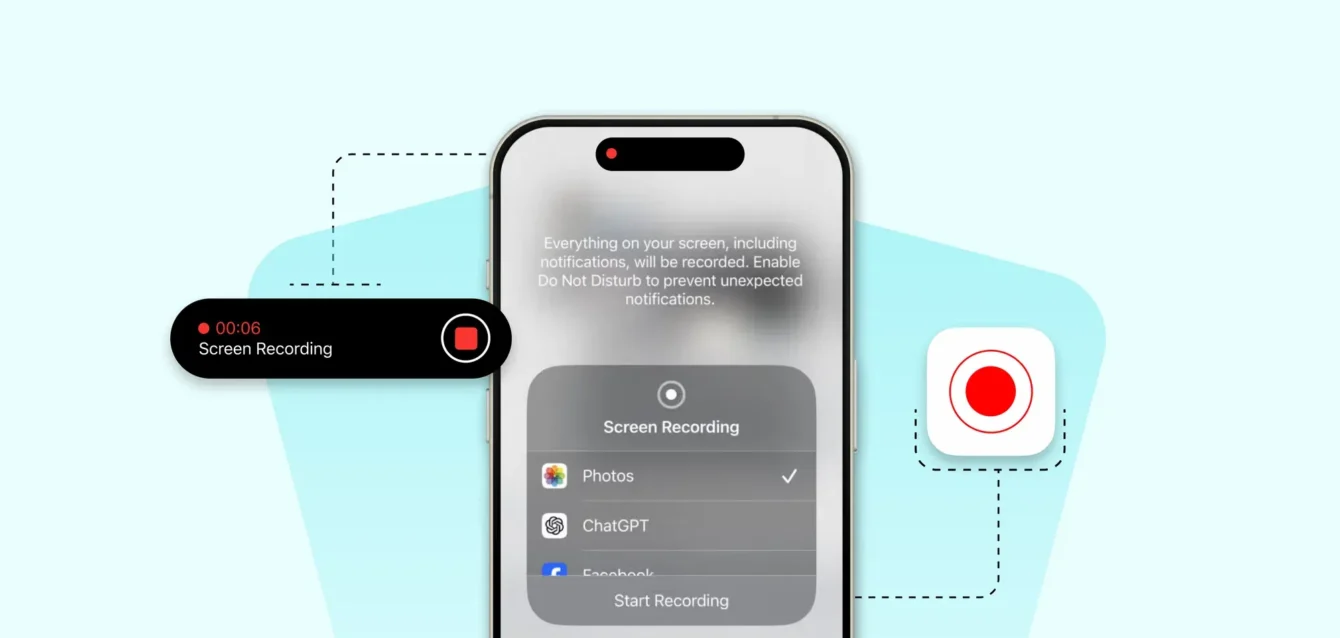
- Tap the Screen Recording button (circle inside a ring)
- A 3-second countdown appears: 3… 2… 1…
- Recording begins automatically when it hits zero
Use those 3 seconds. Swipe up to close Control Center the moment you tap — then navigate to whatever you actually want to record. By the time the countdown finishes, you’ll be in the right place. Most people forget this and end up with three seconds of Control Center at the start of every recording.
How to tell recording is active:
- iPhone 14 Pro, 15 series, 16 series (Dynamic Island models): The Dynamic Island at the top of your screen turns into a pulsing red circle. Tap it at any time to see recording duration.
- iPhone 14, 13, 12, SE, and earlier (standard notch or no notch): A red status bar or red background appears at the top of the screen. The clock turns red.
Both are subtle on purpose — Apple doesn’t want a giant recording banner in your video. If you’re unsure whether you’re recording, glance at the top of your screen.
Step 3: Stop Recording
Fastest method: Tap the red Dynamic Island bubble or red status bar at the top of your screen. A prompt appears — tap Stop. Recording saves immediately to Photos.
Alternative: Swipe down Control Center again and tap the red Screen Recording button a second time.
You’ll see a brief notification confirming the video saved to your Photos app. If you don’t see that notification, something stopped the recording early — check storage and Low Power Mode (both covered below).
Recording With Audio: Your Voice + System Sound
Here’s the thing people miss: iPhone screen recording captures app audio by default — game sounds, video playback, notification sounds — but not your microphone. If you want your voice in the recording, you have to manually enable it before starting.
How to turn on microphone audio:
- Open Control Center
- Long-press (press and hold) the Screen Recording button — don’t just tap it
- A menu slides up from the bottom
- Tap the Microphone icon — it turns red when active
- Tap Start Recording
Your voice, ambient sound, and all app audio are now captured together.
Important: iOS remembers your last microphone setting. If you turned it on once, it stays on for future recordings until you turn it off the same way. This is helpful if you always record tutorials. It’s a problem if you accidentally left it on and recorded a private conversation.
If you want system audio only (game sounds, video, etc.) without your voice: make sure the microphone is off (not red) before starting.
The one limitation you should know: The microphone must be enabled before you start recording. You cannot turn it on mid-recording. If your video comes out silent or missing your voice, this is almost always why — stop, enable the mic, start fresh.
Model-Specific Differences: Which iPhone Are You Using?
Screen recording works identically on every supported iPhone, but a few things look different depending on your model.
iPhone 14 Pro, 15 (all), 16 (all) — Dynamic Island models:
- Control Center: swipe down from the top-right corner
- Recording indicator: pulsing red orb inside the Dynamic Island at the top
- Tapping the Dynamic Island during recording shows elapsed time and stops recording on confirmation
- The red pill shape is small and easy to miss if you’ve never seen it before — look carefully at the notch area
iPhone 14 (standard), 13, 12, 11, X — notch models:
- Control Center: swipe down from the top-right corner
- Recording indicator: entire status bar background turns red, clock text turns red
- Tap the red status bar → Stop to end recording
iPhone SE (3rd generation, 2022), iPhone SE (2nd generation, 2020), iPhone 8 and earlier — Home button models:
- Control Center: swipe up from the bottom edge of the screen
- Recording indicator: red status bar at top (same as notch models)
- Everything else works identically
Does iOS version matter? Screen recording has been available since iOS 11. If your iPhone can run iOS 14 or later — and every currently sold iPhone can — you have full screen recording functionality. The steps above apply to iOS 16, 17, 18, and iOS 26 identically. Menu paths within Control Center customization changed slightly in iOS 18 (the “Add a Control” interface replaced the older list), but the core feature hasn’t changed.
Where Recordings Are Saved
Every screen recording saves automatically to the Photos app the moment you stop.
Where to find them:
- Open Photos → your recording is in the Recents album, stamped with the current date
- Go to Photos → Albums → Media Types → Screen Recordings for a dedicated folder that contains only screen recordings
Screen recordings are saved as .MOV files in H.265 (HEVC) format. They record at your iPhone’s native screen resolution:
- iPhone 16 Pro Max: 2796 × 1290 pixels
- iPhone 15: 2556 × 1179 pixels
- iPhone SE (3rd gen): 1334 × 750 pixels
How much storage do they use? A typical screen recording uses approximately 30–50 MB per minute on modern iPhones. If you’re recording gameplay, video playback, or anything motion-heavy, lean toward the 50 MB end. A 10-minute tutorial sits around 300–400 MB. Before recording anything long, go to Settings → General → iPhone Storage and confirm you have enough free space — the recording will stop automatically and without warning if storage runs out mid-session.
File format compatibility: MOV files play on any iPhone, iPad, Mac, and most modern Windows computers (Windows 10 and later with the HEVC Video Extensions from the Microsoft Store). If you’re sharing with someone on Windows and they can’t play it, they may need to install the free HEVC Video Extensions from the Microsoft Store, or you can convert the file to MP4 first using the Photos app’s share sheet.
Editing Your Recording Directly on iPhone
You don’t need a third-party app for basic cleanup. Photos has a trimmer built in.
- Open the recording in Photos
- Tap Edit (top right)
- Drag the yellow handles at either end of the timeline to trim the beginning and end
- Tap Done → Save as New Clip (this preserves the original)
The built-in Photos editor also lets you rotate, adjust brightness and color, and apply filters — everything you’d need for a quick tutorial or bug report. For anything more involved — titles, multiple clips, music, captions — iMovie is free on every iPhone and handles the basics well. If you’re making content for social media, CapCut and InShot are both free and significantly more capable for that use case.
Why Screen Recording Isn’t Working: The Real Fixes
When screen recording refuses to start, the recording button is greyed out, or your video saves as a blank file, there are five things to check — in this order. The most common cause is the Screen Time restriction, and the path to fix it is buried under a menu label that makes absolutely no sense.
Fix 1: The Screen Time Restriction (The One Everyone Gets Wrong)
If your Screen Recording button is greyed out and unresponsive, or if you see the message “Screen Recording Not Available when AirPlay, Restrictions, or screen mirroring is active” — you have a Screen Time restriction blocking it. This happens most often when Screen Time was set up on a family account, after a reset, or when someone else configured the phone.
Here’s the path, exactly as it works on iOS 16 through iOS 26:
Settings → Screen Time → Content & Privacy Restrictions → Content Restrictions → Game Center → Screen Recording → Allow
The reason everyone gets confused: Screen Recording is under “Game Center,” not under something called “Recording” or “Privacy.” There’s no obvious reason for this. It’s just where Apple put it, and it’s counterintuitive enough that even support guides from major publications get it wrong by sending you to the wrong menu.
Step by step:
- Open Settings
- Tap Screen Time
- Tap Content & Privacy Restrictions (If this is greyed out, Content & Privacy Restrictions isn’t enabled — your issue is elsewhere)
- Tap Content Restrictions
- Scroll down to the Game Center section
- Tap Screen Recording
- Select Allow
Go back to Control Center. The button should now be active. If you’re using a family account and you don’t have the Screen Time passcode, you’ll need to contact whoever set it up.
Also check: If screen recording is allowed but you’re still seeing the “AirPlay, Restrictions, or screen mirroring is active” message without actually using AirPlay — try toggling AirPlay off in Control Center, then disconnecting from any external displays or TVs. Sometimes the system incorrectly flags a residual AirPlay connection as active even when it isn’t. A force restart of the iPhone usually clears this: press Volume Up, press Volume Down, then press and hold the Side button until you see the Apple logo.
Fix 2: Storage Is Full
Screen recording writes continuously to storage as it captures. When storage runs out, the recording stops without asking and often without warning. You find out when you check Photos and the video ends abruptly, or there’s nothing there at all.
Check: Settings → General → iPhone Storage
At the top of that screen, you’ll see a visual breakdown of what’s using space. As a rough guide: budget at least 500 MB free per 10 minutes of planned recording to be safe, or check the 30–50 MB/minute estimate against how long you’re planning to record.
Quick ways to free space: Delete old screen recordings you’ve already exported. Clear app caches for large apps like Photos, Safari, or Spotify (go to the app’s own Settings menu, or see our guide on clearing iPhone cache). Offload unused apps — Settings → General → iPhone Storage → individual app → Offload App.
Fix 3: Low Power Mode Is Active
Low Power Mode throttles background processes and certain features to stretch battery life. Screen recording is sometimes affected, particularly on older iPhone models. If your recording stops unexpectedly or won’t start at all:
Go to Settings → Battery → Low Power Mode and toggle it off. Alternatively, go to Control Center and tap the battery icon to toggle it there if you’ve added that control.
After disabling Low Power Mode, try recording again. Note that Low Power Mode re-enables automatically when battery drops to a certain threshold, so if you’re planning a long recording session, keep your phone charged or connected.
Fix 4: The App You’re Recording Prevents It
Some apps actively block screen recording at the system level. When you try to record these apps, either nothing captures, or you get exactly what you asked for — a recording with a solid black rectangle where the app content should be. This is not a bug. It’s intentional.
Apps that block screen recording on iPhone:
| App Category | Examples | What happens |
|---|---|---|
| Streaming services | Netflix, Disney+, Apple TV+, Max, Hulu, Amazon Prime Video | Black screen video, audio may still capture |
| Banking and financial | Most banking apps, Venmo, Cash App | Black screen or recording blocked entirely |
| Social media (DMs/disappearing content) | Snapchat | Notification sent to sender; recording may still work |
| Enterprise security apps | Some MDM-managed corporate apps | Blocked by company policy |
| Government and health | Some government ID apps, telehealth apps | Black screen |
Why it happens: These apps use iOS APIs that flag their content as protected from capture. When iOS detects a recording attempt, it replaces the app’s video output with a blank frame while continuing to capture everything else — which is why you often get audio but a black video track. The protection happens at the hardware level; there’s no iOS setting you can toggle to bypass it. This is a feature, not a bug — it’s the same DRM technology that prevents you from screenshotting a purchased Netflix movie.
What you can actually do: For most blocked apps, you can use QuickTime Player on a Mac to record the mirrored output of your iPhone screen (covered in the next section). For streaming services specifically, this may or may not work depending on the specific app — Netflix has tightened its Mac-level DRM considerably. The most reliable option for capturing content from streaming services for personal, non-commercial reference is downloading it directly through the platform’s own download feature (Netflix, Disney+, and most major services offer this on paid plans).
For banking apps and security apps, there’s generally no workaround and no reason to need one — if you’re trying to document a bug or error, a physical photo of your screen with a second device is the simplest solution.
Fix 5: Recording Won’t Save or Saves Empty
If the recording appears to complete normally — the countdown happens, the red indicator appears — but the file in Photos is empty, extremely short, or doesn’t exist:
- Check storage immediately. If storage filled during the recording, iOS may save a zero-byte or truncated file.
- Check for a failed save notification. Immediately after stopping, look for a notification that says something about the recording failing to save — this usually indicates the storage issue.
- Force quit Photos and reopen it. Occasionally the video shows up a few seconds after the recording ends, especially on older devices.
- Restart your iPhone. Occasional iOS glitches can affect whether recordings save properly. A restart clears most of these.
Record Your iPhone Screen on a Mac Using QuickTime
QuickTime Player on Mac gives you an alternative that sidesteps several iPhone limitations. The recording happens on the Mac, not the phone, so Low Power Mode doesn’t affect it, your phone’s storage isn’t consumed, and the resulting file is available directly on your Mac without a transfer step.
What you need: A Mac running macOS Catalina or later, a USB-C or Lightning cable (matching your iPhone model), and your iPhone.
How to do it:
- Connect your iPhone to your Mac with a cable
- Unlock your iPhone — if prompted to Trust This Computer, tap Trust
- Open QuickTime Player on your Mac (it’s in Applications, or search with Spotlight)
- In the menu bar: File → New Movie Recording
- A recording window opens. Click the small arrow (▼) next to the red record button
- Under Camera, select your iPhone from the list
- Your iPhone’s screen now appears in the QuickTime window, mirrored live
- Click the red record button to start
Everything that happens on your iPhone’s screen records to your Mac at full resolution, with audio if you select your iPhone as the microphone source in the same dropdown.
Advantages over the built-in recorder:
- Higher quality — QuickTime captures at the iPhone’s native resolution without compression artifacts
- No red recording indicator visible on your iPhone’s screen
- Recording saves as a full-resolution .MOV directly to your Mac
- Uses your Mac’s storage, not your iPhone’s
- For some apps with DRM, the Mac recording may capture content that the iPhone’s own recorder would black out — this is not guaranteed and depends on the specific app
One limitation: You need to be at a desk with your Mac. This doesn’t work for recording something happening on the go.
Recording a FaceTime Call or Phone Screen
FaceTime calls: Screen recording works during FaceTime, but with conditions. The recording captures everything on your screen including the FaceTime interface. The other person’s audio is captured via your microphone (if enabled) — which means they’re being recorded. In many US states, recording a conversation without the other party’s knowledge is illegal under two-party consent laws. The FTC’s consumer privacy guidance is a useful starting point for understanding what applies in your situation. Tell the other person you’re recording before you start.
Additionally, iOS does not allow you to record another person’s live video feed in a FaceTime call at the system level — you’ll capture your view of the call but their video may be blocked or appear degraded depending on iOS version and whether they have privacy settings active.
Regular phone calls: The built-in screen recorder does not capture the audio of a live phone call. This is an iOS restriction that’s been in place since screen recording launched. The microphone records what’s physically in the room, not the call audio going through the earpiece. For recording phone calls, you need a dedicated call recording app — these work by routing the call through a conference bridge and are subject to state/country laws on call recording consent.
Video playing in an app: If you want to capture a video that’s playing in an app — a tutorial, a clip you received, something in a social media feed — you can screen record it as long as the app doesn’t use DRM protection. Most standard apps (social media video players, downloaded files, non-streaming video apps) will record normally.
The Horizontal Recording Trick
Screen recording captures whatever orientation your phone is currently in. If you start recording in portrait (vertical), you get a portrait video. If you want a widescreen video:
- Rotate your iPhone to landscape (horizontal) before starting the recording
- Wait for the screen to rotate
- Then open Control Center and start recording
This produces a proper 16:9 widescreen video — much better for tutorials that will be watched on a computer or TV, and for any recording you plan to use in a video editor. Widescreen recordings don’t have black bars when played in standard video players. Portrait recordings do.
If rotation isn’t working: Check for the rotation lock in Control Center (the lock icon with a circular arrow). Tap it to disable the lock, then rotate your phone.
Quick Troubleshooting Reference
| Symptom | Most likely cause | Fix |
|---|---|---|
| Button is grey / unresponsive | Screen Time restriction | Settings → Screen Time → Content & Privacy Restrictions → Content Restrictions → Game Center → Screen Recording → Allow |
| Button is missing entirely | Not added to Control Center | Settings → Control Center → add Screen Recording |
| Black screen in recording | App uses DRM protection | Use QuickTime on Mac, or use the app’s own download feature |
| Recording stops by itself | Storage full or Low Power Mode | Check Settings → iPhone Storage; disable Low Power Mode |
| No audio / silent video | Microphone wasn’t enabled before recording | Long-press button → enable Microphone → start new recording |
| “AirPlay, Restrictions active” error | Screen Time restriction or residual AirPlay | Follow Screen Time fix above; force restart if AirPlay is off |
| Recording saves empty / truncated | Ran out of storage during session | Free up storage, try again |
| Recording is laggy / choppy | Too many background apps | Close apps before recording; close especially intensive apps |
| Can’t find the recording in Photos | Look in Albums → Screen Recordings | Open Photos → Albums tab → scroll to Screen Recordings |
| iPhone locks during recording | Recording stops when screen turns off | Keep your screen on; go to Settings → Display & Brightness → Auto-Lock and set to a longer interval |
Frequently Asked Questions
How do I screen record on iPhone without the red bar showing?
You can’t remove the red indicator using the built-in recorder — it’s there by design to prevent covert recording. If you’re recording for a tutorial and don’t want it visible, you can crop the status bar out in post-editing (tap Edit in Photos → crop tool → resize the frame to exclude the top strip). Alternatively, using QuickTime on Mac means the red indicator appears on your iPhone but not in the Mac recording.
Can I screen record on iPhone with audio from both sides of a call?
Not with the built-in recorder. Screen recording captures microphone audio from the room, not the call audio through the earpiece. For call recording with both parties’ audio, use a dedicated call recording app — these work via conference bridge and are legal only in jurisdictions and with consent from all parties.
Why does my screen recording have a black screen for Netflix?
Netflix uses DRM (Digital Rights Management) to prevent recording. When iOS detects a recording attempt on protected content, it replaces the video output with a black frame while audio continues. This is intentional and cannot be bypassed by any iPhone setting. For personal reference, use Netflix’s own download feature (available on Standard with ads and above) to save content offline within the app.
How long can I screen record on iPhone?
There’s no time limit in the software. Practical limits are storage space (approximately 30–50 MB per minute) and battery. For very long recordings, keep your phone plugged in. If you’re planning a recording longer than 20–30 minutes, check storage first — a recording that stops unexpectedly at minute 45 with no warning is frustrating.
Does the other person know when I screen record a FaceTime call?
iOS does not send any notification to the other person when you screen record a FaceTime call. However, recording someone without their knowledge may be illegal in your jurisdiction. Many US states require two-party consent for recorded conversations. Check your local laws and tell the other person you’re recording before starting.
Can I screen record a Snapchat without them knowing?
Snapchat detects screen recording attempts and sends a notification to the sender. This is a Snapchat-specific feature — the app itself monitors for recording activity and notifies users when their snaps are captured. This applies to screen recording, screenshots, and in some cases even screen mirroring.
Why does my iPhone screen recording have no sound?
The most common cause: microphone wasn’t enabled before starting. Long-press the Screen Recording button in Control Center, check that the Microphone icon is red (active), then start a new recording. Also check that you haven’t accidentally enabled Do Not Disturb or a Focus mode that might affect audio, though these typically don’t affect screen recording audio directly.
Where do screen recordings save on iPhone?
Automatically to the Photos app, in the Recents album. You can also find them under Albums → Media Types → Screen Recordings. They save as .MOV files in H.265 (HEVC) format. If you’ve been recording and can’t find the file, check if recording was cut short by storage running out.
Can I screen record on iPhone while another app uses the microphone?
If another app has exclusive microphone access (like a voice recording app or a phone call), the screen recording microphone may not activate. Close other microphone-using apps before starting a screen recording with audio enabled.
[simple-author-box]