

How to Screenshot
Last updated: April 22, 2026
Taking a screenshot takes less than a second once you know the right shortcut. The problem is that every platform does it differently, most guides don’t tell you what actually goes wrong, and there are methods on every device that most users have never found.
This guide covers every platform — Mac, Windows, iPhone, and Android — with the shortcuts that actually work, the friction points nobody warns you about, and the hidden methods worth setting up once and using forever.
Table of Contents
Quick Reference: Every Screenshot Shortcut at a Glance
| Device | Method | Shortcut / Action | Saves To |
|---|---|---|---|
| Mac | Full screen | ⌘ + Shift + 3 | Desktop |
| Mac | Selected area | ⌘ + Shift + 4 | Desktop |
| Mac | Single window | ⌘ + Shift + 4, then Space | Desktop |
| Mac | Screenshot toolbar | ⌘ + Shift + 5 | Desktop (or choose) |
| Mac | Copy to clipboard | Add Control to any above | Clipboard |
| Windows 11 | Snipping Tool overlay | Win + Shift + S | Clipboard (not a file) |
| Windows 11 | Full screen to file | Win + PrtSc | Pictures > Screenshots |
| Windows 11 | Active window | Alt + PrtSc | Clipboard only |
| Windows 11 | Screen recording | Win + Shift + R | Videos > Screen Recordings |
| iPhone (no Home button) | Standard | Side + Volume Up | Photos > Screenshots |
| iPhone (Home button) | Standard | Home + Side/Sleep | Photos > Screenshots |
| iPhone | Back Tap (iOS 14+) | Double-tap back of phone | Photos > Screenshots |
| iPhone 17 | Head Tracking gesture | Tongue-out (configurable) | Photos > Screenshots |
| Android (universal) | Standard | Power + Volume Down | Gallery > Screenshots |
| Samsung | Palm swipe | Swipe palm edge across screen | Gallery > Screenshots |
| Google Pixel | Quick Tap | Double-tap back of phone | Photos > Screenshots |
Mac Screenshots
Mac’s screenshot system follows one logical pattern: ⌘ + Shift + [number], where the number determines what you’re capturing. Learn three shortcuts and you’ll cover everything.
⌘ + Shift + 3 — Full Screen
Captures everything on your display as a PNG file, saved directly to your Desktop. A thumbnail preview appears bottom-right for about five seconds — click it to edit before it saves, or let it disappear.
What actually goes wrong: On a multi-monitor Mac, the capture goes to whichever screen holds the cursor. Move your cursor to the screen you want first.
⌘ + Shift + 4 — Selected Area
Your cursor becomes a crosshair. Click and drag to select exactly what you want, then release.
The trick nobody mentions: If you start dragging and want to reposition the selection without starting over, hold Space while still holding the mouse button. The entire selection box moves without changing its size.
⌘ + Shift + 4, then Space — Single Window
After pressing ⌘ + Shift + 4, hit the Space bar. Your cursor becomes a camera icon. Hover over any window — it highlights blue — and click to capture it with a clean drop shadow.
Option key trick: Hold Option while clicking to remove the drop shadow. Useful for documentation and tutorials where you want clean edges.
⌘ + Shift + 5 — Screenshot Toolbar
Opens a floating panel with every option: full screen, window, selection area, screen recording. Also lets you set a delay timer (essential for capturing tooltips or dropdown menus that disappear when you press any key), and choose where files save. Change the save location from Desktop to a specific folder, iCloud Drive, or elsewhere from Options in this toolbar.
The Control Modifier: Clipboard Instead of File
Add Control to any screenshot shortcut to copy to clipboard rather than saving a file:
- ⌘ + Control + Shift + 3 → full screen to clipboard
- ⌘ + Control + Shift + 4 → selection to clipboard
This is fastest when pasting directly into Slack, email, or a document. No file saved, no Desktop clutter, just Ctrl + V wherever you need it.
Where Mac Screenshots Save
PNG files on your Desktop by default. To change: open ⌘ + Shift + 5 → Options → Save to → choose any folder or iCloud Drive.
Windows 11 Screenshots
Windows 11 consolidates screenshots into the Snipping Tool. Understanding which shortcuts create files versus which only copy to clipboard prevents the most common frustration: pressing a key combination and wondering where the screenshot went.
Win + Shift + S — Snipping Tool Overlay (Most Flexible)
The screen dims and a four-icon toolbar appears. Choose:
- Rectangle: drag a box around what you want — most used
- Freeform: draw any shape
- Window: click any open window to capture it
- Full screen: captures everything instantly
The critical detail most guides miss: The capture copies to your clipboard. A notification appears bottom-right. If you click it, the Snipping Tool editor opens for annotation and saving. If you dismiss the notification, the image is still in your clipboard — paste with Ctrl + V immediately. But it is not automatically saved as a file unless you configure auto-save in Snipping Tool’s settings.
Win + PrtSc — Full Screen to File (Fastest)
The screen briefly dims, and the full-screen capture saves automatically to Pictures > Screenshots as a PNG. No editor, no clipboard, no confirmation. The right method for capturing a series of screenshots quickly.
Alt + PrtSc — Active Window to Clipboard
Captures only the window currently in focus. Copies to clipboard only — nothing saved to disk. Paste immediately.
Win + Shift + R — Screen Recording
Opens Snipping Tool in recording mode. Select an area, click Start. Enable the microphone before pressing Start — it resets to muted at the start of every new session.
Recordings save automatically to Videos > Screen Recordings.
Perfect Screenshot — AI Capture (Copilot+ PCs Only)
On Copilot+ PCs running Snipping Tool version 11.2504.38.0 or later, a Perfect Screenshot button appears in the rectangle mode toolbar. Select it before dragging, and the AI feature automatically snaps the capture boundary tightly around the most prominent content on screen — reducing the need for cropping. Not available on standard PCs; requires Copilot+ hardware.
Where Windows Screenshots Save
| Method | Saves To |
|---|---|
| Win + PrtSc | Pictures > Screenshots (PNG file) |
| Win + Shift + S | Clipboard only (unless you save from editor) |
| Alt + PrtSc | Clipboard only |
| PrtSc alone | Clipboard only |
| Screen Recording | Videos > Screen Recordings |
Format tip: Always use PNG for screenshots with text or UI elements. JPEG compression blurs fine details.
iPhone Screenshots
Current iPhones Without a Home Button (iPhone X, 11, 12, 13, 14, 15, 16, 17, iPhone Air)
Press and quickly release Side button + Volume Up simultaneously.
The screen flashes white, the shutter fires (unless silent), and a thumbnail appears bottom-left. Tap to edit; swipe away to save.
The most common mistake: Holding too long triggers the power-off screen or Emergency SOS. The press should last under half a second. If you keep hitting the wrong action, set up Back Tap instead — it’s more forgiving.
iPhones With a Home Button (iPhone SE 2nd/3rd gen, iPhone 8, 7, 6)
Press Home + Side (Sleep/Wake) simultaneously, then release quickly. Same white flash and thumbnail. Screenshots save to Photos > Screenshots.
iPhone SE 1st generation and iPhone 5s: use Home + Top button.
Full Page Screenshot in Safari
Take a normal screenshot in Safari, then tap the thumbnail. At the top of the edit screen, tap Full Page. The entire webpage — including content below the fold — saves as a scrollable PDF to your Files app.
This only works in Safari. It does not work in Chrome, Firefox, or third-party apps. Saves to Files, not Photos.
Back Tap — The Hidden Method Worth Setting Up
Double-tapping or triple-tapping the back of your iPhone can take a screenshot. Works through most cases. Works on iPhone 8 and later running iOS 14+.
Setup: Settings → Accessibility → Touch → Back Tap → Double Tap → Screenshot.
Once configured, it’s the easiest everyday screenshot method — one-handed, no button fumbling, never accidentally triggers power-off. I set this up on every iPhone I own within the first day.
AssistiveTouch — Screenshot Without Physical Buttons
Settings → Accessibility → Touch → AssistiveTouch → toggle On. A floating button appears on screen.
For fastest use: in AssistiveTouch settings, tap Customize Top Level Menu and add Screenshot as one of the direct actions. Single tap on the floating button captures immediately without navigating sub-menus.
Most useful if your physical buttons are damaged, your case makes them hard to press, or you’re taking multiple screenshots rapidly.
Siri Voice Command
“Hey Siri, take a screenshot” works on any iPhone with Siri enabled. Saves to Photos. The Siri border appears briefly around the screen during capture.
iPhone 17: Head Tracking Gesture (New in 2026)
The iPhone 17 added camera-based gesture recognition through Head Tracking. One configurable action is sticking out your tongue to take a screenshot — a feature that went genuinely viral when early testers discovered it.
Setup: Settings → Accessibility → Head Tracking → enable → tap “Stick Out Tongue” → assign Screenshot.
Other configurable gestures include raising an eyebrow, puckering lips, and looking left or right. Practically useful for hands-free capture when filming or demonstrating something. Works best in adequate lighting for the front camera.
Android Screenshots
Universal Android Method
Power + Volume Down simultaneously, quick release. Works on Samsung, Pixel, OnePlus, Motorola, and essentially every Android phone.
After capture, a toolbar appears with options to crop, share, or launch scroll capture. Screenshots save to Gallery > Screenshots.
What goes wrong: Holding too long opens the power menu. Quick press, quick release. On phones where the Power button is also used for Google Assistant (some Pixel models), there can be a conflict — you can reassign Assistant to a long press in Settings.
Samsung: Palm Swipe
Swipe the edge of your palm horizontally across the screen. Your palm needs to physically contact the display — it’s not an air gesture.
Enable first: Settings → Advanced Features → Motions and Gestures → Palm swipe to capture → On.
The common failure: Users try to wave their hand near the screen instead of sliding the palm edge against it. Once you understand the contact requirement — the pinky-to-wrist edge dragging firmly across the glass — it becomes reliable and fast.
Samsung Galaxy S26: Screenshot Analyzer
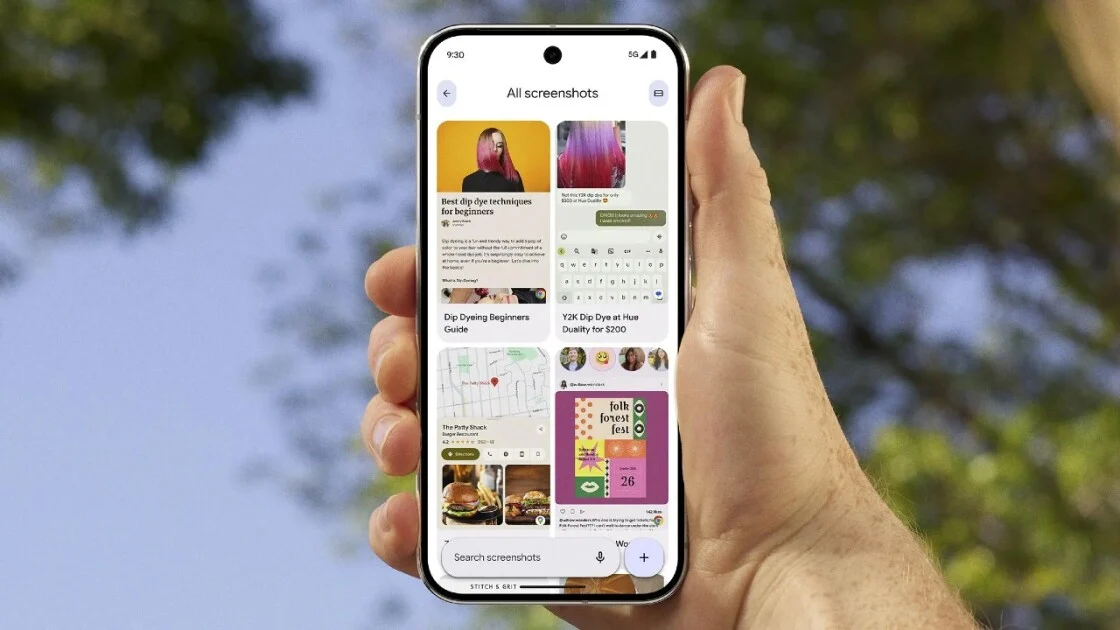
The Galaxy S26 introduced an AI feature built into the Gallery app that automatically categorizes screenshots — boarding passes, chat messages, web pages, QR codes — and adds a “Go to source” button that takes you back to the original app and location where the screenshot was taken. No other phone platform currently offers source-tracing at this level natively.
Google Pixel: Quick Tap
Settings → System → Gestures → Quick Tap → enable → set action to Take screenshot. Double-tap the back of your Pixel to capture. Available on Pixel 6 and later.
Scrolling Screenshots on Android
After taking a standard screenshot, tap Scroll capture or Extended capture in the bottom toolbar. The phone scrolls and stitches automatically, building a long image of the full content. Works in Chrome, Samsung Internet, most messaging apps. Blocked in some apps by developer choice.
When Screenshots Aren’t Working
Mac — nothing happens when pressing shortcuts: Another app has claimed the shortcut. Check System Settings → Keyboard → Keyboard Shortcuts → Screenshots. Also verify Screen Recording permission is granted in System Settings → Privacy & Security → Screen Recording.
Windows — Win + Shift + S does nothing: Another app is intercepting the shortcut (common with Snipping Tool alternatives or screen overlay apps). Also try opening Snipping Tool manually from Start once to re-register it as the default handler, then restart.
iPhone — keeps triggering power-off menu: You’re holding the buttons too long. Switch to Back Tap for a friction-free alternative. Settings → Accessibility → Touch → Back Tap → Double Tap → Screenshot.
Samsung palm swipe not triggering: Confirm the setting is enabled. Ensure your palm’s edge is making contact with the screen glass, not floating above it. Try a slower, deliberate swipe the first few times to learn the required pressure.
Frequently Asked Questions
How do you take a screenshot on a Mac?
Press ⌘ + Shift + 3 to capture your entire screen, or ⌘ + Shift + 4 to select a specific area. Both save PNG files to your Desktop. Add Control to either shortcut to copy to clipboard instead.
How do you take a screenshot on Windows 11?
Press Win + Shift + S to open the Snipping Tool overlay — select any area and the image copies to clipboard. Press Win + PrtSc to capture the full screen and save it automatically to Pictures > Screenshots as a PNG file. The two do different things: Win + Shift + S gives selection control but saves to clipboard; Win + PrtSc saves a file immediately with no selection.
How do you take a screenshot on iPhone?
On iPhones without a Home button (iPhone X through iPhone 17): press Side + Volume Up simultaneously and release quickly. On iPhones with a Home button (SE, iPhone 8 and older): press Home + Side simultaneously. Screenshots save to Photos > Screenshots.
How do you take a screenshot on Android?
Press Power + Volume Down simultaneously and release quickly. Works on virtually all Android phones. Samsung phones also support a palm swipe gesture: Settings → Advanced Features → Motions and Gestures → Palm swipe to capture.
Where do screenshots save on iPhone?
Photos app → Screenshots album (under Media Types). Full Page screenshots from Safari save as PDFs to the Files app.
Where do screenshots save on Mac?
Desktop, by default, as PNG files. Change the location in ⌘ + Shift + 5 → Options → Save to.
Where do screenshots save on Windows 11?
Win + PrtSc saves to Pictures > Screenshots. Win + Shift + S copies to clipboard only (unless autosave is enabled in Snipping Tool settings). Screen recordings save to Videos > Screen Recordings.
Can you take a screenshot on iPhone without pressing the buttons?
Yes. Back Tap (Settings → Accessibility → Touch → Back Tap) lets you double-tap the back of the phone. AssistiveTouch creates an on-screen floating button. Siri accepts “Take a screenshot” as a voice command. iPhone 17 adds Head Tracking gestures including sticking out your tongue.
How do you screenshot a full webpage on iPhone?
In Safari: take a normal screenshot, tap the thumbnail, then tap Full Page. The entire page saves as a PDF to Files. Safari only — doesn’t work in Chrome or other browsers.
What is the difference between Win + Shift + S and Win + PrtSc on Windows?
Win + Shift + S opens the Snipping Tool overlay for selective capture — copies to clipboard, does not save a file. Win + PrtSc captures the full screen and saves it directly to Pictures > Screenshots — no clipboard, no editor, just a file.
Alex Rivera covers tech, gadgets, and digital how-to guides for Axis Intelligence. All methods tested on macOS Sequoia 15.4, Windows 11 24H2, iOS 18.4 on iPhone 17 and iPhone SE 3rd generation, and Android 16 on Samsung Galaxy S26 and Google Pixel 9 in April 2026.
Official documentation: Apple screenshot guide · Microsoft Snipping Tool · Apple Back Tap · Samsung screenshot support

Consumer tech & culture writer. 200+ gadget reviews. Covers phones, laptops, gaming, streaming, puzzles, and digital culture. Writes for real people buying real products.