

iMessage Not Working?
When iMessage stops working, it disrupts more than just messaging. Your conversations split across different apps, blue bubbles mysteriously turn green, delivery confirmations vanish, and suddenly you’re cut off from one of the most seamless communication features in the Apple ecosystem.
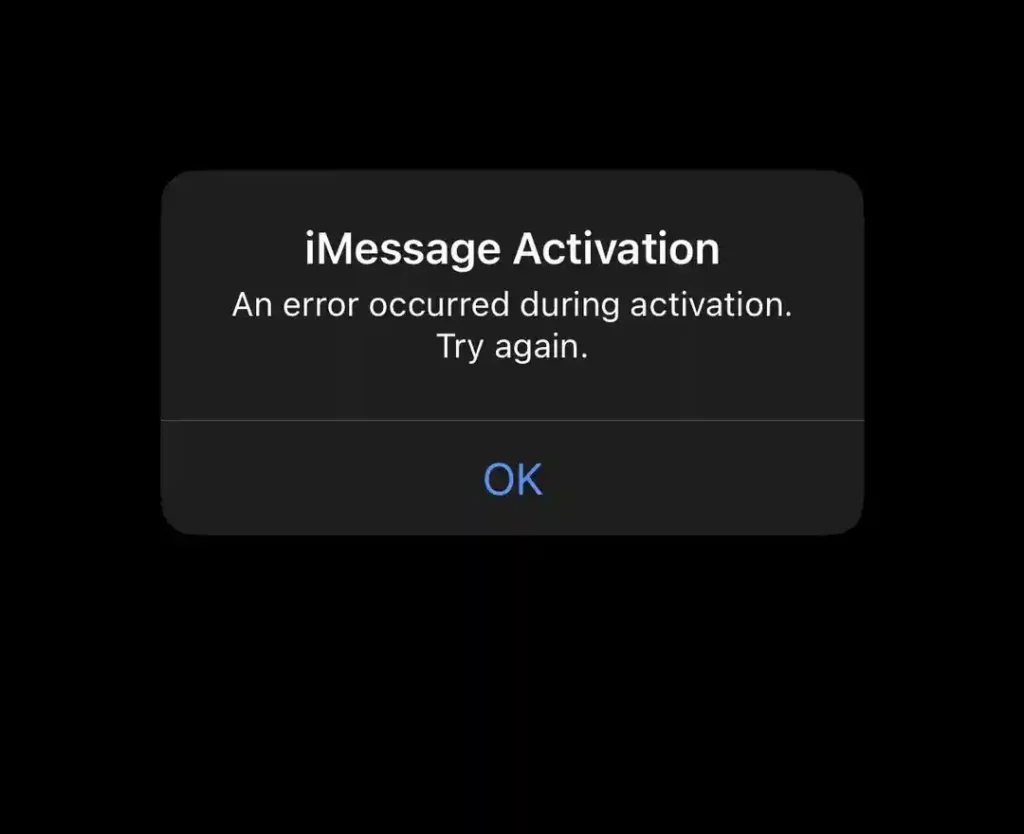
After the iOS 26 update released in September 2025, thousands of iPhone users reported iMessage activation failures, delivery problems, and complete service disruptions. While Apple’s System Status page continues showing services as operational, real-world user experiences tell a different story.
This comprehensive troubleshooting guide addresses every documented iMessage issue, from server connectivity problems to iOS 26-specific bugs. Whether you’re stuck with “Waiting for activation,” seeing “Not Delivered” alerts, or watching all your messages turn green instead of blue, these proven solutions will restore your iMessage functionality.
Understanding Why iMessage Stops Working
iMessage failure rarely occurs without reason. Understanding the root cause determines which solution fixes your specific problem fastest.
How iMessage Actually Works
iMessage operates fundamentally differently from standard SMS text messaging. When you send an iMessage, your device encrypts the content and transmits it through Apple’s secure servers using either Wi-Fi or cellular data connections. The service requires active Apple ID authentication and proper device registration with Apple’s servers.
Key iMessage Requirements:
- Active internet connection (Wi-Fi or cellular data)
- Valid Apple ID signed into iCloud
- iMessage activation through your phone number or email
- iOS 26, iPadOS 26, or macOS compatible device
- Proper date, time, and time zone settings
When any of these elements fail, iMessage service disrupts, forcing messages to route through SMS/RCS as green text bubbles instead of encrypted blue iMessages.
Common iMessage Problems After iOS 26
Apple released iOS 26 on September 15, 2025, introducing significant Messages app changes:
New iOS 26 Features Affecting Messages:
- Custom conversation backgrounds with photos or designs
- Enhanced group chat functionality with typing indicators
- Liquid Glass translucent interface redesign
- Improved unknown sender filtering
- Partial message selection capabilities
However, these updates triggered widespread activation issues, particularly for users with specific SIM configurations. MacRumors reported that the most significant iOS 26 bug affects iPhone owners with inactive SIMs or eSIMs carrying the same phone number as their active SIM.
iOS 26-Specific Symptoms:
- “Not Delivered” alerts on outgoing iMessages
- All messages sending as green SMS/RCS
- iMessage using email address instead of phone number
- Phone number appearing twice in Send & Receive settings
- Indefinite “Waiting for activation” status
Check If iMessage Server is Down
Before attempting device-specific fixes, verify whether Apple’s infrastructure is experiencing outages affecting all users rather than just your device.
Apple System Status Verification
Visit Apple’s System Status page to check current service availability. Look specifically for “iMessage” in the services list. A green indicator confirms operational status, while yellow or red signals indicate issues or outages.
System Status Indicators:
- Green: Service operating normally
- Yellow: Performance issues affecting some users
- Red: Service outage impacting significant users
Even when Apple’s dashboard shows green status, regional server problems occasionally affect specific geographic areas without triggering official outage reports. 9to5Mac and MacRumors often report user-experienced outages before Apple acknowledges them officially.
Alternative Outage Verification
Check independent service monitoring platforms:
DownDetector (downdetector.com/status/imessage): Real-time user reports showing geographic outage patterns
Twitter/X Search: Search “iMessage down” to see if numerous users simultaneously report identical issues
If widespread outages appear confirmed, there’s nothing to fix on your device. Apple’s engineers must resolve server-side problems. Your messages should automatically switch to green SMS bubbles until iMessage service restoration.
Verify Your Internet Connection
iMessage absolutely requires active internet connectivity through Wi-Fi or cellular data. Without network access, messages cannot route through Apple’s servers.
Test Connectivity Strength
Wi-Fi Verification:
- Open Settings and tap Wi-Fi
- Confirm you’re connected to a network (blue checkmark visible)
- Look for the Wi-Fi signal strength indicator
- Open Safari and load any webpage to confirm actual internet access
Many public Wi-Fi networks display as “connected” but require captive portal logins before providing actual internet access. Hotels, airports, and cafes frequently use these systems. If Safari won’t load pages despite Wi-Fi connection, tap the network name in Settings to trigger the login portal.
Cellular Data Verification:
- Navigate to Settings > Cellular
- Confirm “Cellular Data” toggle is enabled (green)
- Ensure your active line shows green indicator
- Check for sufficient remaining data in your plan
Quick Connection Reset: Toggle Airplane Mode on for 10 seconds, then disable it. This forces your iPhone to re-establish all wireless connections, often resolving temporary connectivity glitches affecting iMessage activation.
Network Switching Strategy
If Wi-Fi seems problematic, switch to cellular data:
- Disable Wi-Fi in Settings
- Confirm cellular data is active
- Attempt sending an iMessage
- Monitor whether blue bubbles return
Conversely, if cellular data shows issues, connect to stable Wi-Fi:
- Select a trusted network (home or work)
- Verify internet access through Safari
- Keep iPhone idle for 2-3 minutes
- Check if iMessage activates successfully
According to Apple Support documentation, iMessage activation works most reliably over Wi-Fi connections rather than cellular data.
Toggle iMessage Off and On
This elementary fix resolves surprisingly frequent iMessage problems by forcing the Messages app to re-authenticate with Apple’s servers.
Basic iMessage Reset
iPhone/iPad:
- Open Settings
- Scroll down and tap “Apps”
- Select “Messages”
- Toggle “iMessage” switch to off (gray)
- Wait 30 seconds
- Toggle “iMessage” back on (green)
- Watch for the activation message beneath the toggle
The activation process typically completes within 1-2 minutes on stable connections. If you see “Waiting for activation” for more than 5 minutes, proceed to advanced solutions.
Mac:
- Open Messages app
- Click “Messages” in menu bar
- Select “Settings” or “Preferences”
- Click “iMessage” tab
- Click “Sign Out”
- Wait 30 seconds
- Click “Sign In” and authenticate
Why This Works
Toggling iMessage forces your device to:
- Clear temporary authentication tokens
- Re-verify your Apple ID with Apple’s servers
- Re-register your phone number through carrier SMS
- Refresh encryption keys for secure messaging
- Reset any corrupted activation states
Many iOS 26 users report this simple toggle immediately resolved post-update iMessage failures that persisted through multiple device restarts.
Restart Your iPhone or iPad
The oldest troubleshooting wisdom remains remarkably effective. Restarting clears temporary software glitches, refreshes system processes, and often restores iMessage functionality without additional intervention.
Proper iPhone Restart Procedure
iPhone 17 and newer models:
- Press and quickly release Volume Up button
- Press and quickly release Volume Down button
- Press and hold Side (Power) button
- Continue holding through slide to power off
- Keep holding until Apple logo appears
- Release button and wait for device to boot
iPhone 16 and earlier models:
- Press and hold Side button + either Volume button
- Wait for power off slider
- Drag slider to power off
- Wait 30 seconds
- Press and hold Side button until Apple logo appears
Why Not Just Force Restart? Normal restart allows iOS to properly close all background processes and save system states. Force restart (power button sequence without waiting for slider) should be reserved for completely frozen devices.
Post-Restart Verification
After your iPhone reboots completely:
- Open Settings > Messages
- Confirm iMessage toggle shows green (on)
- Look for “Waiting for activation” text
- Open Messages app and attempt sending a test iMessage
If activation completes successfully, blue bubbles should return immediately. If “Waiting for activation” persists beyond 5 minutes, continue to advanced solutions.
Reset Network Settings
Network configuration corruption commonly disrupts iMessage after iOS updates, carrier setting changes, or international travel. Resetting network settings wipes these configurations and rebuilds them from scratch.
Network Reset Process
Critical Warning: This reset erases all saved Wi-Fi passwords, Bluetooth pairings, VPN configurations, and cellular settings. Have your Wi-Fi passwords ready before proceeding.
Reset Steps:
- Open Settings
- Tap “General”
- Scroll to “Transfer or Reset iPhone”
- Select “Reset”
- Choose “Reset Network Settings”
- Enter your device passcode
- Confirm reset by tapping “Reset Network Settings” again
Your iPhone will restart automatically. The process takes 2-3 minutes.
Post-Reset Configuration
After the restart completes:
- Reconnect to your Wi-Fi network
- Wait 1-2 minutes for carrier settings to reload
- Navigate to Settings > Messages
- Verify iMessage is enabled
- Monitor activation status
Network reset solves iMessage activation problems caused by:
- Corrupted carrier configuration files
- Conflicting VPN settings interfering with Apple servers
- IPv6 configuration issues blocking iMessage ports
- DNS resolver problems preventing server authentication
Apple recommends network reset as a standard troubleshooting step for persistent connectivity-related issues, including iMessage activation failures.
Sign Out and Sign Back Into Apple ID
Apple ID authentication issues frequently disrupt iMessage, particularly after iOS updates, password changes, or when moving between devices. Re-authenticating resolves stale sessions and corrupted authentication tokens.
Apple ID Sign Out Process
- Open Settings
- Tap your name/profile at the top
- Scroll to bottom and tap “Sign Out”
- Enter Apple ID password when prompted
- Choose whether to keep data copies on iPhone
- Confirm sign out
Data Preservation Options: During sign-out, iOS asks whether to keep copies of Contacts, Calendars, Reminders, and Safari data on your iPhone. Enabling these toggles prevents data loss, storing local copies that will re-sync when you sign back in.
Sign Back In Strategy
After signing out, wait at least 60 seconds before signing back in. This delay ensures Apple’s servers fully process the sign-out and clear your previous session.
Re-Authentication Steps:
- Open Settings
- Tap “Sign in to your iPhone”
- Enter your Apple ID email
- Enter your Apple ID password
- Complete two-factor authentication
- Follow setup wizard prompts
iMessage Re-Activation
Once Apple ID authentication completes:
- Navigate to Settings > Apps > Messages
- Verify iMessage toggle is enabled
- Tap “Send & Receive”
- Confirm your phone number and email addresses appear
- Select which contact methods should be active
According to troubleshooting reports on MacObserver, signing out and back in resolved iOS 26 activation failures for many users, particularly those who experienced interrupted updates.
Fix iOS 26 Duplicate SIM Issue
Apple identified a specific iOS 26 bug affecting users with inactive SIM cards or eSIMs. If you’ve switched carriers, traveled internationally, or maintained backup SIM configurations, this could be blocking your iMessage activation.
Identify Duplicate SIM Problem
Symptoms:
- Phone number appears twice in Settings > Messages > Send & Receive
- iMessages won’t activate despite all other troubleshooting
- Started immediately after iOS 26 update
- Previously worked fine on iOS 25 or earlier
Remove Inactive SIM/eSIM
Check for Duplicate SIMs:
- Open Settings
- Tap “Cellular” or “Mobile Data”
- Look for two listings with identical phone numbers
- Identify which SIM is inactive (will show “No Service” or similar status)
Remove Physical SIM: If the inactive SIM is a physical card:
- Power off your iPhone completely
- Use SIM ejection tool to open SIM tray
- Remove the inactive SIM card
- Close tray properly
- Power iPhone back on
Delete eSIM: If the inactive SIM is an eSIM:
- Go to Settings > Cellular
- Tap the inactive cellular plan
- Select “Remove Cellular Plan”
- Confirm deletion
Reactivate iMessage
After removing the duplicate SIM:
- Navigate to Settings > Apps > Messages
- Tap “Send & Receive”
- Tap your phone number
- Wait for activation to complete
Apple officially documented this solution on October 1, 2025, confirming it as the primary fix for post-iOS 26 activation problems.
Update Carrier Settings
Wireless carriers periodically release configuration updates that iOS devices require for proper functionality. Outdated carrier settings can prevent iMessage phone number activation.
Check for Carrier Updates
- Ensure your iPhone has internet connectivity
- Open Settings
- Tap “General”
- Tap “About”
- Wait on this screen for 10-15 seconds
If a carrier update is available, a popup appears titled “Carrier Settings Update” with options to “Update” or “Not Now.”
Always select “Update” when this notification appears. The update installs within seconds and requires no restart.
Why Carrier Updates Matter for iMessage
Carrier settings updates contain:
- SMS routing configurations for iMessage activation
- Network authentication parameters
- VoLTE and VoWiFi calling settings
- Compatibility updates for new iOS versions
After iOS 26 release, multiple carriers pushed updates specifically addressing iMessage activation protocols modified in the new iOS version.
Manual Carrier Update Trigger
If no update notification appears but you suspect outdated settings:
- Toggle Airplane Mode on
- Wait 10 seconds
- Toggle Airplane Mode off
- Return to Settings > General > About
- Wait again for popup
Some users report carrier updates appearing only after forcing connectivity refresh through Airplane Mode cycling.
Enable Airplane Mode Bypass Method
This advanced activation technique bypasses conflicts caused by iOS 26 background processes that interfere with iMessage server communication.
Airplane Mode Activation Procedure
- Swipe down from top-right corner (Control Center)
- Tap Airplane Mode icon (airplane symbol turns orange)
- Wait 5 seconds
- Tap Wi-Fi icon to re-enable Wi-Fi while in Airplane Mode
- Connect to a stable Wi-Fi network
- Navigate to Settings > Apps > Messages
- Toggle iMessage on
- Leave your iPhone completely idle for 5 minutes
- Do not open Messages app or send any messages
- After 5 minutes, disable Airplane Mode from Control Center
Why This Works
Airplane Mode with Wi-Fi enabled creates an isolated network environment:
- Cellular interference is eliminated
- Background cellular processes can’t conflict with activation
- Wi-Fi connection provides exclusive path to Apple servers
- System resources prioritize iMessage activation
This method proved particularly effective for iOS 26 users experiencing activation failures despite strong connectivity and proper settings.
Verify Date, Time, and Time Zone Settings
Incorrect system time settings prevent iMessage authentication because Apple’s servers validate timestamp synchronization during activation. Even minor time discrepancies block successful registration.
Configure Automatic Time Settings
- Open Settings
- Tap “General”
- Tap “Date & Time”
- Enable “Set Automatically” toggle
When enabled, your iPhone automatically syncs with network time servers, maintaining accurate time regardless of location or time zone changes.
Why Time Accuracy Matters
iMessage authentication uses time-based security tokens that expire quickly. If your iPhone’s clock differs from Apple’s servers by more than a few minutes, authentication fails because:
- Security certificates appear invalid
- Activation timestamps don’t match server time
- Token generation falls out of sync
- Two-factor authentication codes become desynchronized
After enabling automatic time:
- Toggle iMessage off
- Wait 30 seconds
- Toggle iMessage back on
- Monitor activation status
Check Messages App Permissions
iOS privacy controls can inadvertently block Messages app from accessing necessary system features, preventing proper iMessage functionality.
Verify Essential Permissions
Background App Refresh:
- Settings > General > Background App Refresh
- Confirm “Background App Refresh” is enabled
- Scroll to “Messages” and verify it’s enabled
Cellular Data Access:
- Settings > Cellular
- Scroll to “Messages”
- Ensure toggle is enabled (green)
Without cellular data permission, iMessage cannot function when away from Wi-Fi. Without background refresh, iMessages may not deliver until you manually open the Messages app.
Notification Permissions
While not directly affecting iMessage sending capability, notification permissions determine whether you receive delivery confirmations and incoming message alerts:
- Settings > Notifications > Messages
- Verify “Allow Notifications” is enabled
- Confirm notification style matches your preferences
Deregister Old Phone Number (If You Switched to Android)
If you previously used iMessage and switched from iPhone to Android, your phone number may still be registered with iMessage, causing message delivery failures.
Phone Number Deregistration
If you still have your old iPhone:
- Settings > Apps > Messages
- Turn off iMessage
- Settings > iCloud
- Sign out of Apple ID
If you no longer have the iPhone: Visit Apple’s deregister iMessage page:
- Enter your phone number
- Apple sends a confirmation code via SMS
- Enter the code on Apple’s website
- Confirm deregistration
Deregistration removes your number from Apple’s iMessage routing system, allowing messages from iPhone users to deliver properly to your Android device as SMS.
Reregistration for New iPhone
If you switched back to iPhone from Android:
- Complete deregistration process first
- Wait 24 hours for Apple’s systems to process
- Insert SIM into new iPhone
- Enable iMessage in Settings
- Wait for fresh activation
Reset All Settings
If specific setting changes can’t be identified, resetting all iPhone settings to defaults often resolves complex iMessage problems caused by setting interactions.
All Settings Reset Process
Warning: This reset returns all system settings to factory defaults but preserves your data, apps, photos, and messages.
What Gets Reset:
- Wi-Fi networks and passwords
- Bluetooth pairings
- Home screen layout
- Privacy settings
- Notification preferences
- Display settings
- Sounds and haptics
- All other customizations
What’s Preserved:
- Apps and app data
- Photos and videos
- Messages and conversations
- Contacts, calendars, notes
- Health data
- Downloaded music and content
Reset Steps:
- Settings > General > Transfer or Reset iPhone
- Tap “Reset”
- Select “Reset All Settings”
- Enter passcode
- Confirm reset
After completion (5-10 minutes), reconfigure critical settings like Wi-Fi connections, then check if iMessage activates successfully.
Contact Your Wireless Carrier
Some iMessage activation failures stem from carrier-side problems rather than device issues. Your carrier’s technical support can resolve these server-side blocks.
Carrier-Related iMessage Issues
SMS Activation Blocking: iMessage phone number activation requires an SMS message to Apple’s servers. If your carrier blocks short code messages or Apple’s specific SMS routing, activation fails indefinitely.
Account Provisioning Problems: New accounts, recently ported numbers, or accounts with billing issues may have restricted messaging services preventing iMessage registration.
International Roaming Restrictions: While roaming internationally, some carriers block SMS to international numbers, including Apple’s activation SMS.
What to Ask Your Carrier
When contacting carrier support, specifically request:
- Verify SMS to short codes is enabled on your account
- Confirm no messaging restrictions are active
- Check for pending carrier configuration updates
- Request provisioning refresh for messaging services
- Verify your phone number is properly activated in their system
Provide your IMEI (Settings > General > About > IMEI) to help them locate your device in their system.
Advanced Solution: DFU Restore
When all other solutions fail, Device Firmware Update (DFU) restore completely rebuilds iOS from scratch, eliminating any deep software corruption blocking iMessage.
DFU Restore Warning
DFU restore erases everything on your iPhone and installs fresh iOS 26. You must back up your iPhone first to avoid permanent data loss.
Backup Your iPhone:
- Connect to Wi-Fi
- Settings > [Your Name] > iCloud > iCloud Backup
- Tap “Back Up Now”
- Wait for completion (can take 20-60 minutes)
DFU Mode Process
Requirements:
- Computer with latest iTunes (Windows) or Finder (Mac)
- Original Apple Lightning/USB-C cable
- Fully charged iPhone
Enter DFU Mode (iPhone 17 and newer):
- Connect iPhone to computer
- Open iTunes/Finder
- Press Volume Up, release immediately
- Press Volume Down, release immediately
- Press and hold Side button
- After 8 seconds, continue holding Side button while pressing Volume Down
- After 5 seconds, release Side button but keep holding Volume Down
- After 5 more seconds, release Volume Down
Screen should remain black. If Apple logo appears, you entered Recovery Mode instead; try again.
Restore Process:
- iTunes/Finder displays “iPhone in recovery mode” message
- Click “Restore iPhone”
- Confirm restoration
- Wait 15-30 minutes for iOS installation
- Follow setup wizard
- Restore from iCloud backup
- Enable iMessage
DFU restore should be considered a last resort after exhausting all other troubleshooting steps, as it’s time-consuming and requires complete device reconfiguration.
Frequently Asked Questions
Why is my iMessage showing as green instead of blue?
Green messages indicate your iPhone sent standard SMS/RCS text messages rather than iMessage. This happens when: iMessage is disabled in settings, you lack internet connectivity, the recipient doesn’t use an Apple device or has iMessage disabled, or iMessage activation failed. Blue messages always indicate encrypted iMessages delivered through Apple’s servers.
How long does iMessage activation take?
Typical iMessage activation completes within 1-2 minutes on stable Wi-Fi connections. If you see “Waiting for activation” for more than 5 minutes, troubleshooting is necessary. Some users report activation taking up to 24 hours, but this usually indicates underlying problems requiring intervention.
Can iMessage work without a phone number?
Yes, iMessage functions using only your Apple ID email address without phone number registration. Navigate to Settings > Apps > Messages > Send & Receive and confirm your email is listed and checkmarked. This option works perfectly for iPads and Macs without cellular capabilities.
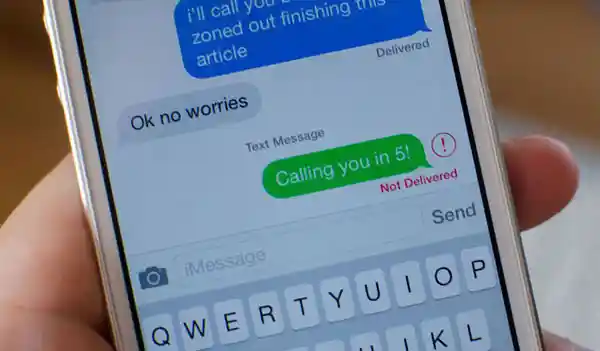
Why does iMessage say “Not Delivered”?
“Not Delivered” alerts appear when: the recipient’s device is offline or turned off, you’re offline without knowing it, the recipient blocked your number, Apple’s iMessage servers experience issues, or incorrect network settings prevent message routing. Tap the red exclamation point and try “Send as Text Message” as a workaround.
Does iMessage work without Wi-Fi or cellular data?
No, iMessage requires active internet connectivity through either Wi-Fi or cellular data. Without connectivity, messages cannot encrypt and transmit to Apple’s servers. However, your iPhone automatically attempts sending as SMS if you’ve enabled “Send as SMS” in Messages settings.
What’s the difference between iMessage and SMS?
iMessage is Apple’s proprietary encrypted messaging service that works over internet connections between Apple devices, shown as blue bubbles. SMS (Short Message Service) is the universal text standard working between any phones through cellular networks, shown as green bubbles. iMessage offers end-to-end encryption, read receipts, typing indicators, and multimedia sharing capabilities absent from standard SMS.
Can someone block me on iMessage?
Yes, users can block your phone number or Apple ID, preventing all iMessages, calls, and FaceTime attempts from reaching them. When blocked, your messages always appear as “Delivered” on your end, but the recipient never receives them. You won’t receive any notification that you’ve been blocked; messages simply never get responses.
How do I know if someone blocked me on iMessage?
iMessage provides no explicit “you’ve been blocked” notification. Indicators suggesting blocking include: messages always showing “Delivered” but never “Read,” calls immediately going to voicemail, FaceTime calls never connecting, and complete communication silence. However, these symptoms can also indicate the person deleted their number, switched to Android, or simply hasn’t responded.
Conclusion: Restoring Your iMessage Connectivity
iMessage disruptions stem from identifiable causes with documented solutions. Whether you’re dealing with iOS 26-specific bugs, connectivity problems, corrupted settings, or carrier restrictions, methodically working through these troubleshooting steps resolves the vast majority of iMessage failures.
Start with the simplest solutions like toggling iMessage off and on, restarting your device, and verifying connectivity. If those don’t work, progress to network resets, Apple ID re-authentication, and carrier-specific fixes. For iOS 26 users specifically, removing duplicate SIMs resolves the most common activation failures.
Most iMessage problems resolve within 15 minutes of targeted troubleshooting. If you’ve exhausted all solutions and iMessage still won’t activate after 24-48 hours, contact Apple Support directly for personalized assistance, as you may have an account-specific issue requiring Apple engineer intervention.
iMessage remains one of Apple’s most reliable services despite occasional disruptions. Understanding how it works and knowing these proven fixes ensures you can quickly restore functionality whenever problems occur.
This guide represents comprehensive troubleshooting based on Apple’s official documentation, iOS 26 bug reports, and verified user solutions. Always maintain current iOS updates and backups. Contact Apple Support for hardware-specific issues.