

How to Record Screen on Windows 10 & 11
Last Updated: May 2026
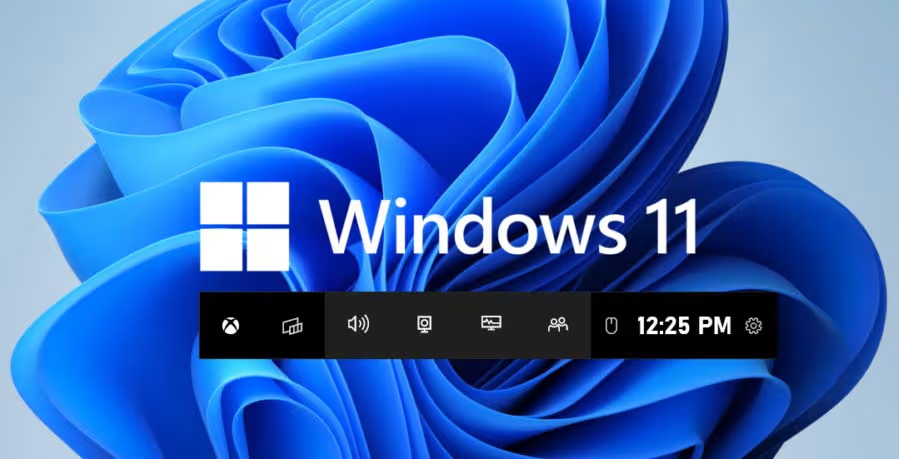
Windows has three built-in screen recording options: Xbox Game Bar (Windows 10 & 11), Snipping Tool (Windows 11 only), and Clipchamp (Windows 11). For Windows 10 users who need to record their desktop or File Explorer — which Game Bar can’t do — OBS Studio is the best free alternative.
That’s the short version. But the right answer depends on what you’re actually recording, which is where most guides fail you. They walk you through Game Bar’s six steps without mentioning it can’t record your desktop. Below, every method is covered honestly — including its real limitations — so you can pick the one that fits your situation without a detour.
Table of Contents
The Screen Recording Method Matrix
Before any steps, use this to find your method. It’s the table I wish existed when I was figuring this out.
| What You Need to Record | Best Built-in Method | Limitation to Know | Mic Audio | System Audio |
|---|---|---|---|---|
| A game or single app | Xbox Game Bar | Can’t record desktop or File Explorer | ✅ | ✅ |
| A specific region/portion of screen | Snipping Tool (Win 11 only) | No audio recording | ❌ | ❌ |
| Desktop, File Explorer, or system UI | OBS Studio (free, 3rd party) | Requires setup | ✅ | ✅ |
| Screen + webcam simultaneously | Clipchamp (Win 11) | Requires Microsoft account | ✅ | ✅ |
| A PowerPoint presentation only | PowerPoint Insert > Screen Recording | Can’t capture other windows mid-recording cleanly | ✅ | ✅ |
| Professional/long-form tutorials | OBS Studio | Learning curve | ✅ | ✅ |
Windows 10 users: Snipping Tool’s video recording feature is not available on Windows 10 — it was added in Windows 11. If you’re on Windows 10 and need to record a region or your desktop, jump to the OBS section below.
Method 1: Xbox Game Bar — The Fastest Option (Windows 10 & 11)
Xbox Game Bar is already installed on your PC. It’s the right choice when you need to record an app or game quickly with no setup.
The hard limits first, so you don’t waste time:
- Cannot record the Windows desktop
- Cannot record File Explorer
- Cannot record some full-screen exclusive apps
- Saves only to MP4 in your
Videos > Capturesfolder — no format choice
How to use it:
- Open the app or game you want to record. Make sure it’s the active window.
- Press Windows key + G to open Game Bar.
- In the Capture widget (the camera icon in the top left), check your audio settings — toggle system audio and microphone on or off as needed.
- Click the Start Recording button (solid circle), or use the shortcut Windows key + Alt + R to start immediately without opening the overlay.
- A small recording indicator will appear in the corner of your screen.
- Press Windows key + Alt + R again to stop, or click the stop button in the overlay.
Your video saves automatically to C:\Users\[YourName]\Videos\Captures as an MP4.
Keyboard shortcuts worth knowing:
Win + G— open Game Bar overlayWin + Alt + R— start/stop recording (no overlay needed)Win + Alt + M— toggle microphone on/off during recordingWin + Alt + Print Screen— take a screenshot instead
Troubleshooting: If Game Bar isn’t working, go to Settings > Gaming > Xbox Game Bar and make sure the toggle is on. Some Windows editions — particularly Education and certain Enterprise builds — have it disabled by default. If you get a black screen recording, update your graphics drivers.
Method 2: Snipping Tool — For Recording a Specific Region (Windows 11 Only)
Snipping Tool’s screen recording feature was added to Windows 11 in 2022. It’s the simplest way to capture a specific portion of your screen — something Game Bar genuinely can’t do.
The catch: Snipping Tool currently records video only, no audio. If you need narration or system sounds alongside a region recording, OBS Studio is your only built-in-ish option.
How to use it:
- Press Windows key + Shift + R to open Snipping Tool directly into recording mode. Or search for “Snipping Tool” in the Start menu and click the Record (camcorder) icon.
- Click New.
- Click and drag to select the area of the screen you want to record. To capture the full screen, drag across the entire display.
- Click Start in the floating toolbar. A 3-second countdown begins.
- When finished, click Stop in the toolbar at the top of the screen.
- A preview opens. Click Save (the floppy disk icon) or Save As to choose your location. Files save as MP4.
Confirming your Windows 11 version supports it: Go to Settings > System > About and check your Windows 11 version. The recording feature requires version 22621.1344 or higher. If your Snipping Tool doesn’t show a camcorder icon, open the Microsoft Store, search for “Snipping Tool,” and update it.
Method 3: OBS Studio — For Desktop Recording and Everything Game Bar Can’t Do (Free)
OBS Studio is free, open-source, and the honest answer to “how do I record my desktop, File Explorer, or a custom screen region on Windows 10.” It has a learning curve, but the initial setup takes about five minutes and you don’t need to touch it again.
When to use OBS over the built-in tools:
- You need to record the Windows desktop or File Explorer
- You’re on Windows 10 and need to capture a specific region
- You need audio control (separate mic + system audio levels)
- You’re recording long sessions (tutorials, walkthroughs, courses)
- You want formats other than MP4 (MKV, MOV, etc.)
Basic setup and first recording:
- Download OBS Studio from obsproject.com — it’s free with no watermark and no time limit.
- Open OBS. In the Sources box at the bottom, click the + icon.
- Choose your capture type:
- Display Capture — records your entire monitor (works on the desktop, File Explorer, everywhere)
- Window Capture — records one specific app window
- Game Capture — optimized mode for games specifically
- For most people: choose Display Capture, name it, pick your monitor, click OK.
- Go to Settings > Output to choose where recordings save and at what quality. The default “High Quality, Medium File Size” preset works for most purposes.
- In the Audio Mixer, you’ll see “Desktop Audio” (system sounds) and “Mic/Aux” (your microphone). Adjust levels before recording — a quick test recording confirms everything sounds right.
- Click Start Recording. When done, click Stop Recording. Files save to the folder you set in Output settings (default: your Videos folder).
OBS may look intimidating, but you only need three things to start: a Display Capture source, your audio levels set, and the Start Recording button. Everything else is optional.
Method 4: Clipchamp — For Screen + Webcam Together (Windows 11)
Clipchamp is Microsoft’s built-in video editor, included with Windows 11. Its screen recording feature is the only native option that records your screen and webcam simultaneously — useful for tutorials, product demos, or anything where you want your face on camera alongside the screen.
Requirements: A Microsoft account and a modern browser (it runs in Edge or Chrome). Clipchamp also runs as a standalone Windows app.
How to record:
- Open Clipchamp from the Start menu or go to clipchamp.com.
- Create a new video project.
- In the left toolbar, click Record & Create, then choose Screen, Camera, or Screen and Camera.
- Grant the necessary permissions when prompted.
- Click the red record button, then choose which screen, window, or browser tab to capture.
- When finished, click Stop sharing in the browser toolbar.
- The recording appears in your Clipchamp project for editing, then export to MP4.
Method 5: PowerPoint Screen Recording — Underrated for Presentations
If you’re already working in Microsoft Office, PowerPoint has a built-in screen recorder that most people don’t know about. It captures audio and lets you choose a recording region. The catch is that the output embeds in your slide, so you have to export it as a separate file.
How to use it:
- Open PowerPoint and go to the Insert tab.
- Click Screen Recording.
- A control bar appears at the top of your screen. Click and drag to select the recording area.
- Toggle audio (microphone) and cursor recording on or off using the icons in the bar.
- Click Record (or press Windows + Shift + R).
- Press Windows + Shift + Q to stop recording.
- The video appears in your PowerPoint slide. Right-click it and choose Save Media As to export as MP4.
This works well for recording a demo that will live inside a presentation anyway. For everything else, Game Bar or OBS is simpler.
Windows 10 vs. Windows 11: What’s Actually Different
| Feature | Windows 10 | Windows 11 |
|---|---|---|
| Xbox Game Bar | ✅ | ✅ |
| Snipping Tool video recording | ❌ Not available | ✅ |
| Clipchamp | ❌ Not pre-installed | ✅ |
| Record desktop/File Explorer (built-in) | ❌ Not possible natively | ❌ Snipping Tool only |
| OBS Studio (free, 3rd party) | ✅ Best option for desktop | ✅ |
The honest summary: Windows 11 closed most of the built-in recording gaps Windows 10 had. But neither version gives you a native way to record the desktop with audio — for that, OBS is still the answer regardless of your Windows version.
Where Your Recordings Are Saved
- Xbox Game Bar:
C:\Users\[YourName]\Videos\Captures - Snipping Tool: Prompts you to choose a location on save; defaults to
Videos - OBS Studio: Wherever you set in Settings > Output (default:
Videos) - Clipchamp: Exports to your Downloads folder after editing
- PowerPoint: Wherever you choose with “Save Media As”
Common Problems and Fixes
Game Bar shows a black screen: Usually a graphics driver issue. Update your GPU drivers through Device Manager or your GPU manufacturer’s software (NVIDIA, AMD, or Intel).
“You can’t record this right now” error in Game Bar: You’re trying to record the desktop, File Explorer, or a window type Game Bar doesn’t support. Switch to OBS for those.
Snipping Tool doesn’t have a Record button: You’re either on Windows 10 (not supported) or your Windows 11 build is older than 22621.1344. Update Windows and then update Snipping Tool via the Microsoft Store.
OBS recording has no audio: Go to Settings > Audio and make sure Desktop Audio is set to your actual audio device (not “Disabled”). On some systems, this defaults to off after a Windows update.
Recording is laggy or dropping frames: Close background applications, lower the recording resolution in OBS output settings, or switch from software encoding to hardware encoding (NVENC for NVIDIA, QuickSync for Intel) in OBS > Settings > Output > Encoder.
Frequently Asked Questions
How do I record my screen on Windows 10 for free?
Xbox Game Bar is already installed — press Win + G, then hit record. It’s free and requires no download. For recording the desktop or File Explorer (which Game Bar can’t do), OBS Studio is the best free option.
Can I record my screen on Windows without downloading anything?
Yes. Xbox Game Bar (both Windows 10 and 11) and Snipping Tool (Windows 11 only) are pre-installed. Game Bar can record most apps and games; Snipping Tool can capture any region of the screen, but without audio.
Does Windows 10 have a screen recorder built in?
Yes — Xbox Game Bar. Press Win + G to open it, then click the record button in the Capture widget. It works for apps and games but cannot record the desktop or File Explorer.
What’s the keyboard shortcut to screen record on Windows?
Windows + Alt + R starts and stops an Xbox Game Bar recording without opening the overlay. On Windows 11, Windows + Shift + R opens Snipping Tool’s recording mode.
How do I record a specific part of my screen on Windows 10?
Windows 10 has no native tool for region recording. OBS Studio with the “Display Capture” source is the best free solution — you can use a crop filter to isolate a specific area.
Where do Game Bar recordings save?
Automatically to C:\Users\[YourName]\Videos\Captures as MP4 files, named with the app and timestamp.
Can I record audio with Windows screen recording?
Xbox Game Bar records both system audio and microphone audio. Snipping Tool records no audio. OBS Studio records both at configurable levels. Clipchamp records microphone audio and, for browser tabs, system audio.
Is OBS Studio safe to download?
Yes. OBS Studio is open-source software maintained by the OBS Project, widely used by millions of content creators and streamers. Download only from the official site: obsproject.com.
Alex Rivera covers gadgets, gaming, streaming, and digital culture for Axis Intelligence. He tests the products and tools he writes about.
Consumer tech & culture writer. 200+ gadget reviews. Covers phones, laptops, gaming, streaming, puzzles, and digital culture. Writes for real people buying real products.